---
schema_version: "1"
id: ff186487071e8c4246fc8887e9983e1df35eea57c23d9f4a8e206e375d8967e6
title: Event Log File Browser
collection: admin
version: current
locale: en-us
portal_url: https://docs.salesforce.com/admin/current/en-us/xcloud/264-0-0/real_time_em_elf_browser.md
canonical_url: https://help.salesforce.com/s/articleView?id=xcloud.real_time_em_elf_browser.htm&release=264.0.0&type=5
source_site: help.salesforce.com
content_type: documentation
content_hash: bd90ef9f9f44bc275738b4a7d26f3f119fc1353bf6baebf99526b07ffef0c079
description: Event Log File (ELF) Browser in Setup gives you quick access to event log files so you can explore and download all of your event log file data.
products:
- Salesforce Platform
- Cross Cloud
release: "264"
---
# Event Log File Browser
Event Log File (ELF) Browser in Setup gives you quick access to event log files so you can explore and download all of your event log file data.
Available in: Lightning Experience
Available in: Enterprise, Performance, and Unlimited Edition
User Permissions Needed
To view event log files:
View Event Log Files
To view Setup:
View Setup
**Discover Event Log Files**
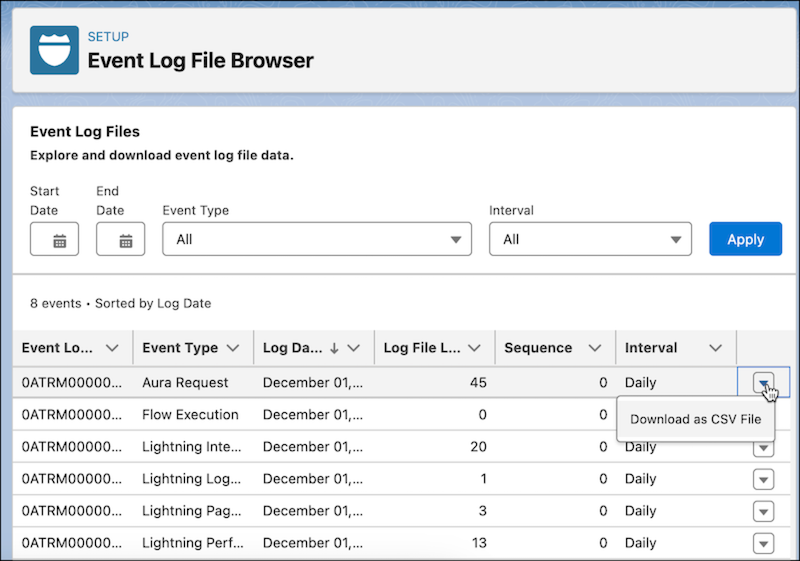
With ELF browser, you can sort and explore Event Log Files by type, log date, log file length, and more. Easily filter by date and event type to find the data you need. You can access ELF Browser directly from Setup.
**Download Event Log Files directly from ELF Browser**
Download Event Log File data by selecting a date range, clicking the dropdown button to the right of the event log file, and selecting **Download as CSV File**.
Alternatively, use the File Download servlet by adding `/servlet/servlet.FileDownload?file=` after your org URL. For example, `https://mycompany.my.salesforce.com/servlet/servlet.FileDownload?file=0ATRM000000dcbH0A0`. The file download begins automatically.
For more information on Event Log Files, see [Using Event Monitoring](https://developer.salesforce.com/docs/atlas.en-us.api_rest.meta/api_rest/using_resources_event_log_files.htm).