---
schema_version: "1"
id: 914481db5bc81f557e31ac5b512a17580c9f96f2554a60783d24070207ec995a
title: Add a Salesforce Template Related List
collection: admin
version: current
locale: en-us
portal_url: https://docs.salesforce.com/admin/current/en-us/xcloud/264-0-0/quip_template_related_list.md
canonical_url: https://help.salesforce.com/s/articleView?id=xcloud.quip_template_related_list.htm&release=264.0.0&type=5
source_site: help.salesforce.com
content_type: documentation
content_hash: 5632573edc6c1f48f76d04611a79742b43caf64db32535e1b2776d8bb693cd94
description: As you set up your templates, use Template Related Lists. When a user creates a document from your embedded template, the Salesforce template related lists automatically populate with the record’s data and continue to stay up to date. Configure the Salesforce List live app in Quip to auto-populate with a list of Opportunities related to an Account.
products:
- Quip
- Cross Cloud
release: "264"
---
# Add a Salesforce Template Related List
As you set up your templates, use Template Related Lists. When a user creates a document from your embedded template, the Salesforce template related lists automatically populate with the record’s data and continue to stay up to date. Configure the Salesforce List live app in Quip to auto-populate with a list of Opportunities related to an Account.
### Required Editions
Available in: Lightning Experience
User Permissions Needed
To configure the Salesforce List live app:
Customize Application

Important Salesforce Template Related Lists are available only in templates. To use template related lists, [mark the document as a template](https://help.salesforce.com/s/articleView?id=xcloud.quip_mark_as_template.htm&release=264.0.0&type=5 "To differentiate documents that your team uses as templates, mark your documents as templates in Quip. See what documents are embedded in Salesforce based on the object, convert your embedded documents to templates, and access them from the Template Library in Quip.") and make sure that the template is unlocked.
1. In a document, enter @Salesforce List.
2. Select **Template Related List**.
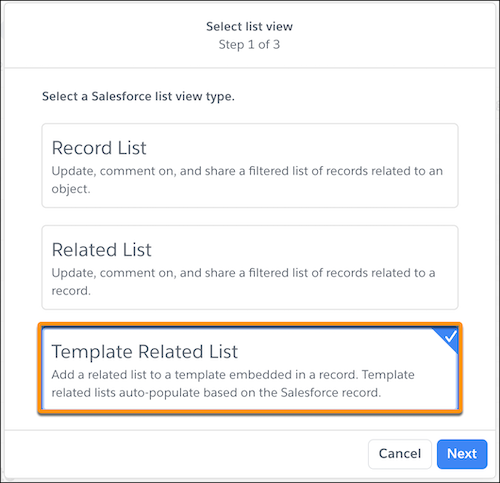
3. Select the object of the record your template is embedded in and then its related list type. For example, to set up an Opportunities list view for an Account object, select **Account** as the Object and **Opportunities** as the related list type. Click **OK**.
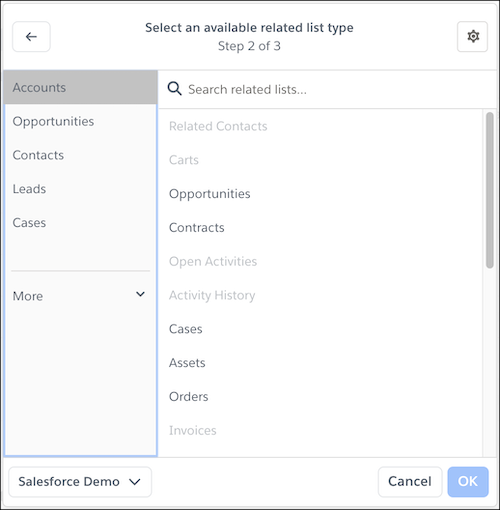
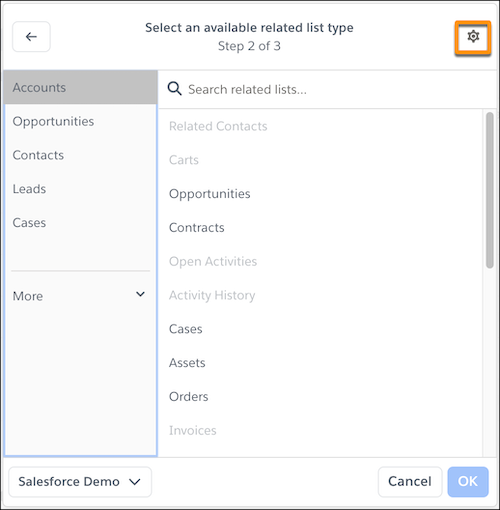
4. If you don’t see the related list, select **Manual Mode** and enter the information manually.
1. To dynamically update the Salesforce List live app based on a record type, enter the Record ID with [mail merge syntax](https://help.salesforce.com/s/articleView?id=xcloud.quip_mail_merge.htm&release=264.0.0&type=5 "Templates save time copying and pasting, standardize your business practices, and help you get the most out of your Salesforce data. To auto-fill your embedded templates with data from a Salesforce record, you can use Salesforce Template Data Mentions or mail merge syntax.").

Tip Mail merge syntax is case-sensitive. To auto-populate the Opportunity’s Account Id using mail merge syntax, enter \[\[Opportunity.Account.Id\]\] and not \[\[Opportunity.Account.ID\]\].
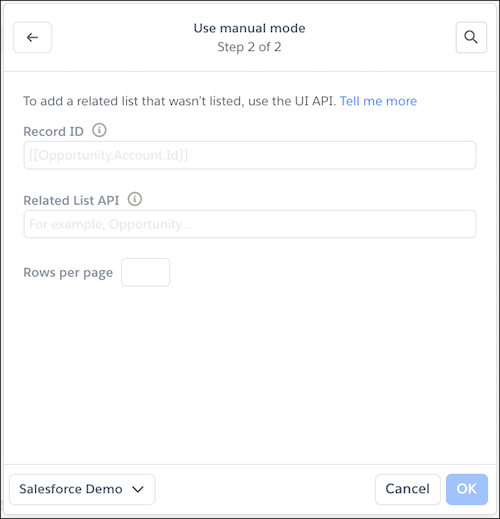
2. To set up the Salesforce List live app for a list related to the previously selected object, enter the related list’s API name. To make sure that the related list type is supported in your org, check its [supported objects](https://help.salesforce.com/s/articleView?id=xcloud.quip_list_view_objects.htm&release=264.0.0&type=5 "To add live list views to your documents, check which objects, values, and fields are supported for your Salesforce org.").
3. Enter the number of rows to show in your related list view.
4. To return to List Mode, click **.**
5. Select which column to show and populate with Salesforce record data.
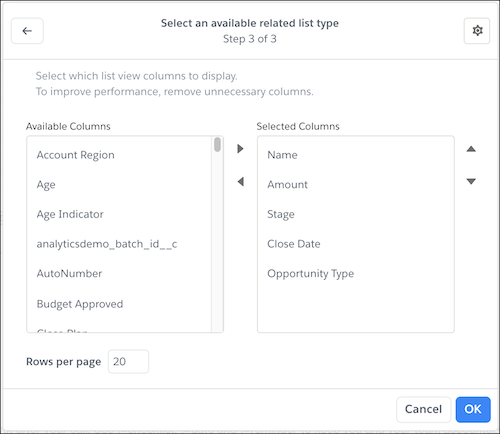

Tip You can select which columns to show only for related lists added via List Mode and not Manual Mode.
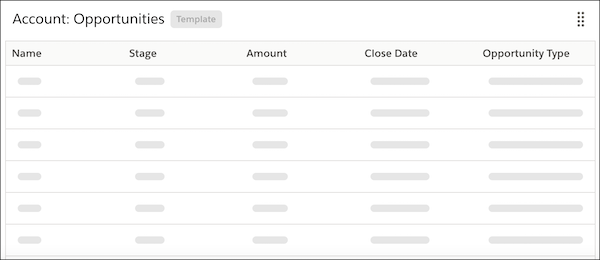
6. Click **OK**. After the template related list is set up, the columns appear but their values are blank.
7. After you finish configuring your template, add it to the Quip Document component.