---
schema_version: "1"
id: bf81fef0ce09b7140fc53839bf643a882e62670661ff1e2ccaf07d9bc036cffd
title: Report on Quip Usage with Salesforce Reports
collection: admin
version: current
locale: en-us
portal_url: https://docs.salesforce.com/admin/current/en-us/xcloud/264-0-0/quip_template_metrics_setup.md
canonical_url: https://help.salesforce.com/s/articleView?id=xcloud.quip_template_metrics_setup.htm&release=264.0.0&type=5
source_site: help.salesforce.com
content_type: documentation
content_hash: 38b8e7ba7a2691f148a3935f30da33dec767f7ca4ffd8f9979663be39a60dc82
description: Get metrics on how your users engage with templates and documents embedded in Salesforce. Create custom Quip reports and add them to your Lightning dashboards.
products:
- Quip
- Cross Cloud
release: "264"
---
# Report on Quip Usage with Salesforce Reports
Get metrics on how your users engage with templates and documents embedded in Salesforce. Create custom Quip reports and add them to your Lightning dashboards.
### Required Editions
Available in: Lightning Experience
User Permissions Needed
To create and update custom report types:
Legacy Folder Sharing
Create and Customize Reports
AND
Manage Custom Report Types
Enhanced Folder Sharing
Create and Customize Reports
AND
Manage Custom Report Types
To build a dashboard:
Legacy Folder Sharing
Drag-and-Drop Dashboard Builder
Enhanced Folder Sharing
Drag-and-Drop Dashboard Builder
Quip engagement metrics apply to templates and documents added to Quip Lightning components. Quip engagement metrics are turned on by default in all orgs with Quip enabled, except for Salesforce sandboxes. It takes 24 hours for metrics data to refresh.
1. Enable the Quip Metrics permission set.
1. In Setup, enter Permission Sets in the Quick Find box.
2. Select the permission set you want to assign Quip engagement metrics to, or assign it to a new one. Users assigned the Quip Metrics permission set can see all linked document titles, regardless of their individual access to them.
3. Under System, click **System Permissions** and then **Edit**.
4. Enable Quip Metrics.
5. Save the action.
2. To add metrics for templates and documents to a Lightning report, create a custom report type.
1. In Setup, enter Report Types in the Quick Find box.
2. Click **New Custom Report Type**.
3. Select a Quip Primary Object for your custom report type.
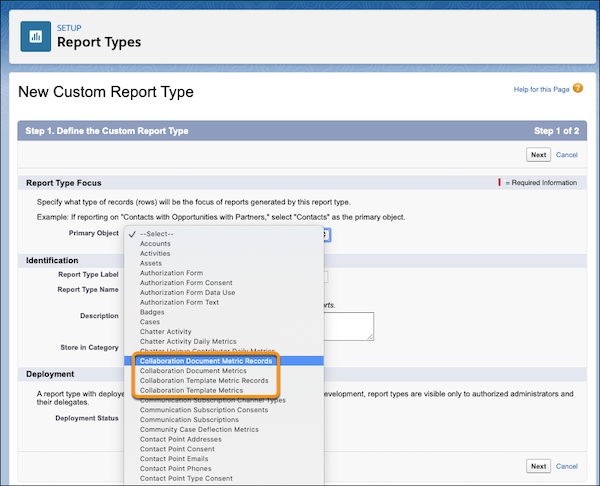

Tip Quip objects begin with Collaboration. [See Quip Engagement Objects.](https://help.salesforce.com/s/articleView?id=xcloud.quip_template_metrics.htm&release=264.0.0&type=5 "Use Quip engagement metrics in Lightning reports to measure which users are interacting with documents associated with Salesforce records, and how those users are interacting with them.")
4. Enter the Report Type Label and the Report Type Name.
The label can be up to 50 characters long. If you enter a name that is longer than 50 characters, the name gets truncated. SOAP API uses the name.
5. Enter a description for your custom report type of up to 255 characters. If you enter a name that is longer than 255 characters, the name gets truncated.
6. Select the category where you want to store the custom report type.
7. Select a Deployment Status. Click **Next** and then save your changes. Quip metric objects don’t have any child objects.
8. To use Collaboration Document Metrics Records or Collaboration Template Metrics Records to get metrics on specific document fields like document titles, add fields via lookup.
9. Click **Edit Layout**.
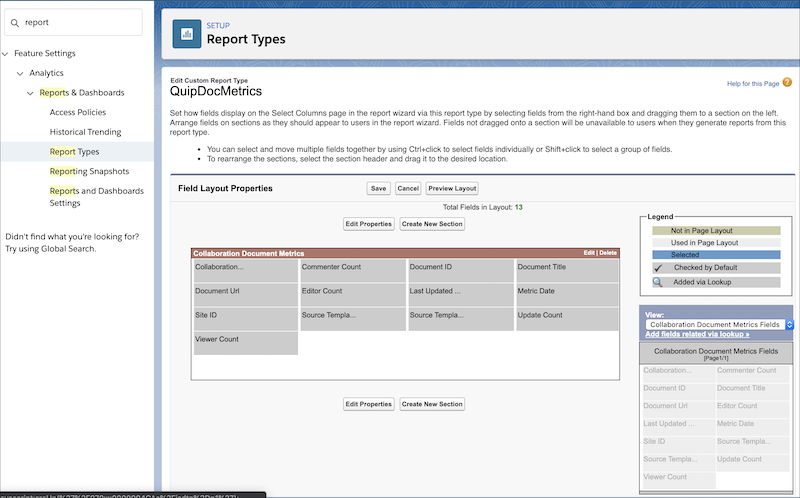
10. Under View: Collaboration Document Metric Record Fields, click **Add fields related via lookup**.
11. Select **Collaboration Document Metric**, and choose the fields you want to add. Click **OK**.
12. Save the action.
3. Create a report using your new custom report type.
1. In Salesforce, go the Reports tab and click **New Report**.
2. Select your new custom report type and click **Continue**.
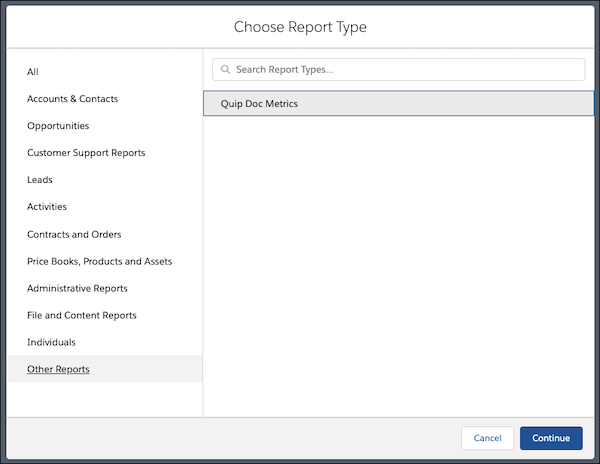
3. Set the Last Updated Date to **All Time** and click **Run**.
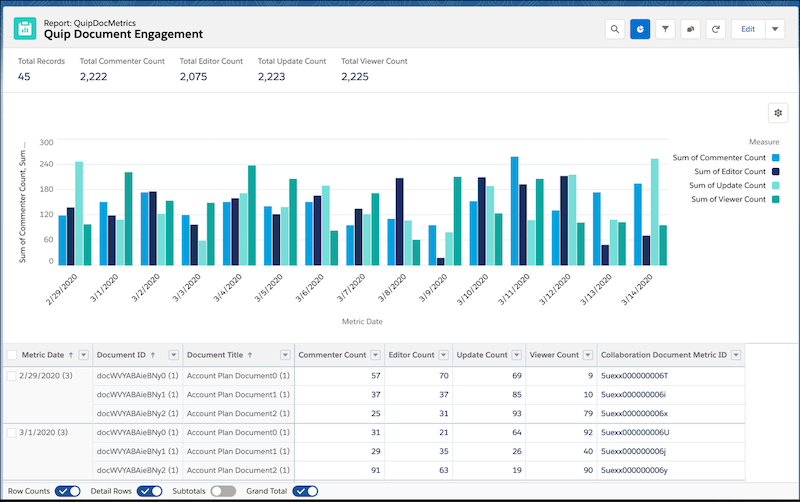
4. Add your report to an existing or new Lightning dashboard.