---
schema_version: "1"
id: 9f5f1b267143c58187082e4ecf31bb88be485f28e36c3a38ee5d55cf1a1fd8b2
title: Manage Templates in Salesforce
collection: admin
version: current
locale: en-us
portal_url: https://docs.salesforce.com/admin/current/en-us/xcloud/264-0-0/quip_template_manager.md
canonical_url: https://help.salesforce.com/s/articleView?id=xcloud.quip_template_manager.htm&release=264.0.0&type=5
source_site: help.salesforce.com
content_type: documentation
content_hash: c59703b638da42cf352530472abbe29d11277757ed283409d0308b0e1f8974d8
description: Surface documents embedded in Salesforce records from the Template Manager. Open a preview of the document in Quip and mark it as a template.
products:
- Quip
- Cross Cloud
release: "264"
---
# Manage Templates in Salesforce
Surface documents embedded in Salesforce records from the Template Manager. Open a preview of the document in Quip and mark it as a template.
### Required Editions
Available in: Lightning Experience
User Permissions Needed
To manage templates in Salesforce:
Customize Application
See the documents and templates embedded in Salesforce objects that you have access to. You can mark as templates only the documents that you have full access to.
1. From Setup, in the Quick Find box, enter Quip, and then select **Quip**.
2. From the Template Manager, select a Salesforce object, and click **See Object Templates**.
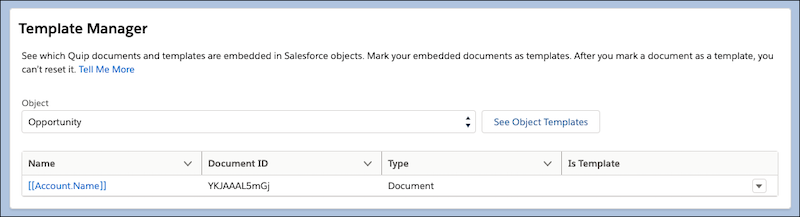
3. To preview an object’s embedded documents, click the document title. The document opens in Quip.
4. To mark an embedded document as a template, click **** and select **Mark as Template**. The Template Manager redirects you to Quip where you can [mark the document as a template](https://help.salesforce.com/s/articleView?id=xcloud.quip_mark_as_template.htm&release=264.0.0&type=5 "To differentiate documents that your team uses as templates, mark your documents as templates in Quip. See what documents are embedded in Salesforce based on the object, convert your embedded documents to templates, and access them from the Template Library in Quip."). After you convert a document to a template, you can’t reset it.

Note You can mark as templates only the embedded documents with a blank Is Template status.
5. To refresh the Template Manager and update the Is Template status after you mark a document as a template, click **See Object Templates**.