---
schema_version: "1"
id: 573abe180611a2cee5360156bddfea62bb9c115fd288ba98f4f09382342d6cfd
title: Standardize Team Collaboration with Synced Sharing
collection: admin
version: current
locale: en-us
portal_url: https://docs.salesforce.com/admin/current/en-us/xcloud/264-0-0/quip_synced_sharing_example.md
canonical_url: https://help.salesforce.com/s/articleView?id=xcloud.quip_synced_sharing_example.htm&release=264.0.0&type=5
source_site: help.salesforce.com
content_type: documentation
content_hash: 039ac06701c9daa5967d1b52d6f71263ed121eb665255bdeb43d2655632281bd
description: Use Synced Sharing to set access to documents linked to Salesforce records at the org level. Set Synced Sharing to Comment Access so that your users can comment on a Mutual Close Plan linked to an Opportunity and close deals as a team.
products:
- Quip
- Cross Cloud
release: "264"
---
# Standardize Team Collaboration with Synced Sharing
Use Synced Sharing to set access to documents linked to Salesforce records at the org level. Set Synced Sharing to Comment Access so that your users can comment on a Mutual Close Plan linked to an Opportunity and close deals as a team.
### Required Editions
Available in: Lightning Experience
User Permissions Needed
To manage document access:
Customize Application
Grant users with access to a Salesforce record Comment Access to documents linked to it. Easily set access to documents at the org level to streamline team collaboration. After a user creates a Mutual Close Plan from a template, teammates with access to the Opportunity jump into the document to comment and help. In this workflow, it is assumed that:
- The [Quip Document component](https://help.salesforce.com/s/articleView?id=xcloud.admin_files_quip_embed_doc_component.htm&release=264.0.0&type=5 "You can use the Lightning App Builder to add the Quip Document component to a Salesforce Lightning page.") is set up on an Opportunity page.
- A [Mutual Close Plan](https://quip.com/Rm1bAaCxx71a/OpportunityName-Close-Plan) is added to the Quip Document component.
- The [Quip Associated Documents component](https://help.salesforce.com/s/articleView?id=xcloud.admin_files_quip_add_lightning_component.htm&release=264.0.0&type=5 "Add the Quip Associated Documents component to your page layouts so that documents are easy to access. You can add the component to accounts, opportunities, leads, most other standard objects, and your custom objects.") is set up on the Opportunity page.
- The Quip site admin that enables Synced Sharing for a Salesforce org must also be the Salesforce admin for that particular Salesforce org.
1. Go to [https://admin.quip.com](https://admin.quip.com).
2. Log in using your Quip admin email and password.
3. From Settings, select **Salesforce**.
4. In the Connected Salesforce Organizations section, click  next to the org that you want to manage access to.
5. Click **Edit Access Level** from the dropdown and select **Comment Access**.
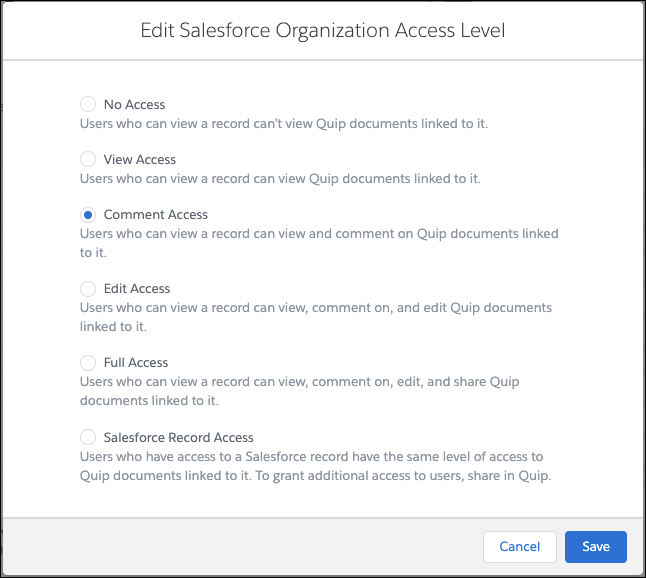
6. Click **Save**.
After a user creates a Mutual Close Plan from the template, the document is linked to the Opportunity from the Quip Associated Documents component. With Synced Sharing Comment Access enabled, other users with access to the Opportunity can easily find, open, and comment on the document. Data stays secure in Salesforce without hindering team collaboration.