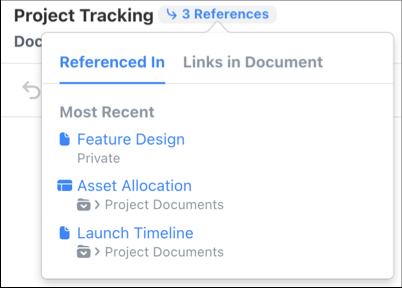
See the links to and from a given document in one place. View all the documents that
reference the document that you’re working in, or see all the documents that are mentioned
within the current document. Don’t worry about document security: You see only the documents
that you have access to.
Required Editions
| Available in: Quip desktop app and Quip on web |
To see links to and from your current document, next to the document’s title, click
References.
- The Referenced In tab shows the documents that include a link to the current
document.
- The Links in Document tab shows the links to other documents that appear in the current
document.
Click a document to open it, or hover over a document to preview it.
References to the Current Document
The Referenced In tab includes these documents.
- Documents and spreadsheets that @ mention the current document
- Documents with Live Pasted content that includes a link to the current document
- Documents that include Live Pasted content from the current document
- Documents and spreadsheets that include anchor links to the current document
- Documents that include a hyperlink to the current document
- Document links in Live Apps
Links in the Current Document
The Links in Document tab includes these documents.
- Documents that you @ mention in the current document
- Anchor links that you include in the current document
- Hyperlinks in the current document that have a Quip URL