
Use the Quip Health Check to run automated tests on your Quip site and Salesforce org connection. When Health Check identifies a problem, get on-the-spot results and solution recommendations.
Required Editions
| Available in: Lightning Experience |
Only a Quip and Salesforce admin can run Health Check.
You can run two types of validations with the Quip Health Check: site level and user level.
- A site-level validation checks your Quip site and Salesforce org connection, and it checks for incorrect configurations, such as incomplete setup in Salesforce or expired access tokens.
- A user-level validation checks the health of a Quip user’s connection to Salesforce and whether the org is on the Salesforce org allowlist.
For both types of validations, results are sorted into two categories: those that can be resolved in Salesforce Setup and those that can be resolved in the Quip Admin Console.
- Go to https://admin.quip.com.
- Log in using your Quip admin email and password.
-
Run a site-level Health Check to test your Quip site connection to Salesforce.
- From Settings, select Salesforce.
- Under Connected Salesforce Orgs, click Test Connection Health.
-
Select a Salesforce org to check on the health of its connection to Quip. Click
Run Health Check.
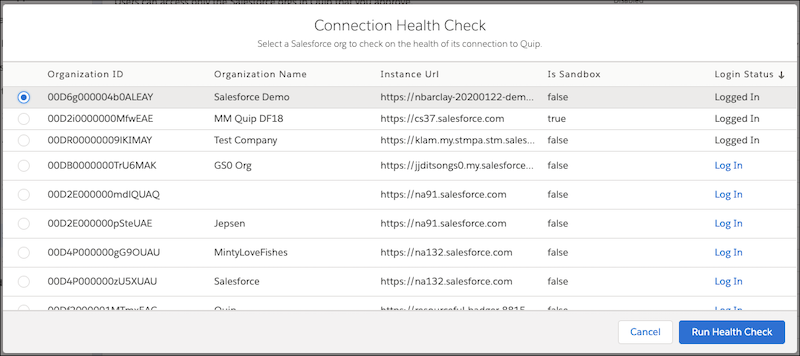
You can select only the Salesforce orgs that you have access to. Select orgs marked as Logged In, or click Log In.
-
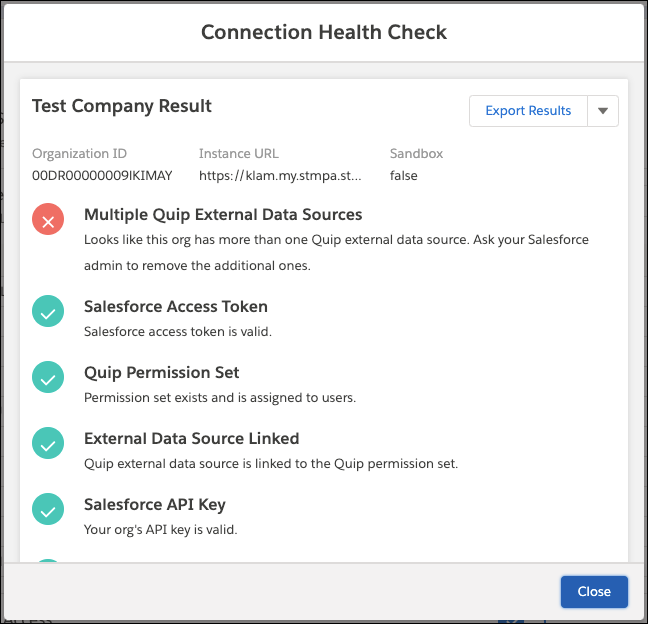
View your results. Address errors in the Quip Admin Console or Salesforce Setup depending
on the label. To save your results, click Export Results.
-
Run a user-level Health Check to test a Quip user’s connection to Salesforce.
- From Settings, select Site Members.
-
Find the user you want to check the connection health of. Click
 by
their name, and select Test Connection Health.
by
their name, and select Test Connection Health.
-
View your results and address any errors. Troubleshoot Results
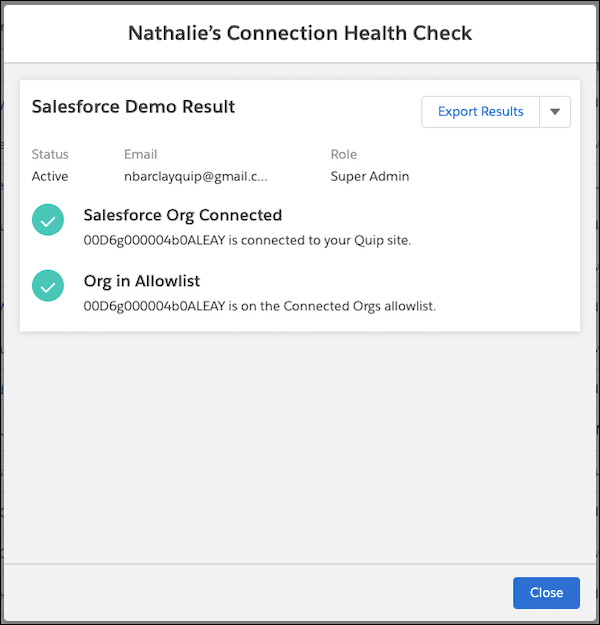
- To save the results, click Export Results.
- Quip Health Check Tests and Fixes
See what tests the Quip Health Check runs and the recommended fixes.