
Add record-specific related lists to a document with the updated Salesforce List live app. Stay on top of deals and cases with in-line editing, comments, and bi-directional syncing to Salesforce.
Required Editions
| Available in: Lightning Experience |
When you import a list view into Quip, you see only the data that you have access to. You can see records that you own, have read or write access to, or are shared with you. List views also include records owned by or shared with users in roles below you in the hierarchy. The fields you see depend on your page layout and field-level security settings.
-
In a document, enter @Salesforce List.
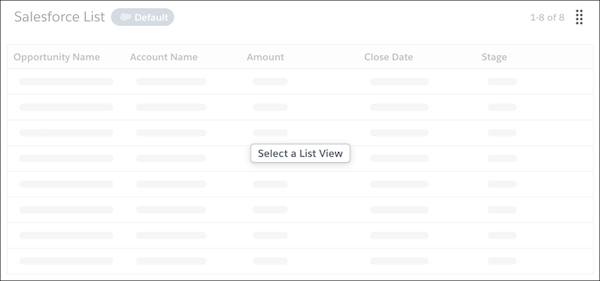
- Click Select a List View.
- To import a Salesforce list view of records related to a specific object, select Related List.
-
Search for the related list you want to import by object type.
To find a list view of cases related to a specific account, search for the Account name and then select the related list view type Cases.
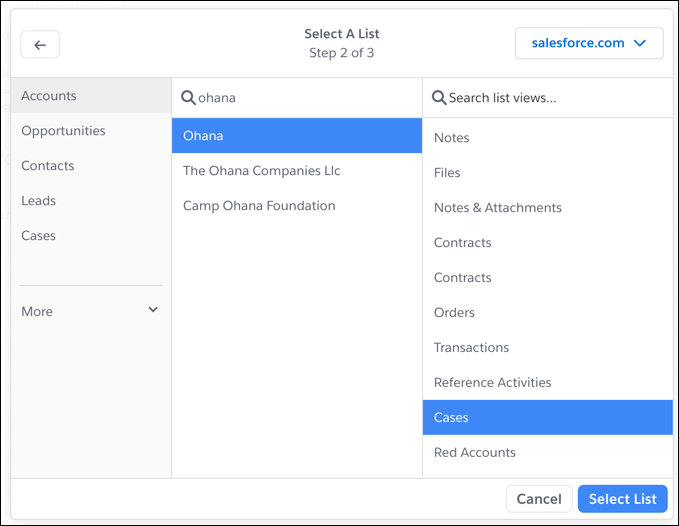
-
Click OK.
 Tip You can add list views from different Salesforce orgs to the same document. To import a related list from a different org, click the org name in the left-hand corner and select the org you want to pull data from.
 -
Select the columns you want to appear in your list view by using the arrows to move them
from Available Columns to Selected Columns.
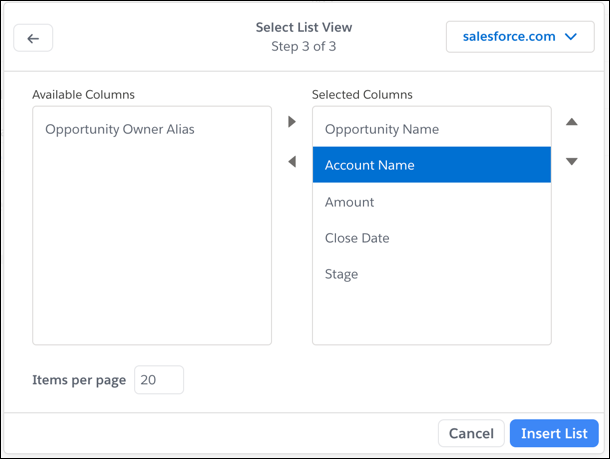 Tip For easier viewing of longer list views, limit the number of rows per page. In Rows per page, enter the number of rows you want to show per list view page. You can change the configuration later by selecting Configure List View from the Salesforce List dropdown.
 - Click Insert List.
-
To update a list view field, click
 and enter your new text. Edited fields appear in yellow.
- To save your changes to Salesforce, click Save to Salesforce. To revert your related list to its original state, click Discard All Changes.
- To add comments and next steps, click the comment bubble and place the yellow dot where you want to leave your comments.