
To manage access to Salesforce data in Quip, add Salesforce orgs to an allowlist or disallow orgs that you don’t want your users to access.
Required Editions
| Available in: Lightning Experience |
Only a Quip site and Salesforce admin can access the Quip Admin Console and add new Salesforce orgs to the allowlist. After you turn on the allowlist, users can connect only to orgs on that list.
- Go to https://admin.quip.com.
- Log in using your Quip admin email and password.
- From Settings, select Salesforce.
-
To use allowlists to control which Salesforce orgs can connect to your Quip site, select
Control Access to Your Salesforce Orgs.
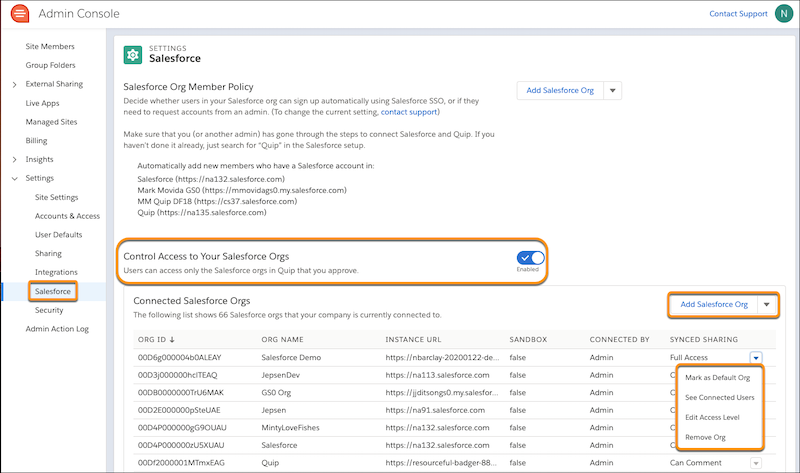
- To add a Salesforce org to the allowlist, click Add Salesforce Org. To add a Salesforce sandbox, click the Add Salesforce Org dropdown and select Add Salesforce Sandbox.
- Log in using your Salesforce credentials and click Add Salesforce Org.
-
To disallow a connected org, click
 next
to the org that you want to manage access to. You can readd a disallowed org to your allowlist
later.
next
to the org that you want to manage access to. You can readd a disallowed org to your allowlist
later.
- To see which users are connected to an org in a CSV before disallowing it, select See Connected Users. For orgs with more than 3,000 users, check the email associated with your account to see the user CSV.
- Select Remove Org. After you remove an org from the allowlist, users can no longer access or see that Salesforce data in Quip. Tell Me More
- To make an org the default when a user connects a Salesforce org to Quip, select Mark as Default Org from the org’s dropdown.
After the allowlist is turned on, only a Quip site and Salesforce admin can connect new orgs. Salesforce data embedded in live apps and live reports, and Salesforce integrations like Log a Call and recording linking, aren’t available for disallowed orgs.