---
schema_version: "1"
id: 81d2106ff116b0e2ac8f86eafaee515c849b9e49bb9743fdc93834495445c8e4
title: Log a Call, Schedule a Task, and Add an Event from Quip
collection: admin
version: current
locale: en-us
portal_url: https://docs.salesforce.com/admin/current/en-us/xcloud/264-0-0/quip_log_activity.md
canonical_url: https://help.salesforce.com/s/articleView?id=xcloud.quip_log_activity.htm&release=264.0.0&type=5
source_site: help.salesforce.com
content_type: documentation
content_hash: 4fb7f42997a6efd40e2b9292dd92966708de737d17cfe488e34d52e66cff5b42
description: Use the Log a Call, New Task, and New Event Salesforce activities on standard and custom objects without leaving your document.
products:
  - Quip
  - Cross Cloud
release: "264"
---
# Log a Call, Schedule a Task, and Add an Event from Quip

Use the Log a Call, New Task, and New Event Salesforce activities on standard and custom objects without leaving your document.

### Required Editions

<table class="slds-table slds-table_bordered slds-max-medium-table_stacked slds-m-bottom_small edition"><colgroup><col></colgroup><tbody><tr class=""><td class="slds-cell-wrap" style="vertical-align:top;">Available in: Lightning Experience</td></tr></tbody></table>

<table class="slds-table slds-table_bordered slds-max-medium-table_stacked slds-m-bottom_small permission">
        <colgroup>
          <col style="width:50%">
          <col style="width:50%">
        </colgroup>
        <thead class="slds-text-title_caps ">
          <tr class="">
            <th scope="colgroup" class="slds-cell-wrap" colspan="2" style="text-align:center;vertical-align:top;" id="d44336e52">User Permissions Needed</th>
          </tr>
        </thead>
        <tbody>
          <tr class="">
            <td data-label="User Permissions Needed" class="slds-cell-wrap" style="vertical-align:top;" headers="d44336e52 ">To log an activity in Salesforce</td>

            <td class="slds-cell-wrap" style="vertical-align:top;" headers="d44336e52 ">Access Activities</td>

          </tr>
        </tbody>
      </table>

![Tip](https://sf-zdocs-cdn-prod.zoominsoftware.com/tdta-xcloud-anywhere_app-264-0-0-production-enus/c0406050-7b26-469a-9dc5-10d6c0c9c576/images/icon_tip.png)

Tip To use text from your document in the Log a Call comments section without copying and pasting, highlight the text before you click **Log an Activity**. The highlighted text automatically appears in the Comments field.

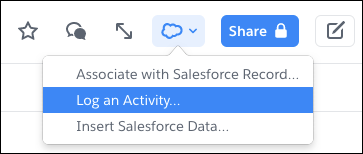
1. In a document, click the **Salesforce Actions cloud**.
    
    ![Blue Salesforce Actions cloud with Log an Activity highlighted](https://sf-zdocs-cdn-prod.zoominsoftware.com/tdta-xcloud-anywhere_app-264-0-0-production-enus/c0406050-7b26-469a-9dc5-10d6c0c9c576/anywhere_app/images/quip_salesforce_actions_cloud.png)
2. Select **Log an Activity**.
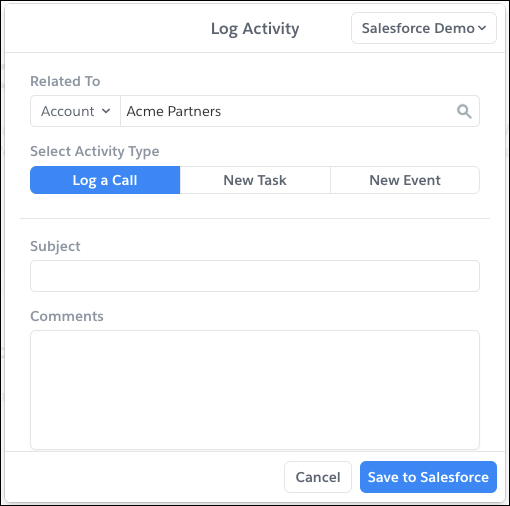
3. Select an object type. Object types are listed by the Object API name.
    
    ![Log Activity modal for an Account record](https://sf-zdocs-cdn-prod.zoominsoftware.com/tdta-xcloud-anywhere_app-264-0-0-production-enus/c0406050-7b26-469a-9dc5-10d6c0c9c576/anywhere_app/images/quip_log_activity_modal.png)
4. To log activity related to a record, enter a record name.
5. Select the activity type you want to track in Salesforce. Log a Call, New Task, and New Event are available only if they’re enabled for the object type.
6. Complete the remaining activity fields.
7. Save the action.

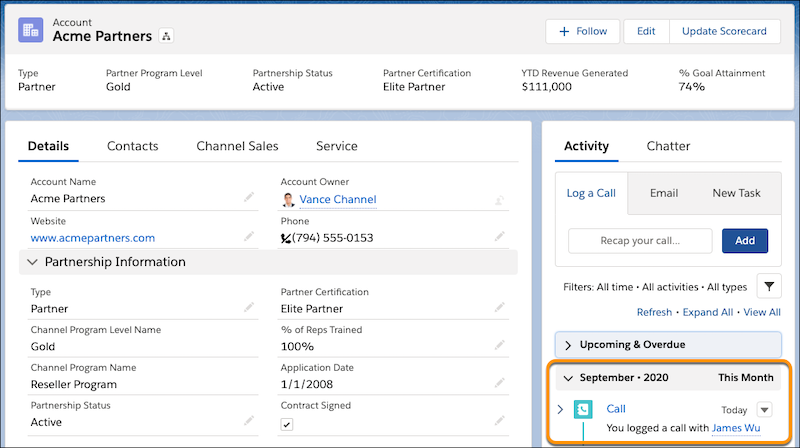
Your activity now appears in the related record’s Activity Timeline.
![Activity Timeline on an Account record with the call log highlighted.](https://sf-zdocs-cdn-prod.zoominsoftware.com/tdta-xcloud-anywhere_app-264-0-0-production-enus/c0406050-7b26-469a-9dc5-10d6c0c9c576/anywhere_app/images/quip_log_a_call_activity_timeline.png)