
Access the Quip Template Library in Salesforce to quickly create a new Quip document that’s automatically linked to a Salesforce record. If the template contains mail merge syntax, it’s populated with Salesforce data automatically.
Required Editions
| Available in: Lightning Experience |
Ensure that you or your admin created the template that you want to use. You can only create templates in Quip.
Ensure that you completed the connection from Quip to Salesforce in the Salesforce tab of the Quip Account Settings window.
-
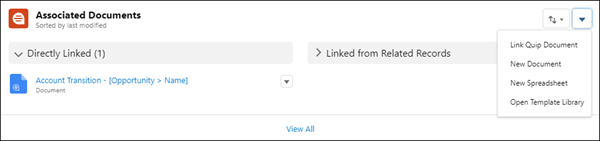
In the Quip Associated Documents component, click Open Template
Library from the dropdown.
-
In the Template Library, select the template to use, and click Use
Template.
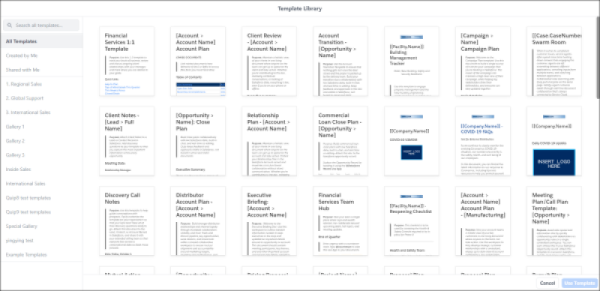 You can search by name across all galleries, or you can narrow your search to a specific gallery.The New Document from Template window appears.
 -
Select the Quip folder where you want to save the document.
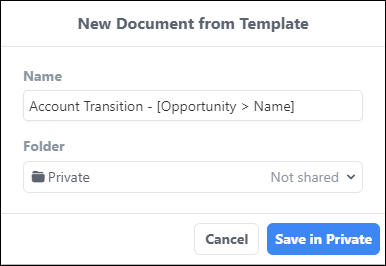 To preserve any mail merge syntax, the document name isn’t editable.
 -
Click Save in.
Your new document appears in the Quip canvas.
If the template contains mail merge syntax, your new document is populated with Salesforce data right away. Link sharing also takes effect immediately.
In the background, Salesforce works on linking the document to the record and setting up any synced sharing that you configured. When the link to the record is complete, the document is listed in the Associated Documents component.
- Edit the document as needed, and then close the Quip canvas.