---
schema_version: "1"
id: bb1f8bd834f05a3bf099ef575e1bb76a10e20298e989174c65d59f2ecd161ba4
title: Report on Quip Engagement with CRM Analytics
collection: admin
version: current
locale: en-us
portal_url: https://docs.salesforce.com/admin/current/en-us/xcloud/264-0-0/quip_enable_metrics_analytics.md
canonical_url: https://help.salesforce.com/s/articleView?id=xcloud.quip_enable_metrics_analytics.htm&release=264.0.0&type=5
source_site: help.salesforce.com
content_type: documentation
content_hash: 702f3a0dcab53394f9a0f1b7092e5cb6913abaae35a186892f3ef641325e48a7
description: Get metrics on how your users engage with templates and documents embedded in Salesforce and connect them to other data sources in CRM Analytics.
products:
- Quip
- Cross Cloud
release: "264"
---
# Report on Quip Engagement with CRM Analytics
Get metrics on how your users engage with templates and documents embedded in Salesforce and connect them to other data sources in CRM Analytics.
### Required Editions
Available in: Lightning Experience
User Permissions Needed
To use Quip Metrics in CRM Analytics:
CRM Analytics Growth or CRM Analytics Plus license
Quip engagement metrics apply to templates and documents added to Quip Lightning components. Quip engagement metrics are turned on by default in all orgs with Quip enabled, except for Salesforce sandboxes. It takes 24 hours for metrics data to refresh.
1. Create the Quip Metrics permission set.
1. In Setup, from the Quick Find box, enter Permission Sets.
2. Click **New**. Enter a permission set name and set the license to **Analytics Cloud Integration User**.
3. Save the action.
4. Under System, click **System Permissions** and then **Edit**.
5. Enable Quip Metrics and Quip User Engagement Metrics.
Users assigned the Quip Metrics permission set can see all linked document titles, regardless of their individual access to them. Users assigned the Quip User Engagement Metrics permission set can see all linked document titles, regardless of their individual access to them. They can also see which users are interacting with documents associated with Salesforce records.
6. Save the action.
2. Assign the Quip metrics permission set to the Analytics Integration User.
1. From your new permission set, click **Manage Assignments**, then **Add Assignments**.
2. Select **Integration User** and click **Assign**.
3. Create a dataflow in CRM Analytics and add Quip metrics.
1. From the App Launcher, find and select **Analytics Studio**
2. Click **Create**, and then **Dataset**.
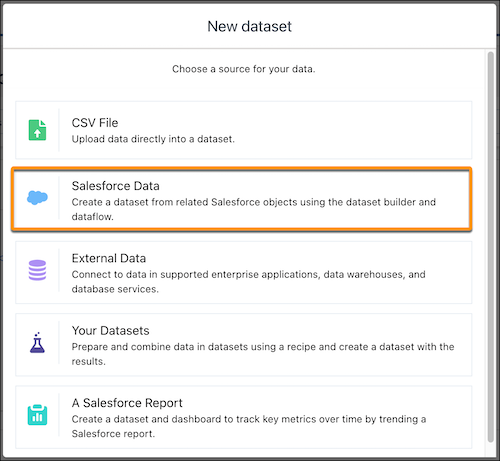
3. Select **Salesforce Data**.
4. Enter a dataset name.
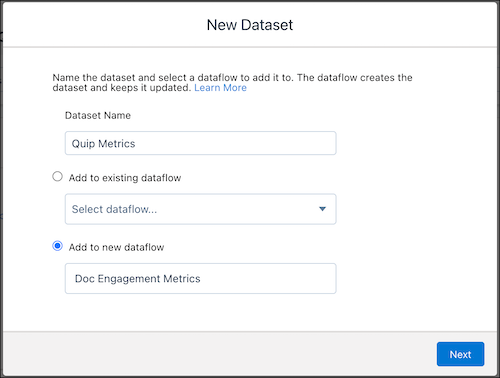
5. Click **Add to new dataflow** and enter a dataflow name. Click **Next**.
6. To add Quip usage and user engagement metrics to your dataset, enter Collaboration.
4. Select the Quip engagement object you want to report on.

Tip Quip objects begin with Collaboration. [See Quip Engagement Objects.](https://help.salesforce.com/s/articleView?id=xcloud.quip_template_metrics.htm&release=264.0.0&type=5 "Use Quip engagement metrics in Lightning reports to measure which users are interacting with documents associated with Salesforce records, and how those users are interacting with them.")
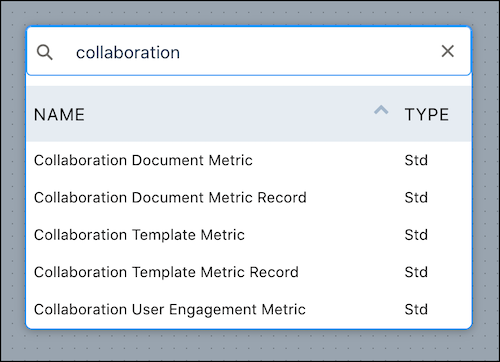
1. Enter or select a Collaboration object and click **Next**.
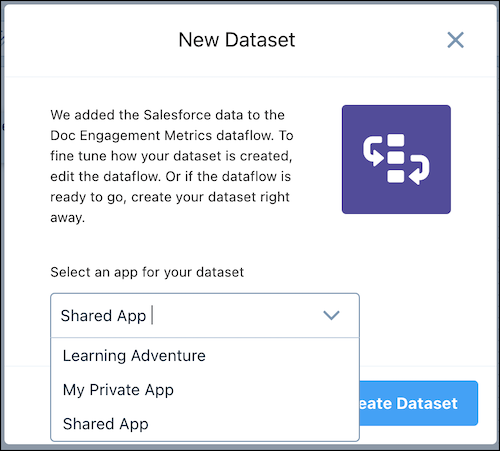
5. Select the app you want to store your dataflow in and click **Create Dataset**.
6. Select **sfdcDigest\_**. To report on the Collaboration object’s fields, like Document Title or Last Modified by ID, click **Select Fields**.
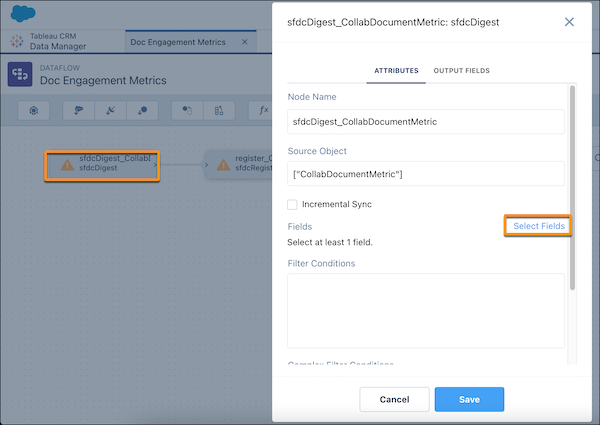

Important Do not select the MayEdit field when reporting on Collaboration objects. Extracting data from this field can cause the dataflow to fail.
7. Save and propagate your field changes.
8. Run the dataflow. You can see when the dataflow has run from the Monitor section of the Data Manager. To get more information about your Quip metrics dataset, go to the Data section of the Data Manager.