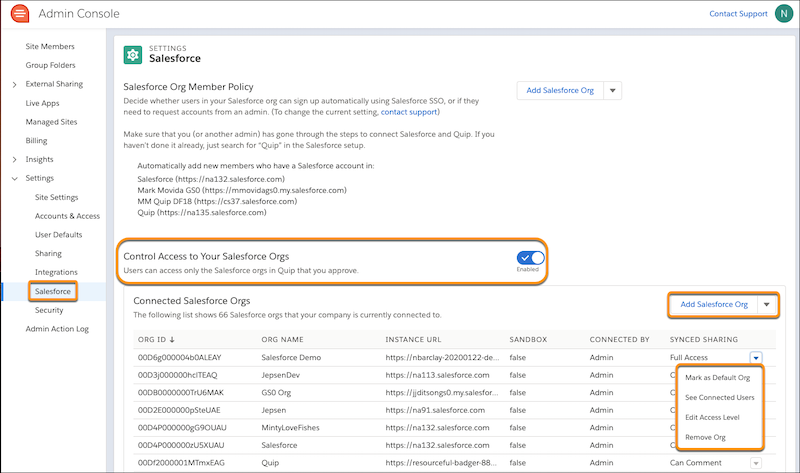
To redirect users to a specific Salesforce login page when they log in to their Quip site, mark the Salesforce org as the default. Then the Salesforce Single Sign On (SSO) users can automatically connect the default Salesforce org to Quip.
| Available in: Lightning Experience |
Save your users clicks and streamline adding Salesforce data to Quip by marking a Salesforce org as the default in the Quip Admin Console. SSO users from the default org can automatically connect to their org when they insert a Salesforce live app in a Quip document without more logins.
Choosing a default org also recommends that org to users when they connect an org to use Salesforce integrations in Quip. For example, Acme marks acme.salesforce.com as their default Salesforce org and Acme’s Quip site is acme.quip.com. So when a user logs in to acme.quip.com, they automatically get routed to log in to their acme.salesforce.com login.
Only a Quip and Salesforce admin can mark a Salesforce org as a default.
- Go to https://admin.quip.com.
- Log in using your Quip admin email and password.
- From Settings, select Salesforce.
- To mark the first Salesforce org that you add to your allowlist as the default, click Add Salesforce Org, and select Mark as the default Salesforce org.
-
To mark an existing allowlist org as the default, select Mark as Default
Org from the org’s dropdown.