
Use the template format to safely create and share a template in Quip.
Required Editions
| Available in: Lightning Experience |
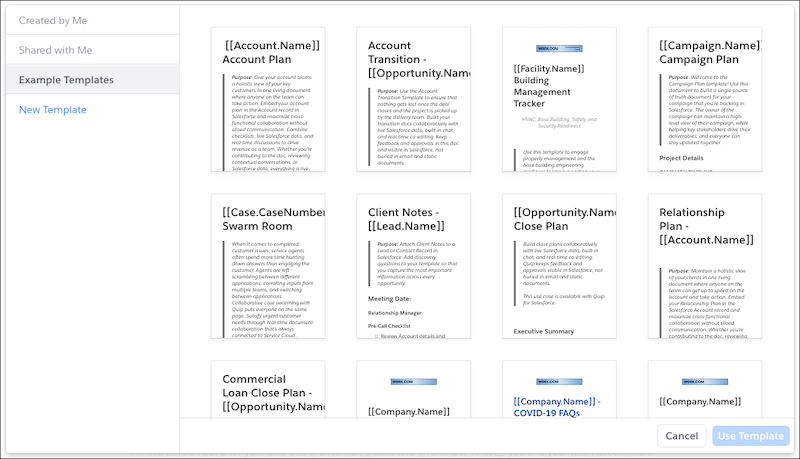
- From Quip, click the Compose button, and select Template Library.
-
Select New Template.
-
Name your template and choose which folder to save it to.
 Tip If you opened the Template Library from your Private folder or from a document saved to your Private folder, your template is automatically saved in your Private folder. You can rename your template and change the folder later.
 - Build your template in the unlocked state. For example, add Salesforce live apps and mail merge syntax to your Salesforce Account Plan templates.
- To prevent accidental changes, after you edit the template, lock the template. After you lock the template, share it with users so they can create documents from it.