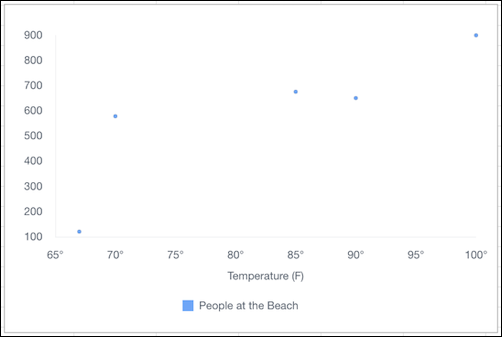
Use a scatter chart to show correlation between two groups of data.
Required Editions
| Available in: Quip desktop app, Quip iOS mobile app, and Quip on web |
Data Options for Scatter Charts
To customize data in scatter charts, open the Chart Editor, and click the Customize tab.
- Style: Change the position of the chart legend, or hide it entirely. Select the colors for the chart’s background and border.
- Series: Apply data labels to show values directly in the chart, and set the labels’ position and color.
- Horizontal Axis: Give the axis a title, change the number formatting, display grid lines, reverse the axis order, and treat data labels as text.
- Vertical Axis: Give the axis a title, adjust its scale, set the number of tick marks shown, change the number formatting, and display grid lines.
Sample Data for Scatter Charts
To create a sample scatter chart, copy the sample data, and paste it into a Quip spreadsheet. Select the data range, and then from the Insert menu, select Chart | Scatter. To adjust how the data appears, double-click the chart to open the Chart Editor, and then select Use first column as labels.
| Temperature (F) | People at the Beach |
|---|---|
| 70 | 578 |
| 85 | 675 |
| 90 | 650 |
| 67 | 120 |
| 100 | 899 |