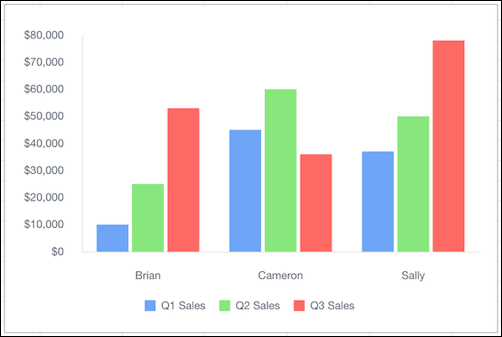
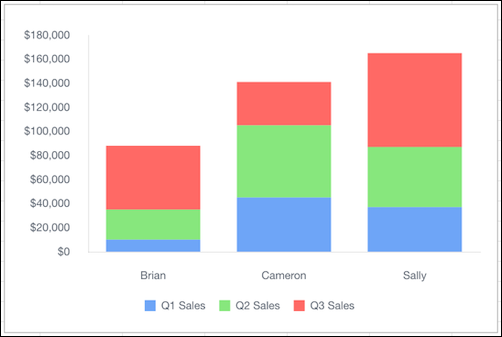
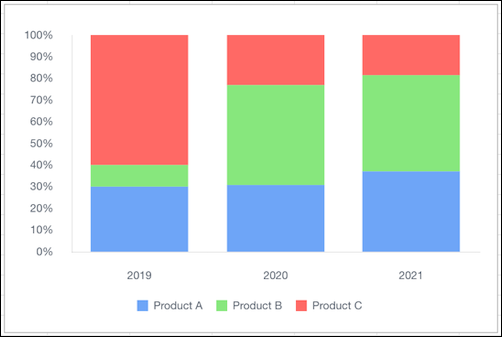
Quip provides these types of column charts: column, stacked column, and column stacked to
100 percent. Use a column chart to compare related values. Use a stacked column chart to compare
parts of a whole and show values across one or more categories. Use a column chart stacked to
100 percent to compare the proportions between values in one or more categories.
Required Editions
| Available in: Quip desktop app, Quip iOS mobile app, and Quip
on web |
Data Options for Column Charts
To customize data in column charts, open the Chart Editor, and click the
Customize tab.
- Stacking: Choose whether to stack data series in the column chart.
- Style: Change the position of the chart legend, or hide it entirely. Select the colors
for the chart’s background and border.
- Series: Apply data labels to show values directly in the chart, and set the labels’
position and color.
- Horizontal Axis: Give the axis a title, adjust its scale, set the number of tick marks
shown, and change the number formatting.
- Vertical Axis: Give the axis a title, adjust its scale, change the number formatting,
and reverse the axis order.
Sample Data for Column Charts and Stacked Column Charts
| Rep |
Q1 Sales |
Q2 Sales |
Q3 Sales |
| Brian |
$10,000 |
$25,000 |
$53,000 |
| Cameron |
$45,000 |
$60,000 |
$36,000 |
| Sally |
$37,000 |
$50,000 |
$78,000 |
Sample Data for Column Charts Stacked to 100 Percent
| Product Market Share |
Product A |
Product B |
Product C |
| 2019 |
30% |
10% |
60% |
| 2020 |
20% |
30% |
15% |
| 2021 |
50% |
60% |
25% |