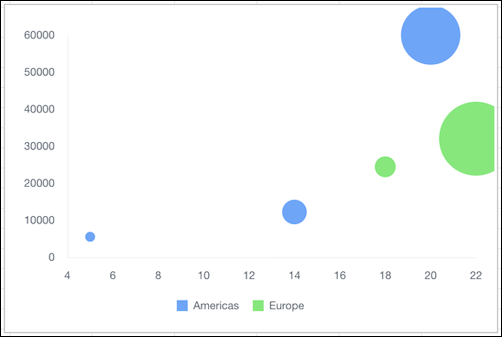
Bubble charts use the size and coloring of bubbles to show multiple dimensions and measures. Use a bubble chart to illustrate the relationship between two columns of numerical data in your spreadsheet. A third numerical column represents the size of each bubble in the chart.
Required Editions
| Available in: Quip desktop app, Quip iOS mobile app, and Quip on web |
Data Options for Bubble Charts
To adjust the data in bubble charts, open the Chart Editor.
To see and adjust how the data is treated, use the Data tab. In addition to the standard options, there are several more settings for bubble charts.
- Y-Axis: Specify the cell range for the chart’s Y-axis.
- Sizes: Specify the cell range for the sizes of the bubbles in the chart.
To adjust the appearance of bubble charts, use the Customize tab.
- Style: Change the position of the chart legend, or hide it entirely. Select the colors for the chart’s background and border.
- Horizontal Axis: Give the axis a title, adjust its scale, set the number of tick marks shown, change the number formatting, and reverse the axis order.
- Vertical Axis: Give the axis a title, adjust its scale, set the number of tick marks shown, and change the number formatting
Sample Data for Bubble Charts
To create a sample bubble chart, copy the sample data, and paste it into a Quip spreadsheet. Select the data range, and then from the Insert menu, select Chart | Bubble. To adjust how the data appears, double-click the chart to open the Chart Editor, and then deselect Switch rows and columns.
| Country | Sales Reps | Sales | Region | Market Size |
|---|---|---|---|---|
| USA | 5 | $5,500 | Americas | 3% |
| Brazil | 14 | $12,200 | Americas | 12% |
| Mexico | 20 | $60,000 | Americas | 33% |
| Italy | 18 | $24,400 | Europe | 10% |
| France | 22 | $32,000 | Europe | 42% |