
Automate Pricing Proposals with Flow Builder
Save time manually creating and filling out Pricing Proposals with templates in Flow Builder. Use Process Builder and Flow Builder to automatically add a Pricing Proposal template to an Opportunity and generate an auto-populated proposal when the Opportunity stage is set to Proposal/Quote. When the Opportunity is set to Closed/Won, export the proposal to a PDF and attach it to the Opportunity for record keeping.
Required Editions
| Available in: Lightning Experience |
Set Up the Quip Document Component
Set up the Quip Document component on the Opportunity page layout. Create a Pricing Proposal custom URL field to store Pricing Proposals created from your template.
Required Editions
| Available in: Lightning Experience |
- Navigate to an Opportunity record in Lightning Experience.
- Click the gear icon, and select Edit Page to go to the Lightning App Builder.
- Create a new tab called Pricing Proposal.
-
In the left pane, select Quip Document and drag it to your new
tab.
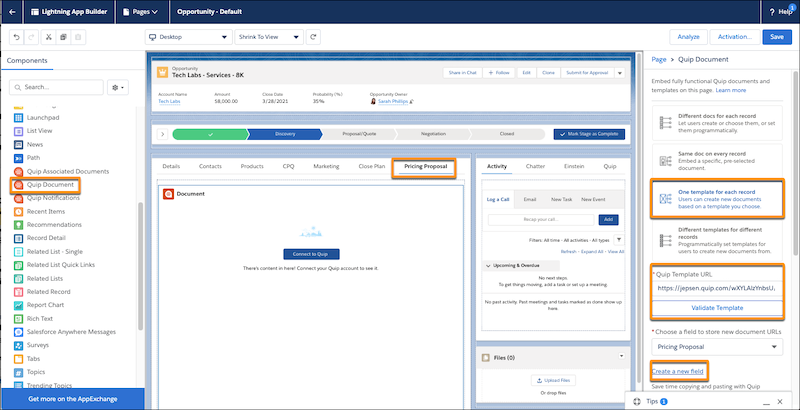
-
Select One template for each record.
 Note One template for each record lets you add a template via Flow Builder or lets your users manually add a template. To use Flow Builder only, select Different Docs for each record.
 -
Click
 . You can either paste your Pricing Proposal template URL or select a template
from the Template Library.
. You can either paste your Pricing Proposal template URL or select a template
from the Template Library.
- Click Next and validate the template. The validation checks that you have access to the document, that link sharing is turned on, that the document is marked as a template, and that it isn’t a slide.
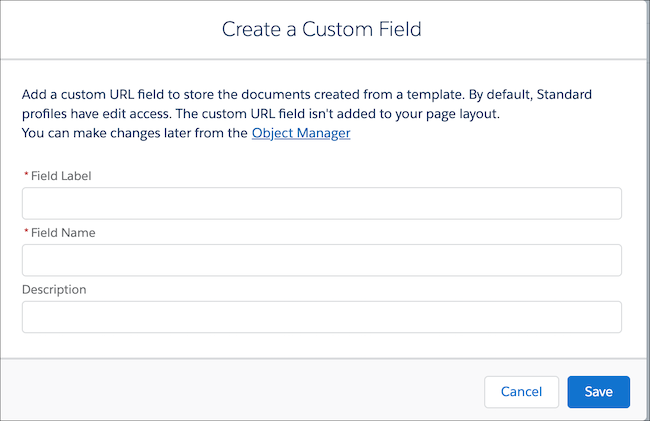
- To create a custom URL field to store the new document URLs, select Create a new field.
-
Enter Pricing Proposal as the field label and
Pricing_Proposal field name. You can make changes later from the Object
Manager.
- Save and activate the page.
To add your Pricing Proposal template to the Quip Document component and to automate Pricing Proposal creation, create actions in Flow Builder and Process Builder.
Create a Pricing Proposal Template
Use Flow Builder to add your Pricing Proposal template to the Opportunity and to automatically populate Pricing Proposals created from it.
Required Editions
| Available in: Lightning Experience |
- From the Quick Find box in Setup, enter Flows.
- Click New Flow.
-
Select Autolaunched Flow and click
Next.
Flow Builder displays the flow in the Auto-Layout flow layout. You can access Interactions, Logic, and Data via the plus icon.
Process Builder later launches the flow when an Opportunity stage is changed.
- Drag the Action element onto the canvas.
- Select Quip.
- Enter Copy Quip Document as the Quip action.
-
Name the action Create Pricing Proposal from Template. To
auto-create the API name, press Tab.
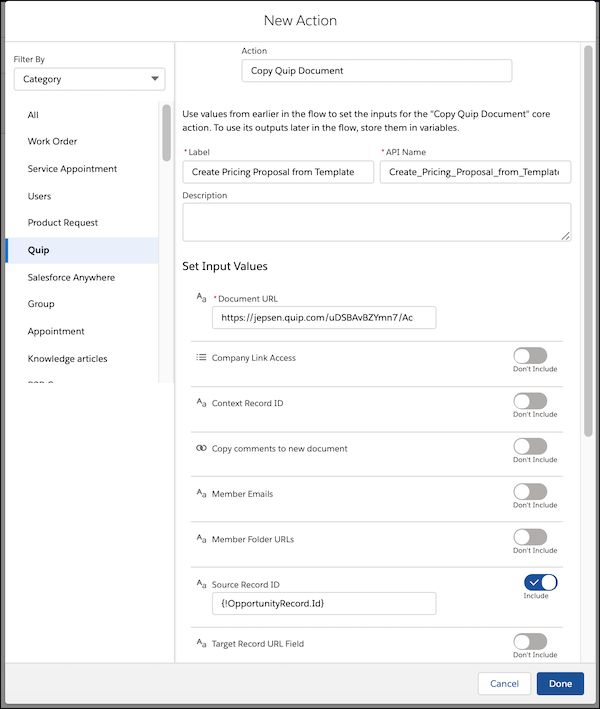
- Enter the Document URL for the Pricing Proposal.
- Include the Source Record ID. Under Source Record ID, click + New Resource.
- Select Variable as the Resource Type.
-
Enter the API name OpportunityRecord.
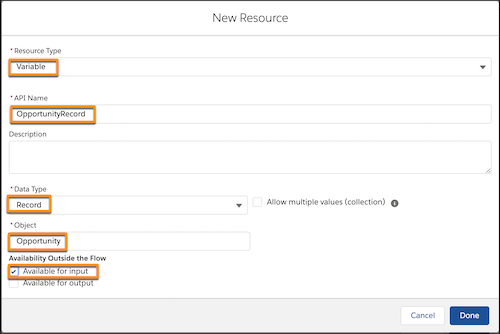
- Select Record as the Data Type.
- Select Opportunity as the Object.
- Select Available for input and click Done.
-
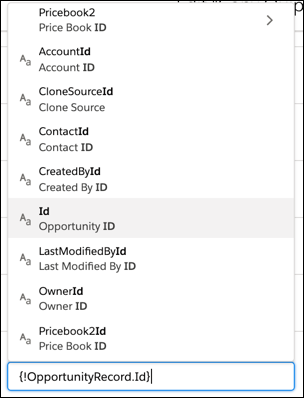
When you get the “Data type of the resource you entered isn’t compatible” error for the
Source Record ID, enter .id after OpportunityRecord. Select
Opportunity ID.
-
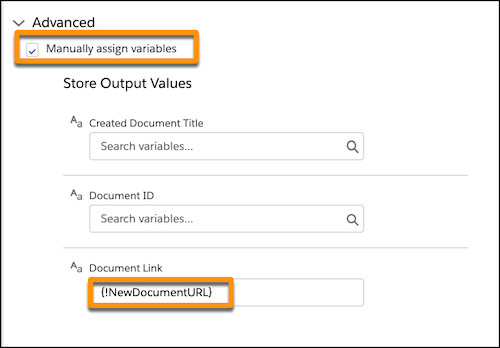
Under Advanced, select Manually assign variables. Under Store Output
Values, click Document Link and select + New
Resource.
-
Select Variable as the Resource Type.
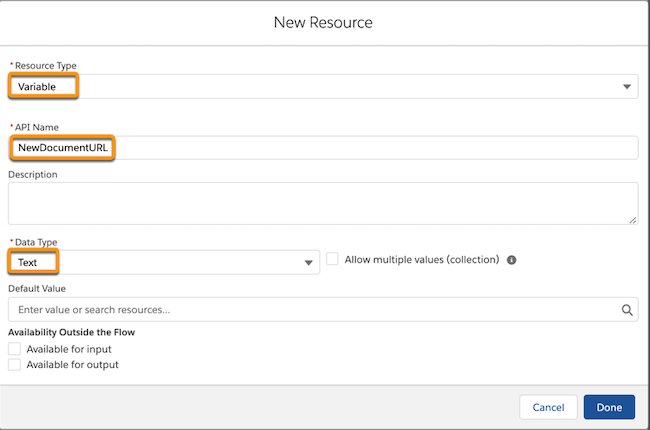
- Enter NewDocumentURL as the API Name.
- Select Text as the Data Type. Click Done, then Done.
- Drag the Update Records onto the canvas.
-
Name the action Update Opportunity Record. To auto-create the API
name, press Tab.
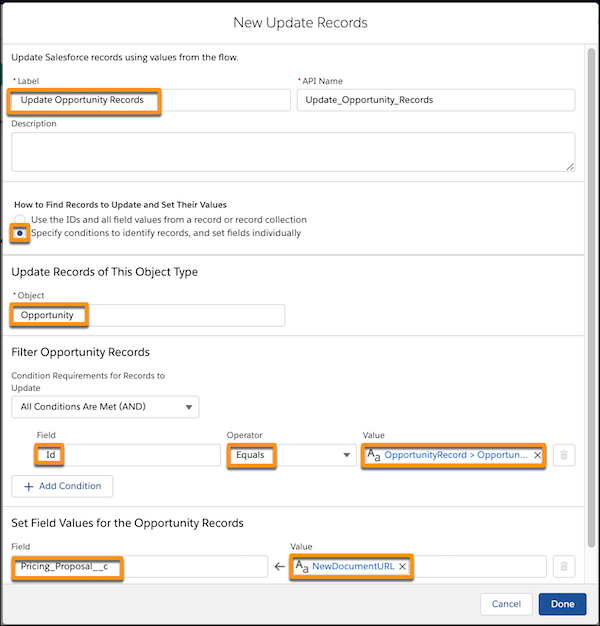
- Select Specify conditions to identify records, and set fields individually.
- Enter Opportunity as the Object.
- Under Filter Opportunity Records, enter Id as the Field, select Equals, and enter {!OpportunityRecord.Id}.
- Under Set Field Values for the Opportunity Records, enter Pricing_Proposal__c as the Field and {!NewDocumentURL} as the Value. Click Done.
-
Connect the elements and click Save.
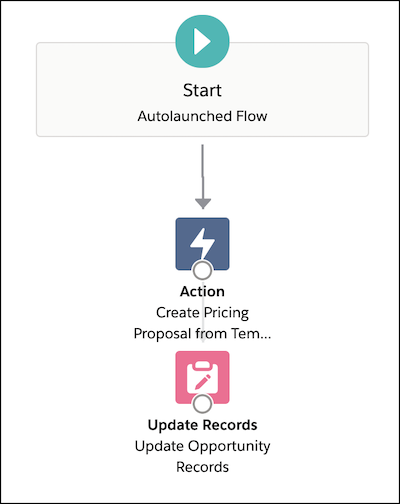
- Name the flow. For this example, we use the name Create Pricing Proposal from Template. To auto-create the API name, press Tab. Click Save.
- Click Activate.
Trigger the Process
Create a process that launches the Pricing Proposal flow when an Opportunity stage is changed to Proposal/Quote. When a user updates the Opportunity stage to Proposal/Quote, a Pricing Proposal is created from the attached template and autopopulated based on the Opportunity’s data.
Required Editions
| Available in: Lightning Experience |
- From the Quick Find box in Setup, enter Process. Select Process Builder.
- Click New.
- Name the process Create Pricing Proposal. To auto-create the API name, press Tab.
- Select A record changes as the process trigger. Click Save.
-
Click + Add Object and select Opportunity as
the object type.
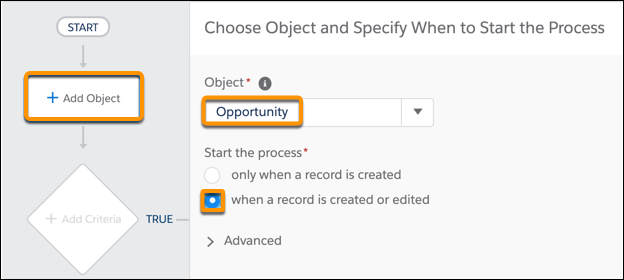
- Start the process when a record is created or edited. Click Save.
-
Click + Add Criteria.
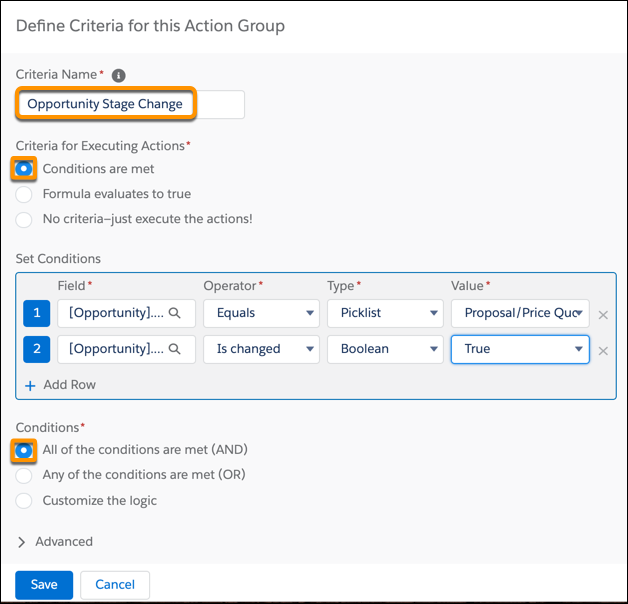
- Name the criteria Opportunity Stage Change.
- To determine when to trigger the process, select Conditions are met.
-
Set the conditions:
Field Operator Type Value [Opportunity]Stage Equals Picklist Proposal/Quote -
Click + Add Row and set conditions:
Field Operator Type Value [Opportunity]Stage Is changed Boolean True - Under Conditions, click All of the conditions are met (AND).
- Click Save.
- Click + Add Action.
- Select Flows as the Action Type.
- Name the action Call Flow to Create Document from Template.
- Select the flow Create_Pricing_Proposal_from_Template.
-
Set the flow variables, where [Opportunity] is the Opportunity record that started the
process:
Flow Variable Type Value OpportunityRecord Field Reference [Opportunity] - Click Save and then Activate.
When your users update an Opportunity stage to Proposal/Quote, a Pricing Proposal is automatically created and data from the opportunity is autopopulated. The created document is then stored in the Pricing Proposal field added to the Opportunity layout.
Create a Pricing Proposal Checkbox
To let your users mark when the Pricing Proposal is completed and ready for the customer, add a checkbox field to the Opportunity layout. After your users select it, it launches the flow to export the Pricing Proposal to a PDF and attaches it to the Opportunity.
Required Editions
| Available in: Lightning Experience |
- From Salesforce Setup, go to the Object Manager, and select Opportunity.
- Select Fields & Relationships, and then New.
- Select Checkbox, and then Next.
- Enter Pricing Proposal Complete, and then Next.
- Select the profiles that can edit the field, and click Next.
- Select the page layouts where you want the field to appear. Here, we deselected all layouts except the Opportunity layout.
- Save the action.
Export to PDF and Attach to the Opportunity
After a user marks the Pricing Proposal as completed, export the document to a PDF to keep a record of it and attach it to the Opportunity. Post a message in Chatter to let the user know when the PDF was attached.
Required Editions
| Available in: Lightning Experience |
- From the Quick Find box in Setup, enter Flows.
- Click New Flow.
-
Select Record-Triggered Flow and click
Next.
Flow Builder displays the flow in the Auto-Layout flow layout. You can access Interactions, Logic, and Data via the plus icon.
Process Builder later launches the flow when an Opportunity stage is changed.
- Under Trigger, click Edit. Set the flow to trigger when a record is created or updated, and run the flow after the record is saved. Click Done.
-
Click Choose Object.
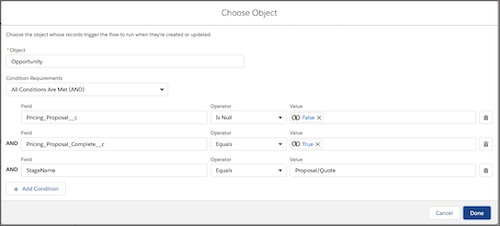
-
Select Opportunity as the object and set the conditions for when to
launch the flow.
Field Operator Value Pricing_Proposal__c Is Null False Pricing_Proposal_Complete__c Equals True StageName Equals Proposal/Quote - Set the flow to run only when a record is updated to meet the condition requirements, and click Done.
- Drag the Action element onto the canvas.
- Select Quip.
- Enter Export Quip Document to PDF as the Quip action.
- Name the action Export to PDF.
- For the Source Document URL, enter {!$Record.Pricing_Proposal__c}.
- Include the Salesforce Org ID. Where do I find my org Id?
- Include the Target Record ID, and enter {!$Record.Id}.
- Click Done.
- Drag the Action element onto the canvas.
-
Enter Post to Chatter as the core action.
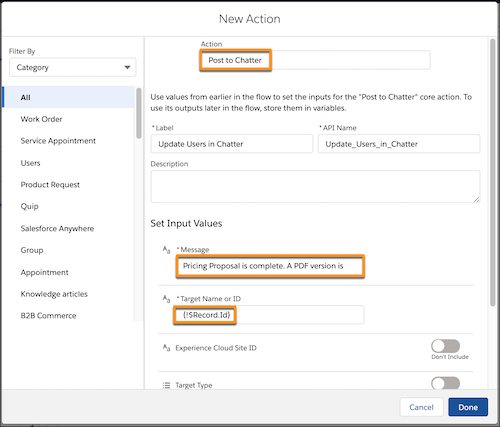
- Name the action Update Users in Chatter, and enter a custom message. Here, we say Pricing Proposal is complete. A PDF version is being generated and will be attached within a few minutes.
- For the Target Name or ID, enter {!$Record.Id}.
- Click Done.
- Connect the elements, and click Save. Name the flow Export PDF to Opportunity, and save the action.
-
Activate the flow.
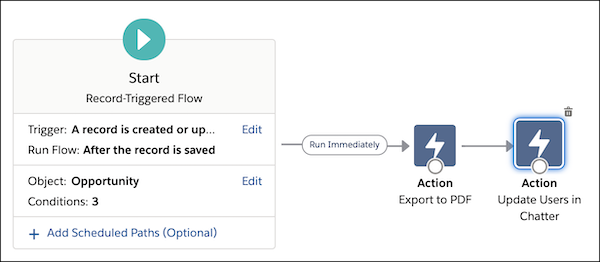
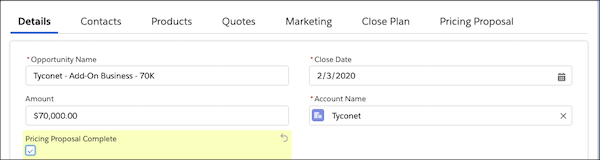
Your flows and process are ready to go! To see them in action, go to an Opportunity page and change the stage to Proposal/Quote. A Pricing Proposal document is automatically created from the template. After the user fills it out and confirms the details with their customer, they can mark the Pricing Proposal as complete. Flow then posts a message in Chatter to let the user a PDF is being generated, and the PDF is attached to the opportunity for recordkeeping.
It can take a couple of minutes for the PDF to be added to the record. You can find it in the record’s Notes and Attachments component or in its Files component.