---
schema_version: "1"
id: fe5cfd398d48eb16c6e5f096571a8ef8b501103bb499ba676f9e05ccc6601963
title: Automate Close Plans and Account Folder Creation with Flow Builder
collection: admin
version: current
locale: en-us
portal_url: https://docs.salesforce.com/admin/current/en-us/xcloud/264-0-0/quip_automate_folders_close_plans.md
canonical_url: https://help.salesforce.com/s/articleView?id=xcloud.quip_automate_folders_close_plans.htm&release=264.0.0&type=5
source_site: help.salesforce.com
content_type: documentation
content_hash: 41c7bdfd3ae69110154c5c004da6dd4751e4e1e6451765b588e733d7ce3fc488
description: Save time manually creating and filling out Close Plans with templates in Flow Builder. Use Flow Builder to automatically create Account folders in Quip and add your Close Plans to them.
products:
- Quip
- Cross Cloud
release: "264"
---
# Automate Close Plans and Account Folder Creation with Flow Builder
Save time manually creating and filling out Close Plans with templates in Flow Builder. Use Flow Builder to automatically create Account folders in Quip and add your Close Plans to them.
### Required Editions
Available in: Lightning Experience
Use a flow to automatically populate a Close Plan attached to an Opportunity when an Opportunity is created. After you create a document from the template, the flow moves the document to an existing folder named for the Opportunity’s parent Account or creates a one.
## Create an All Accounts Folder in Quip
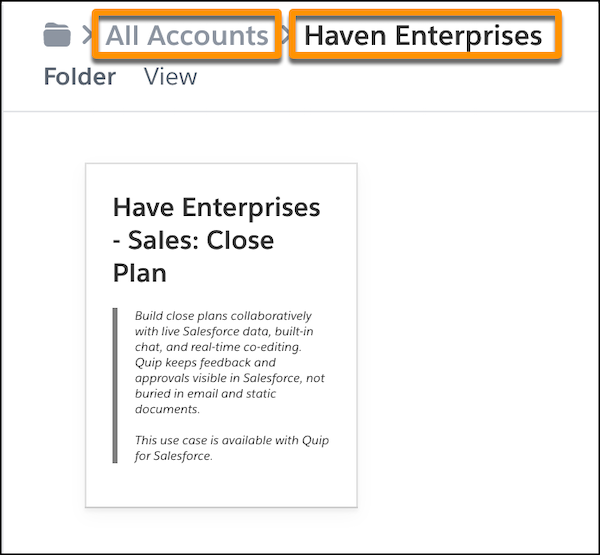
To keep all of your Account folders in one organized place, create an All Accounts parent folder in Quip. Flow later adds Account folders to this parent folder.
### Required Editions
Available in: Lightning Experience
1. In Quip, click **Compose**, and then **New Folder**.
2. Name the folder All Accounts and click **Create**.
3. Click **Share** and turn on link sharing.
## Create a Custom Folder URL Field
To store the folder URL of documents created from a template, create a custom Folder URL field. Flow later uses this field to check whether a folder exists for an Account.
### Required Editions
Available in: Lightning Experience
1. From Salesforce Setup, go to the Object Manager, and select **Account**.
2. Select **Fields & Relationships**, and then **New**.
3. Select **URL**, and then **Next**.
4. Enter Quip Folder as the field label and click **Next**.
5. Select the profiles that can edit the field, and click **Next**.
6. Save the action.
## Set Up the Quip Document Component
Set up the Quip Document component on the Opportunity page layout. Create a Close Plan custom URL field to store Close Plans created from your template.
### Required Editions
Available in: Lightning Experience
1. Navigate to an Opportunity record in Lightning Experience.
2. Click the gear icon, and select **Edit Page** to go to the Lightning App Builder.
3. Create a new tab called Close Plan.
4. In the left pane, select **Quip Document** and drag it to your new tab.
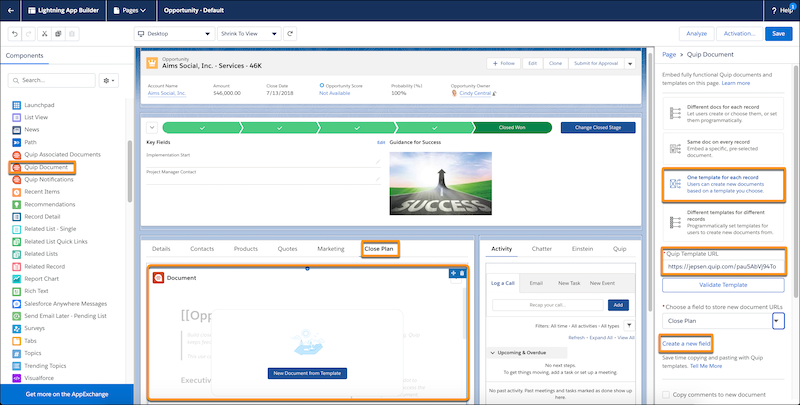
5. Select **One template for each record**.

Note One template for each record lets you add a template via Flow Builder or lets your users manually add a template. To use Flow Builder only, select **Different Docs for each record**.
6. Click **.** You can either paste your Close Plan template URL or select a template from the Template Library.
7. Click **Next** and validate the template. The validation checks that you have access to the document, that link sharing is turned on, that the document is marked as a template, and that it isn’t a slide.
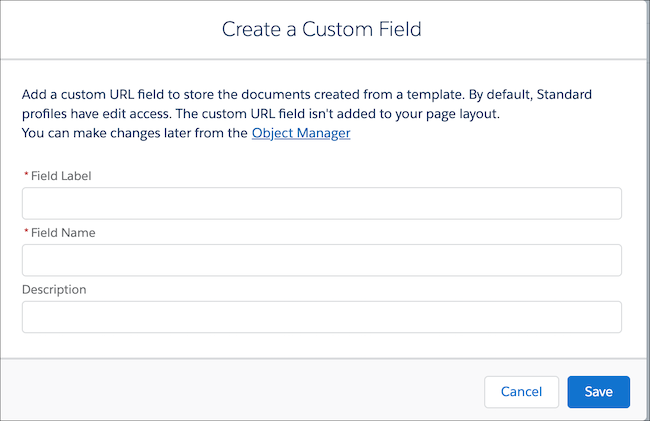
8. To create a custom URL field to store the new document URLs, select **Create a new field**.
9. Enter Close Plan as the field label and Close\_Plan as the field name. You can make changes later from the Object Manager.
10. Save and activate the action.
## Build a Flow to Add Opportunity Close Plans to New or Existing Account Folders
Use Flow Builder to create Close Plans from a template when an Opportunity is created and move them to the parent Account folder. If the folder doesn’t exist, use Flow Builder to create one.
### Required Editions
Available in: Lightning Experience
1. From the Quick Find box in Setup, enter Flows.
2. Click **New Flow**.
3. Select **Record-Triggered Flow** and click Next.
Flow Builder displays the flow in the Auto-Layout flow layout. You can access Interactions, Logic, and Data via the plus icon.
4. Under Trigger, click **Edit**. Set the flow to trigger when a **record is created**, and run the flow **after the record is saved**. Click **Done**.
5. Click **Choose Object**.
6. Select **Opportunity** as the object and set the conditions to **None**.
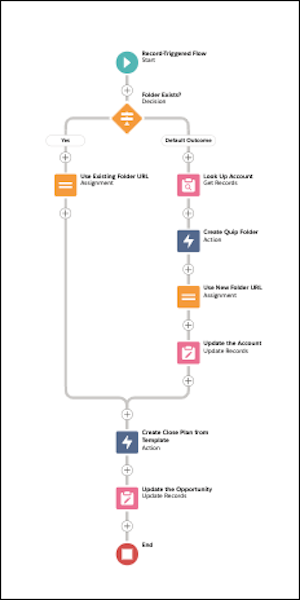
7. Check to see if a folder exists.
1. From the Elements tab, drag **Decision** onto your flow’s canvas.
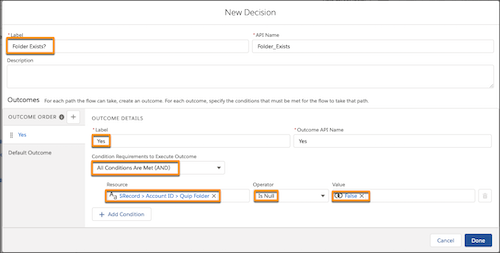
2. Name the decision Folder Exists?.
3. Create outcomes for when the folder is already created and for when it’s not.
| Label | Condition Requirements to Execute Outcome | Resource | Operator | Value |
| --- | --- | --- | --- | --- |
| Yes | All Conditions Are Met (AND | {!$Record.Account.Quip\_Folder\_\_c} | Is Null | False |
4. For the document exists outcome, set the Account Plan URL field reference to **Is Null**, and the Value to **False**. For the document doesn’t yet exist outcome, set the Account Plan URL field reference to **Is Null**, and the Value to **True**.
8. If a folder exists, add Close Plans created from a template to it.
1. From the Elements tab, drag **Assignment** onto your flow’s canvas.
2. Name the assignment Use Existing Folder URL.
3. For the Variable, click **New Resource**.
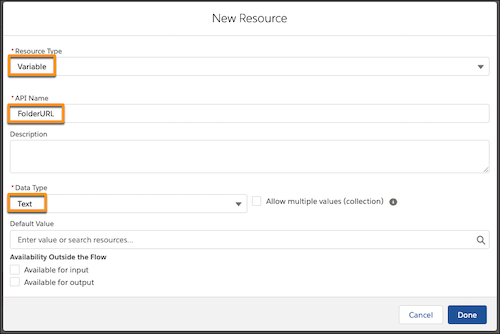
4. Set the Resource Type to **Variable** and enter FolderURL as the API Name. Set the Data Type to **Text** and click **Done**.
5. Set the variable values.
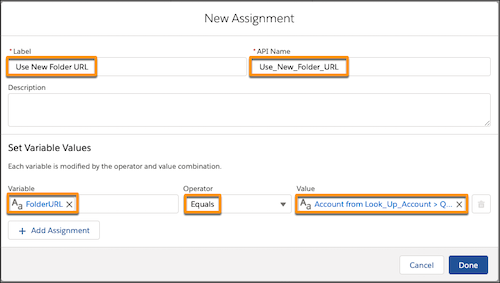
| Variable | Operator | Value |
| --- | --- | --- |
| FolderURL | Equals | {!$Record.Account.Quip\_Folder\_\_c} |
6. Click **Done**.
7. Connect the Decision and Assignment elements and set the Outcome to **Yes**.
9. If a folder doesn’t exist, check to see the Opportunity’s parent Account.
1. From the Elements tab, drag **Get Records** onto your flow’s canvas.
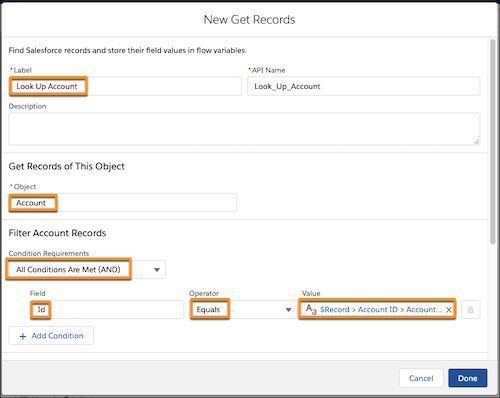
2. Enter a name for the action. Here, we use Look Up Account. Select **Account** as the Object, and set conditions. Here, we set **All Conditions to be met**, and Id to equal {!$Record.Account.Name}.{!$Record.Account.Id}.
3. Click **Done**.
10. If a folder doesn’t exist, create one.
1. From the Elements tab, drag a new action onto the canvas.
2. Select **Quip** and enter Create Quip Folder.
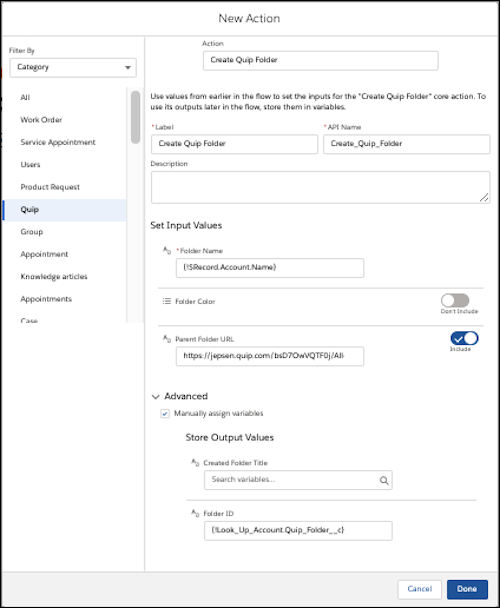
3. Enter a name for the action. Here, we use Create Quip Folder.
4. Enter {!$Record.Account.Name} as the Folder Name.
5. Include the **Parent Folder URL** and enter the All Accounts folder URL.
6. Under Advanced, click **Manually assign variables**.
7. Enter {!Look\_Up\_Account.Quip\_Folder\_\_c} as the Folder ID.
8. Click **Done**.
9. Connect the Lock Up Account and Create Quip Folder actions on the canvas.
11. If a folder doesn’t exist, add Close Plans created from a template to it.
1. From the Elements tab, drag Assignment onto your flow’s canvas.

2. Name the assignment Use New Folder URL.
3. Set the variable values.
| Variable | Operator | Value |
| --- | --- | --- |
| FolderURL | Equals | {!Look\_Up\_Account.Quip\_Folder\_\_c} |
4. Click **Done**.
5. Connect the Create Quip Folder and Use New Folder URL elements on the canvas.
12. If a folder doesn’t exist, update the Account with the new folder information.
1. From the Elements tab, drag **Update Records** onto your flow’s canvas.
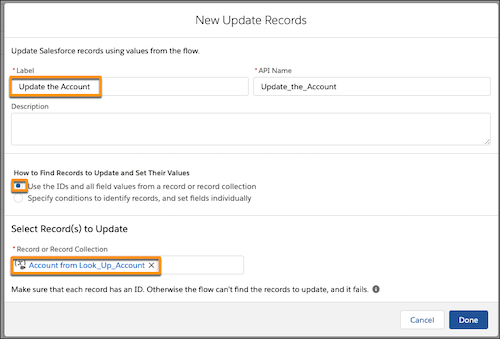
2. Name the action Update the Account.
3. Select **Use the IDs and all field values from a record or record collection**.
4. Under Select Record(s) to Update, enter {!Look\_Up\_Account}.
5. Click **Done**.
6. Connect the Use New Folder URL and Update the Account elements on the canvas.
13. Create Close Plans from a template.
1. From the Elements tab, drag a new action onto the canvas.
2. Select **Quip** and enter Copy Quip Document as the Quip action.
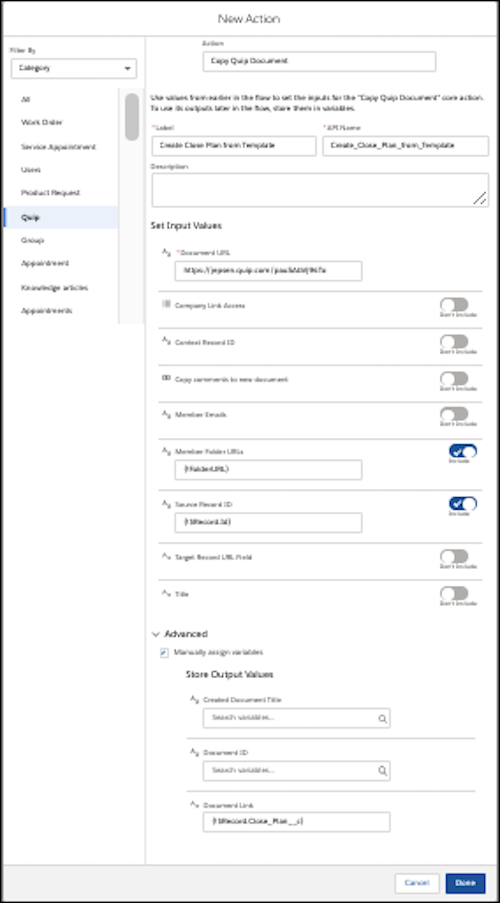
3. Name the action Create Close Plan from Template.
4. Enter the Document URL for the Close Plan.
5. Include the **Member Folder URLs** and enter {!FolderURL}.
6. Include the **Source Record ID** and enter {!$Record.Id}.
7. Under Advanced, click **Manually assign variables**.
8. For the Document Link, enter {!$Record.Close\_Plan\_\_c}.
9. Connect the Use Existing Folder URL and Update the Account elements to the Create Close Plan from Template action.
14. Update the Opportunity record with the new document URL.
1. From the Elements tab, drag **Update Records** onto your flow’s canvas.
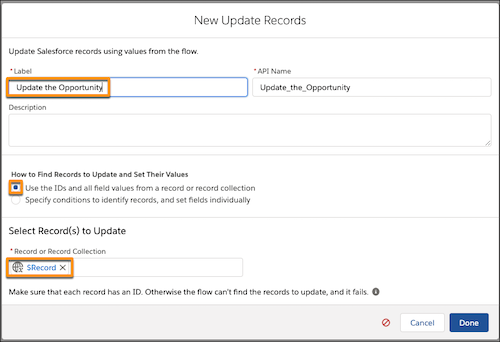
2. Name the action Update the Opportunity.
3. Select **Use the IDs and all field values from a record or record collection**.
4. Under Select Record(s) to Update, enter {!$Record.}.
5. Click **Done**.
6. Connect the Create Close Plan from Template action and Update the Opportunity element on the canvas.
15. Click **Save**. Name the flow. For this example, we use the name Automate Account Folders. To auto-create the API name, press Tab. Click **Save**.
16. Click **Activate**.
## Create an Opportunity
To see your flow in action and automatically create a Close Plan and add it to an Account folder, create an Opportunity in Lightning Experience.
### Required Editions
Available in: Lightning Experience
1. In Salesforce, click **New Opportunity**.
2. Select **Simple Opportunity**, and then **Next**.
3. Enter your opportunity information and save the action.
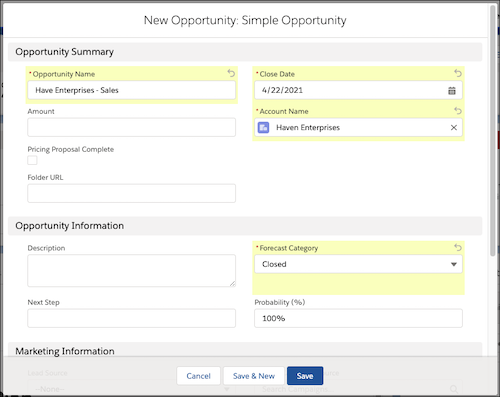
A Close Plan is automatically created and added to the Close Plan tab on the record. A new Account folder is created with the Account name to the All Accounts folder in Quip and the Close Plan is added to it.