
Solicit or provide feedback, ask questions, or get answers about a specific part of a document.
Required Editions
| Available in: Quip desktop app, Quip iOS mobile app, and Quip on web |
-
Specify the content to comment on.
Content Action Text Highlight the text. Header, paragraph, or list item Place your cursor next to the content. Whole image Click the image. Part of an image From the Image menu, select the Comment icon, and drag the orange circle to the part of the image that you want to comment on. Cell in spreadsheet Select the cell, then in the formatting ribbon, select the Comment icon.  Note You can’t comment on spreadsheet rows, columns, or cell ranges.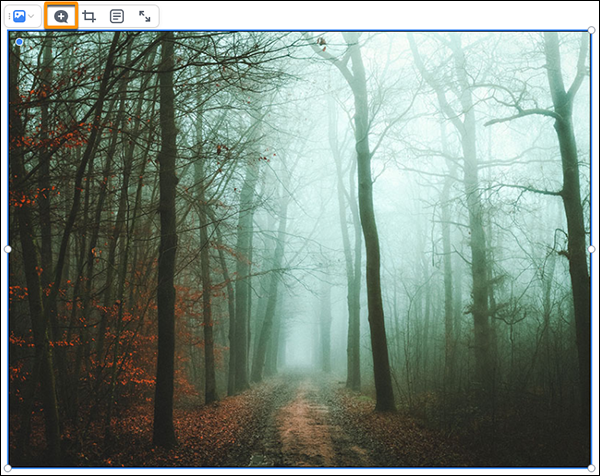
-
Write your comment.
You can include emojis and attachments and @mention your teammates.
-
Click Send.
Quip notifies the document creator and anyone you @mentioned in your comment.