
Add conditions and actions in a rule to decide how you want a transaction journal to be processed by the rule. Use conditions to decide the transaction journals that you want the rule to process. Use actions to get information about the member, update member records, and run flows and standard type decision tables that are created by admins.
Required Editions
| Available in: Lightning Experience |
| Available in: Enterprise, Performance, Unlimited, and Developer Editions with Loyalty Management |
To add conditions and actions for a rule, access the Rule Builder by clicking the name of the rule on the associated Loyalty Program Process record.
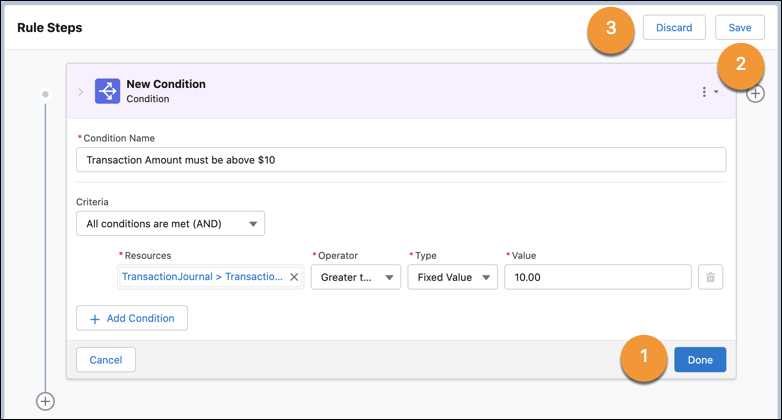
Each condition and action that you add in a rule is called a step. After you add a condition or an action, click Done (1) on its window to save the condition or action. After you save all the new or updated steps, on the Rules Builder, click Save (2) to save all your changes. To revert your rule to the previously saved version and discard all the recent changes, on the Rules Builder, click Discard (3).
Add Conditions
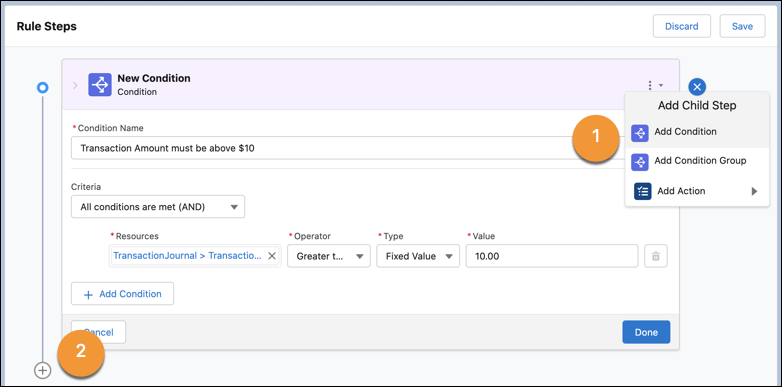
You can add a condition as a parent step (2), and you can add multiple conditions, condition groups, and actions as child steps (1) of the condition. When a transaction journal meets the filter criteria of a condition, the child steps process the transaction journal.
A condition group can have conditions, condition groups, and actions as child steps. In a condition group, you can add one child action for each condition. The default path of a condition group can have only one child action.
Add Actions
You can't add child steps for an action. You can associate an action as a child to a condition or condition group. You can also add an action as a parent step.
Select Resources in Conditions and Actions
When adding a condition or an action, select a resource to provide the value in a condition or an action. Resources consist of:
- Parameters that are already defined for the related loyalty program process.
- Aliases that are defined for loyalty program processes.
- Fields of the Transaction Journal object and its related objects.
When selecting a resource, search for the resource by entering at least the first three characters of the name of the resource. You can find resources like related object fields in a cascading list. You can select a resource by searching up to three levels. If a field is four or more levels away from the parent object, manually go to the field and select it.
Sequence of Processing Transactions
The steps of a rule process a transaction in the sequence in which they’re saved. If a rule has two actions, the first action in the sequence processes the transaction first. After the first action completes processing the transaction journal, the second action starts to process the transaction journal.
When a rule has multiple parent steps and each parent step has child steps, the first parent step and its child steps process the transaction journal. The child steps also process the transaction journal in the sequence in which they’re saved. After all the child steps of a parent step have competed processing the transaction journal, the next parent step in the sequence starts to process the transaction journal.

After you add all required steps to your rule, activate the rule. Only active rules process transaction journals. If the rule is associated with a promotion, then it’s automatically activated on the start date of the promotion. To change an active rule, ensure that you deactivate it first.