Let Einstein use the information generated by your agent actions to create insights into
your policies in plain language. Get detailed insights for policy summaries generated with the Get
Policy Details Agent Action. Or get one-sentence insights for policy lists generated with the Get
Policies by Object and Get Policies by Policy Type Actions.
Required Editions
| Available in: Enterprise, Performance, Unlimited, and
Developer Editions with the Einstein Platform add-on
|
| User Permissions Needed |
|
| To execute actions in Agentforce (Default): |
Use Agentforce Default Agent |
| To run prompt templates: |
Execute Prompt Templates |
| To view Policy Center policies: |
View All Policy Center Policies |
| To create and edit Policy Center policies: |
Modify All Policy Center Policies |
-
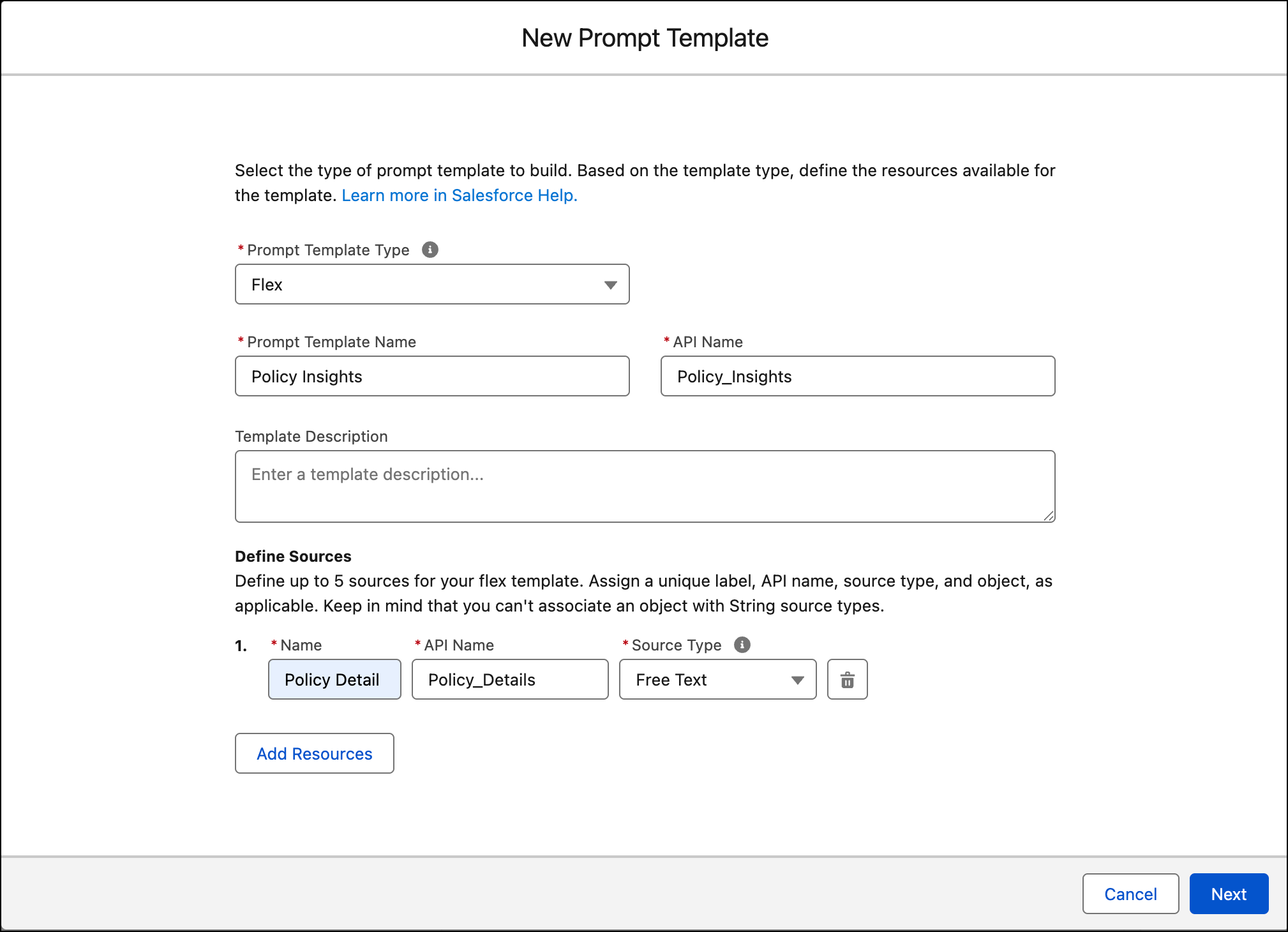
From Setup, in the Quick Find box, search for and select Prompt
Builder. Then click New Prompt Template.
-
Under Prompt Template Type, select Flex.
-
Give your template a name.
- For detailed summaries that use information generated by the Get Policy Details agent
action, we suggest the template name Policy Insights.
- For short summaries that use information generated by the Get Policies by Object or Get
Policies by Policy Type agent actions, we suggest the template name Short Policy
Insights.
-
Under Define Sources, enter the name Policy Detail.
-
For Source Type, choose Free Text. Then click
Next to go to the Prompt Template Workspace.
-
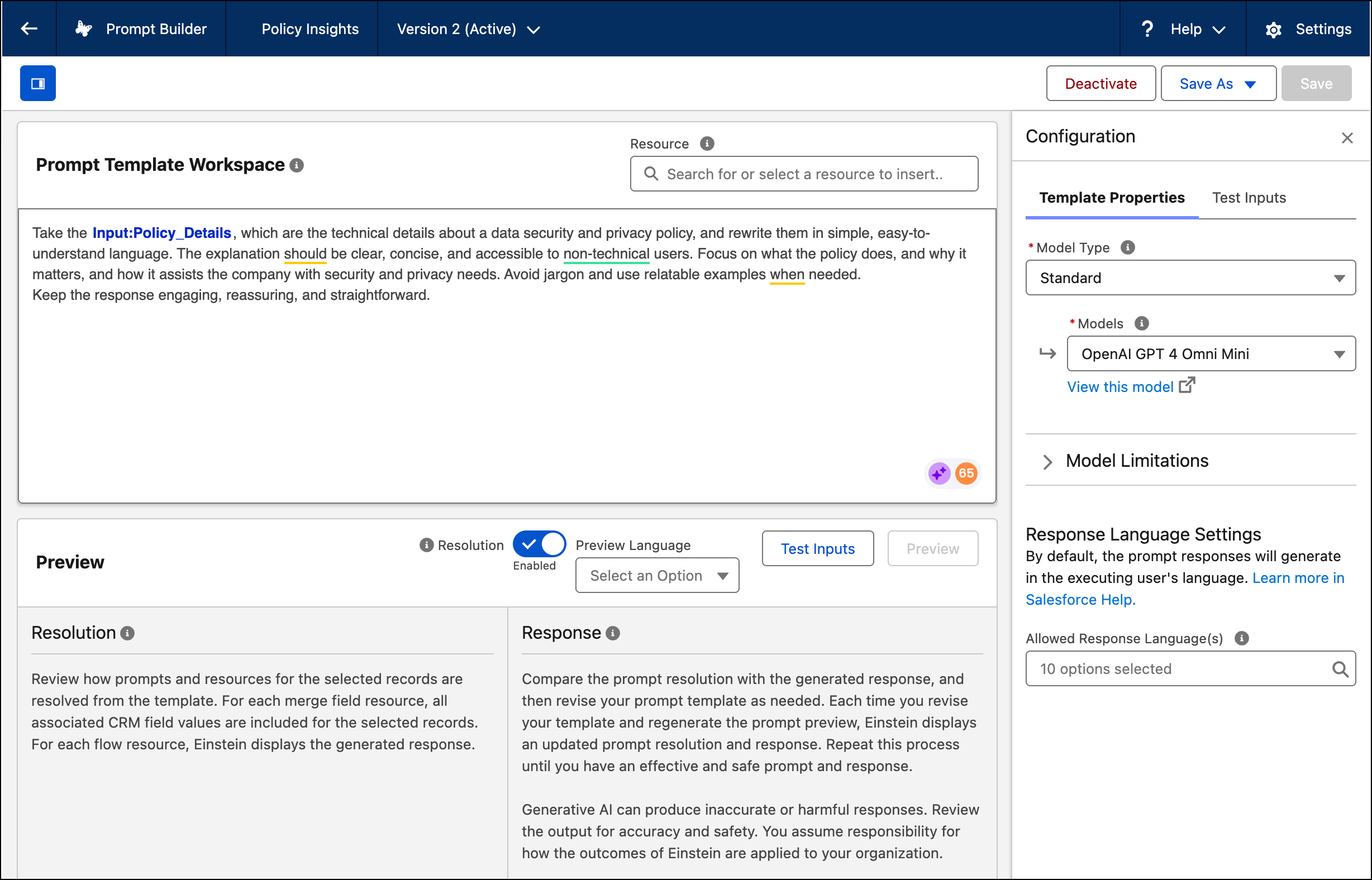
Add instructions for the LLM that define what to include in the response and conversation
guidelines. Our suggested instructions should be updated and modified as you continue to use
Einstein to get the best results.
- For Policy Insights generated from the Get Policy Details agent action, we suggest:
Take the {!$Input:Policy_Details}, which are the technical details about a data
       security and privacy policy, and rewrite them in simple, easy-to-understand language. The
       explanation should be clear, concise, and accessible to non-technical users. Focus on what
       the policy does, and why it matters, and how it assists the company with security and privacy
       needs. Avoid jargon and use relatable examples when needed. Keep the response engaging,
       reassuring, and straightforward.
- For Short Policy Insights generated from the Get Policies by Object or Get Policies by
Policy Type agent actions, we suggest:
Take the {!$Input:Policy_Details}, which are the
       technical details about a data security and privacy policy, and rewrite them in simple,
       easy-to-understand language. The explanation should be clear, concise, and accessible to
       non-technical users. Focus only what the policy does. Avoid jargon and use relatable examples
       when needed. Keep the response engaging, reassuring, and straightforward. The response should
       be no longer than one sentence. The name of the policy should be included as the first words
       of the response in bold text.
-
To test the Policy Insights prompt template, click Test Inputs, then
add the policy details previously generated from the Get Policy Details action.
-
To see how your changes to the prompt template impact the LLM response, click
Preview. See Review, Revise, and Repeat: Ensure That a Prompt Template Is
Effective.
-
When you’re satisfied with the outputs, click Activate.
If there are multiple available versions of a template type, Einstein uses the most
recently modified active template version when drafting summaries.