
Before channel managers can create joint business plans, admins must complete a few steps.
Required Editions
| Available in: Lightning Experience |
| Available in: Enterprise, Performance, and Unlimited Editions with Partner Ecosystem Management - Members or Partner Ecosystem Management - Login |
| User Permissions Needed | |
|---|---|
| Create, edit, delete, clone plans; manage sharing; view Relationship Maps. | Channel Manager |
| View shared plans; edit permitted fields like Customer Landscape, Competitive Landscape, Objectives and Measures if allowed. | Partner Admin |
| Enable and configure feature; assign permissions. | Salesforce admin |
| Add components to Partner Site. | Partner Admin |
Enable Joint Account Plans
- Joint Account Plans require Sales Account Plans to be enabled first.
- After activation, Joint Account Plans appear automatically on Partner Accounts.
- Complete Partner Cloud Initial Setup.
- From the gear menu, select Salesforce Go, and then search for Joint Business Plans Initial Setup on the Salesforce Go Home page.
- Click Set Up.
- On the Joint Business Plans Initial Setup click Get Started.
- Turn on Joint Business Plans.
- Confirm to continue.
-
To assign the default record types for Account Plan:
- Navigate to the record page.
- Click New.
- Enter the Record Type label.
- Assign the record to Standard User and System Administrator.
- Click Next.
- For the Apply one layout to all profiles, use the drop-down to select Account Plan Layout.
- Click Save.
- Navigate to the Joint Business Plans Setup page and refresh to turn on Joint Business Plans.
Configure Channel Manager Experience
To help partners view joint business plans, add the Account Plans related list component to your preferred Account page layout.
Before you begin: Turn on Joint Business Plans.
- From the gear menu, select Salesforce Go, and then search for Joint Business Plans Initial Setup on the Salesforce Go Home page.
- Click Set Up.
- On the Joint Business Plans Initial Setup click Get Started.
- Click Go to Page Layout in the 'Add Account Plans to Accounts Related List' section.
- Click Account Layout.
- Click Related Lists in the Account Layout.
- Drag and drop the Account Plans in the Account Layout.
- To track partner progress toward objectives, click Go to Setup in the 'Manage Calculation Definitions' section.
- Verify the available measure calculations. If needed, create and activate any additional calculation definitions.
Set Up Partner Experience
Give partners access to joint business plans by configuring their permission sets, profiles, and portal components. Setting up these access controls ensures partner users can view and collaborate on shared business goals directly in the partner portal.
Before you begin: Turn on Joint Business Plans.
- From the gear menu, select Salesforce Go, and then search for Joint Business Plans Initial Setup on the Salesforce Go Home page.
- Click Set Up.
- On the Joint Business Plans Initial Setup click Get Started.
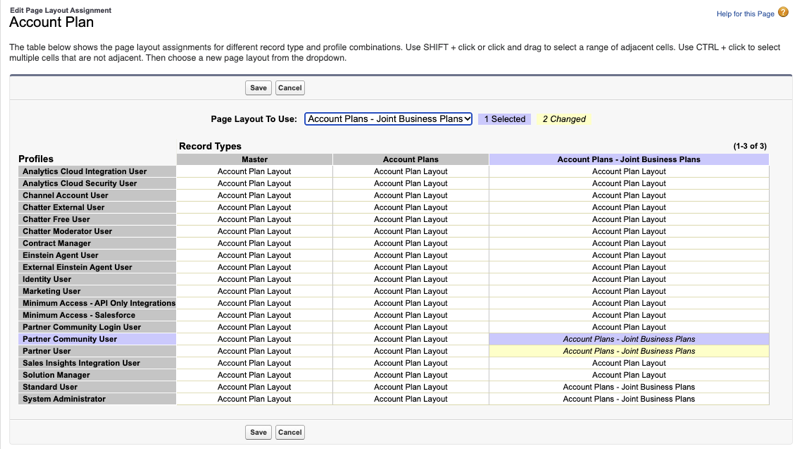
- Click Go to Page Layout Assignment in the Assign Record Type to Partner User Profile.
- Click Edit Assignment In the Account Plan page.
-
Select the layout for the required profile.
The selected record is highlighted in purple.
-
Use the drop-down in the ‘Page Layout to Use' field and select ‘Account Plans-Joint
Business Plans’.
- Click Save.
-
To add the Account Plans - Joint Business Plans component to the partner portal, click
Go to Setup in the ‘Add Joint Business Plan Component to Partner
Portal’ section.
If needed, you can also add the ‘Joint Business Plan Felxi Page’ to the partner portal.
- Click Builder in the All Sites page.
-
Click the
 icon to view the components.
-
Find the ‘Account Plans-Joint Business Plans’ component in Sales.
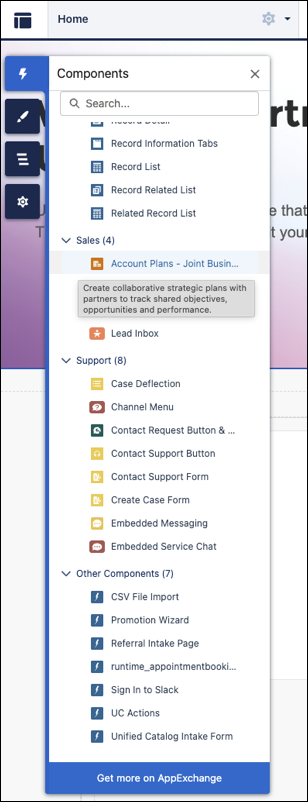
- Drag and drop the 'Account Plans-Joint Business Plans' component into the partner portal.
- Click Preview to see how the partners can view the partner portal.
- Click Publish, to publish the changes to the partner portal.