
For the managed package runtime, perform equations and combine strings by using Formula Elements. Place formulas within an Edit Block to access element values within a specific Edit Block entry.
 This information is for Omnistudio for Managed Packages. For Omnistudio on standard runtime, see Omnistudio Help.
Place Formula outside of the Edit Block in the same Step to access an element value for all of the Edit Block entries.
-
To access data within a specific Edit Block entry:
- Add a Formula element to the Edit Block.
- Using the merge field syntax, add the Edit Block's Element Name and the Element Name for the element you want to access in the Formula. For example, %EditBlock:FirstName%. For more information on merge fields, see Access Omniscript Data JSON with Merge Fields (Managed Package).
- Add a |n after the Edit Block element name to set the formula to only access the merge field's value for its instance. Using the |n syntax is necessary because the Edit Block stores entry values in an array format. The resulting syntax is %EditBlock|n:FirstName%.
-
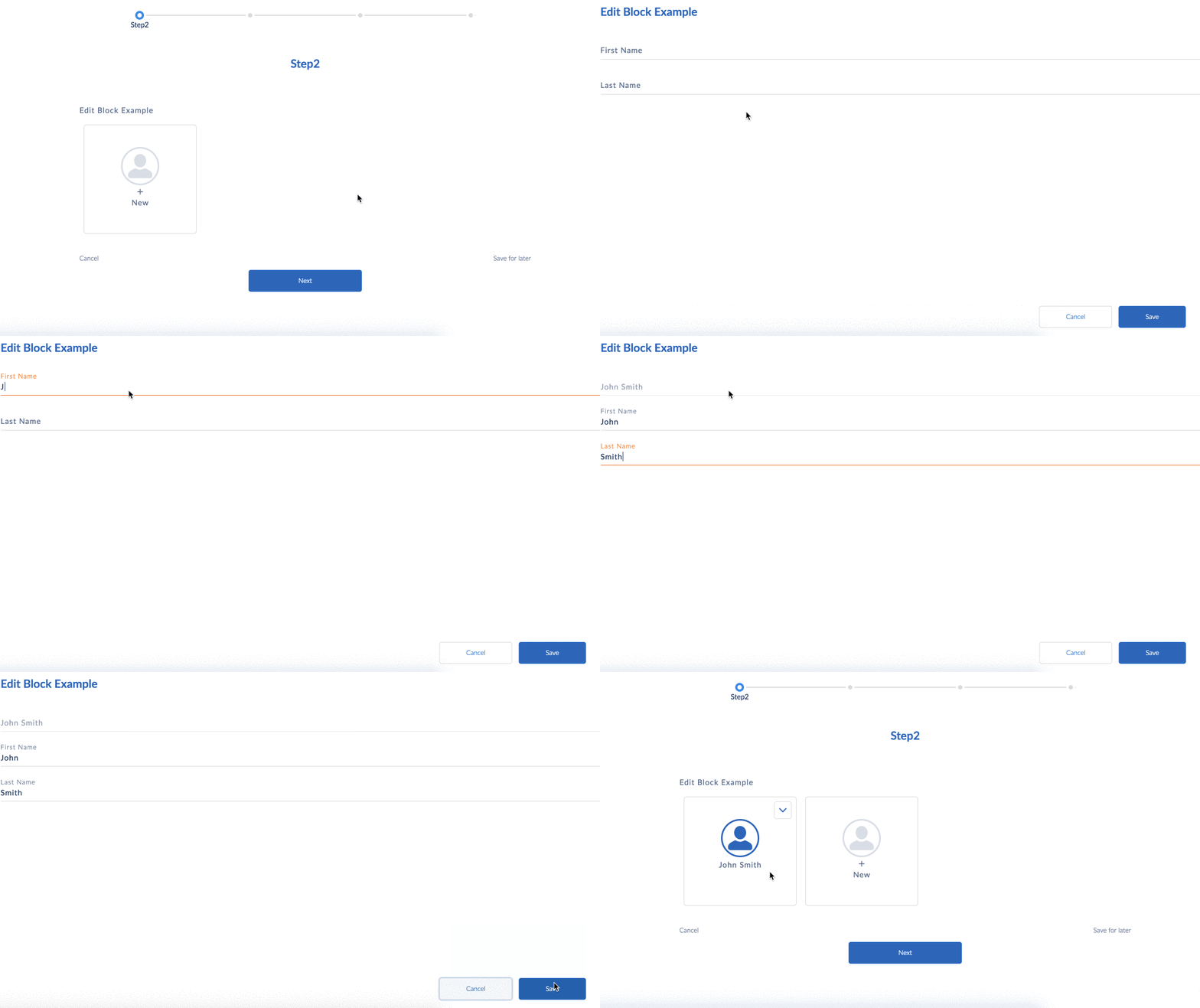
Concatenate values by combining them using the |n syntax. For example,
%EditBlock|n:FirstName% + " " +
%EditBlock|n:LastName%.
-
To access each index of an Edit Block array in a formula:
- Place a Formula outside of the Edit Block.
- In the Formula editor, add the Element Name using the merge field syntax. For example, to return the sum of all the entries for a Number element in an Edit Block, you would use the following syntax in the formula editor: SUM(%EditBlock1:NetIncome%), where NetIncome is the name of a Number element.
- (Optional) When using the vlcEditBlockFS.html template, display the formula at the top of the Edit Block by adding the Formula element's name to the Edit Block's Sum Element property.