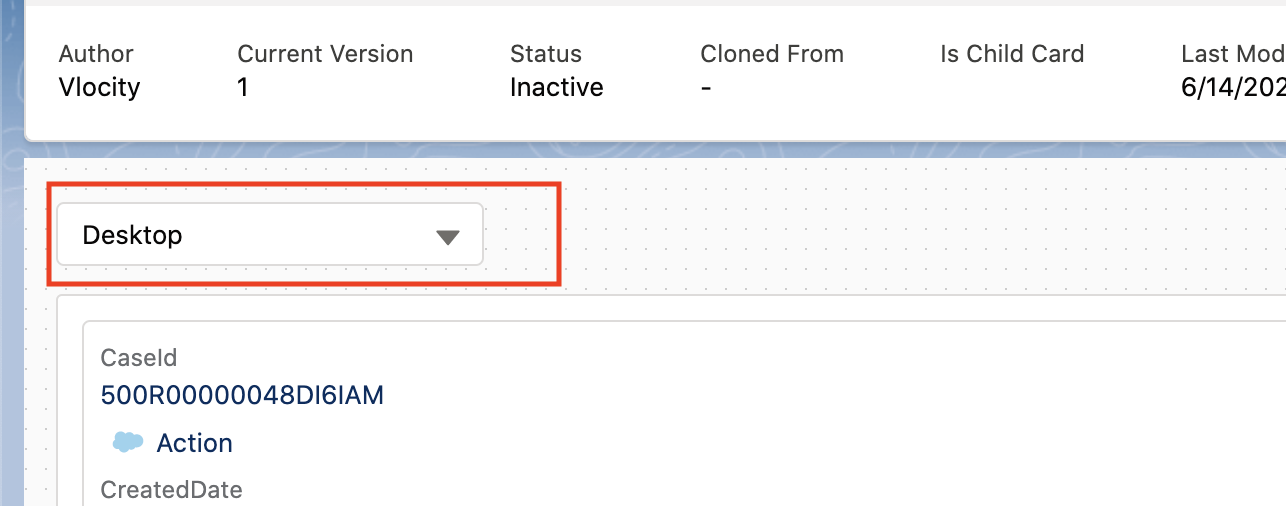
For the managed package runtime, adjust the size of your Flexcard's canvas to test for responsiveness. Use the Viewport Dropdown in the Flexcard Designer to mimic the sizes of a desktop, laptop, and smaller mobile devices.
 This information is for Omnistudio for Managed Packages. For Omnistudio on standard runtime, see Omnistudio Help.
The viewport size is saved when changed. After navigating away from the Flexcard Designer, toggling between Design view and Preview, or reloading the page, the viewport size remains the same until you change it.
- From the Flexcards tab, click a version of a Flexcard to open the Flexcard Designer.
-
To test responsiveness in Design view, select a breakpoint from the Viewport
Dropdown.
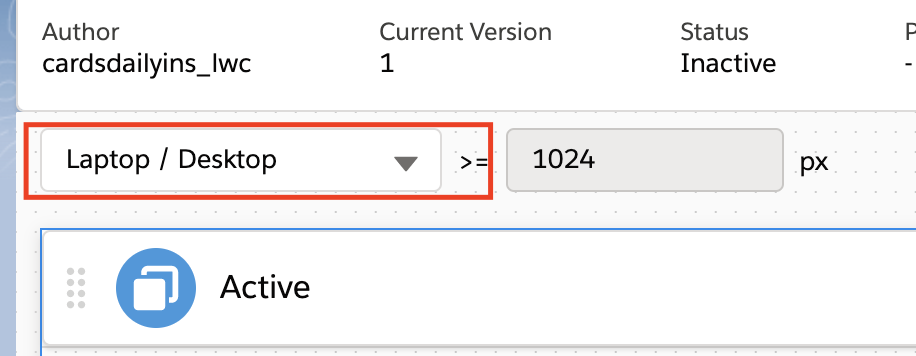
-
To test responsiveness in Preview, click the Preview tab and select a breakpoint
from the Viewport Dropdown.