
For the managed package runtime, retrieve Google Maps data and display a location in the Type Ahead Block using the Google Maps API.
 This information is for Omnistudio for Managed Packages. For Omnistudio on standard runtime, see Omnistudio Help.
Before You Begin
The Type Ahead Block's Google Maps functionality requires you to use a Google Maps API Key. See Google.
- Add a Type Ahead Block to your Omniscript.
-
In Type Ahead Block's Field Label, enter the text to
display in the google maps search field.
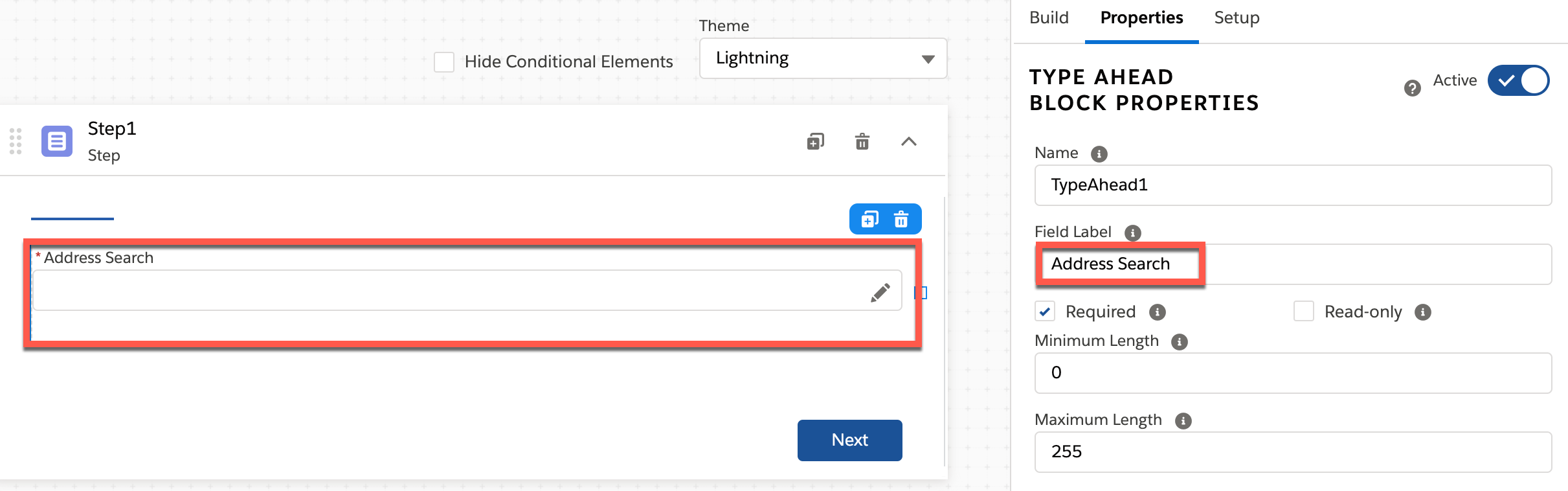
- Check the Enable Google Maps Autocomplete checkbox to display the Google Maps Autocomplete section.
- In the Google Maps API Key field, enter your Google Maps JavaScript API key. If you don't have a Google Maps JavaScript API Key, obtain one from Google.
- (Optional) To hide the Google Map widget, check Hide Map.
- Click the Country Filter field and select a Country.
- Preview the Omniscript to run a search and return a Google response.
-
Open the Action Debugger to view the response. A larger set of response data is available beginning with Vlocity Insurance and
Health and Vlocity CME Summer '20.
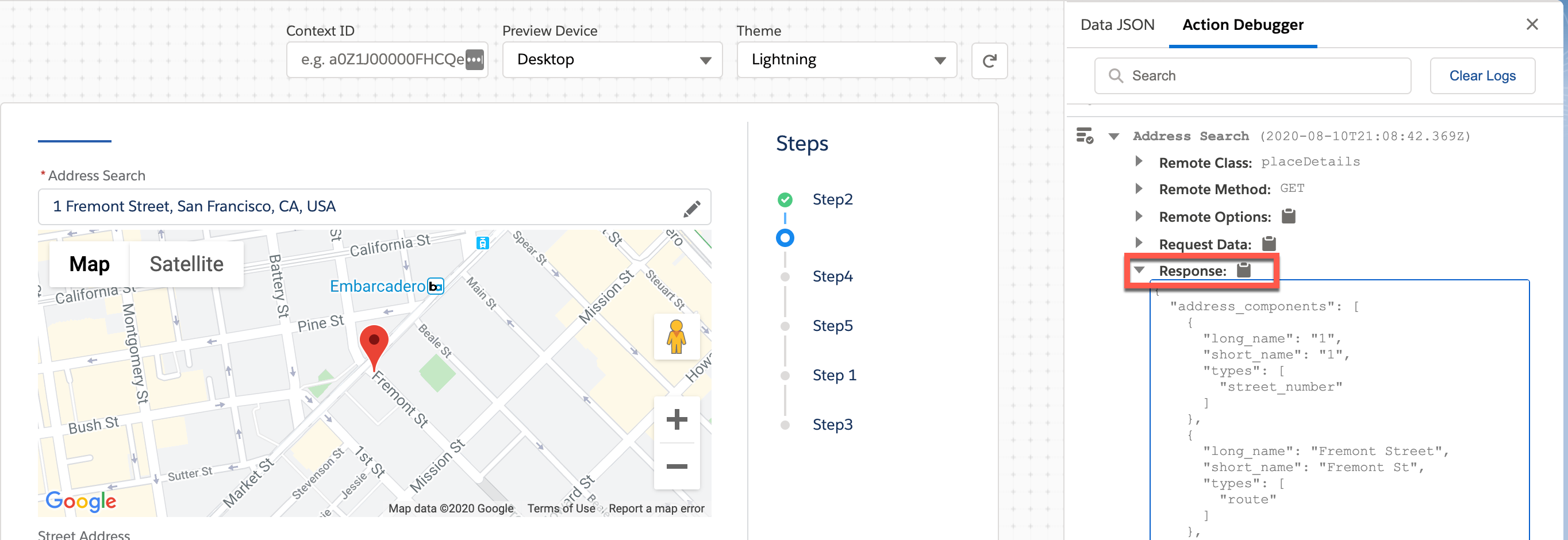
These are the available response nodes:
-
Prior to Vlocity Insurance and Health and Vlocity CME Summer '20, the response includes these nodes:
Response Node
Description
street:
Returns a street address
locality
Returns a city or town
administrative_area_level_1
In the United States, this returns a state
administrative_area_level_2
In the United States, this returns a county
postal_code
Returns a postal code
country
Returns a country
-
Beginning with Vlocity Insurance and Health and Vlocity CME Summer '20, the response includes a larger set of data and the previously available response nodes. Responses return unique sets of data depending on the configuration.
In addition to the default response nodes, this table displays response nodes that may also be available in the Google response. For detailed information on each response node, see Google Geocoding API (Google documentation).
Response Node
Description
street_address
A street address.
route
A named route, e.g., I-5.
intersection
A major intersection.
political
A political entity.
country
A national political entity.
geometry
An object containing longitude and latitude.
administrative_area_level_1
A first-order civil entity below the country level, e.g., states.
administrative_area_level_2
A second-order civil entity, e.g., counties.
administrative_area_level_3
A third-order civil entity.
administrative_area_level_4
A fourth-order civil entity.
administrative_area_level_5
A fifth-order civil entity.
colloquial_area
A common alternative name for the entity.
locality
An incorporated city.
sublocality
A first-order civil entity below locality. The sublocality may contain additional civil entities in nodes from sublocality_level_1 to sublocality_level_5.
neighborhood
A neighborhood.
premise
A location, e.g., a building.
subpremise
A first-order entity below a location, e.g., a building.
postal_code
A postal code.
natural_feature
An important natural feature.
airport
An airport.
park
A park name.
point_of_interest
A point of interest, usually an important local entity, e.g., the Golden Gate Bridge.
types
An array containing the response's type. For example, San Francisco is a type of locality.
-
-
Add an element to the Type Ahead Block to map data from a Google response node.
Elements in the Type Ahead Block appear as a selectable Child
Element in the Google Transformation section.
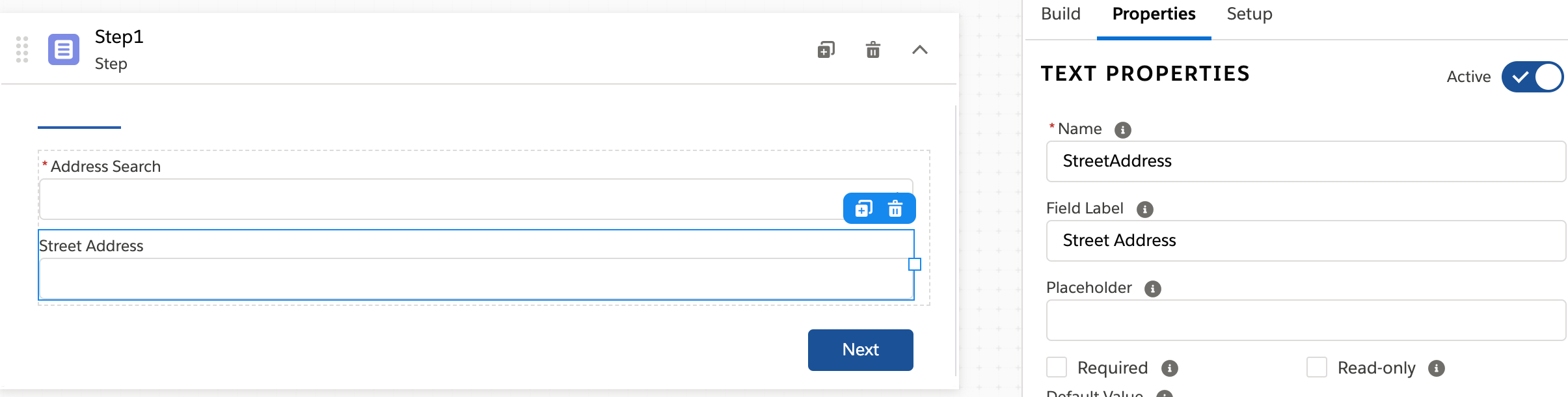
- In the Google Transformations section, click Add New Mapping.
-
Select a Child Element and map it to a Google
Response Node.

Refer to the Action debugger's response, and map these additional nested data types by entering the correct notation in the Google Response Node field:
Response Node
Data Type
Notation Example
geometry
Object
geometry:location:lat
types
Array
types|1
- Save the Omniscript and run it in preview to view your mappings.