
For the managed package runtime, after you have created the Integration Procedure with the Email Action, your final task is to test it.
 This information is for Omnistudio for Managed Packages. For Omnistudio on standard runtime, see Omnistudio Help.
- Go to the Preview tab and click Add New Key/Value Pair.
- Specify contact as the Key and the Contact Id that you copied previously as the Value.
- Click Execute. This sends the email.
-
Go back to the Contacts tab. Select the Contact to whom you sent the email to open their page.
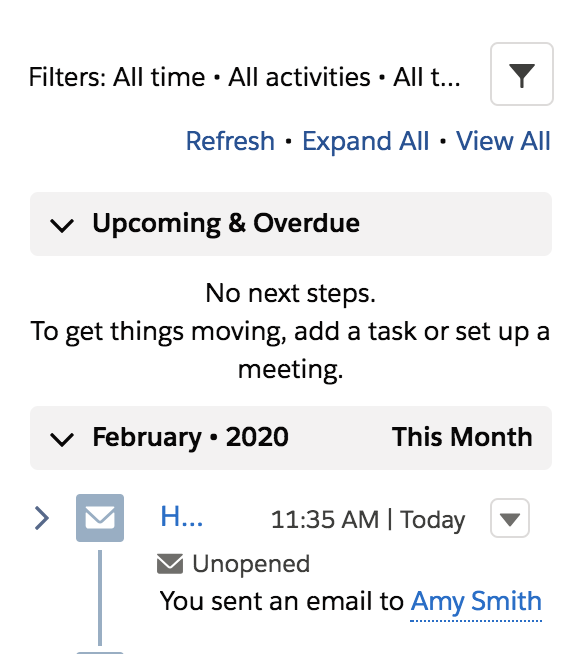
If the Contact record page includes an Activities component, you should see the email in the list of activities after you click Refresh. For example:
-
If the Contact record page doesn't include an Activities component, you can add one:
-
If you're using Salesforce Classic, click Switch to Lightning Experience.
-
Click the gear icon and select Edit Page.
-
Drag an Activities component from the list on the left onto the page canvas.
-
Click Save, then click Back to return to the Contact's page.
The Activities component appears on the Contact's page and lists the email you sent.
-