
For the managed package runtime, the Set Values action sets values in the data JSON of an Integration Procedure literally, using merge fields, or using formulas. This action has many uses. The example includes the most common uses.
 This information is for Omnistudio for Managed Packages. For Omnistudio on standard runtime, see Omnistudio Help.

Any text between two percent (%) signs in a Set Values formula is treated as a merge field. To represent
literal percent (%) signs, use the $Vlocity.Percent
environment variable.
The Set Values action doesn’t support custom labels.
Uses of Set Values Actions Example
The Integration Procedure that demonstrates Set Values uses restructures, concatenates, and performs simple calculations on input data. All of its components are Set Values actions except the last, which is a Response Action.
To download a data pack of this example for Omnistudio for Managed Packages, click here.
Importing Omnistudio for Managed Packages data packs into Omnistudio orgs is supported, and conversion is automatic. However, importing Omnistudio data packs into Omnistudio for Managed Packages orgs isn't supported.
This example Integration Procedure has the following structure:
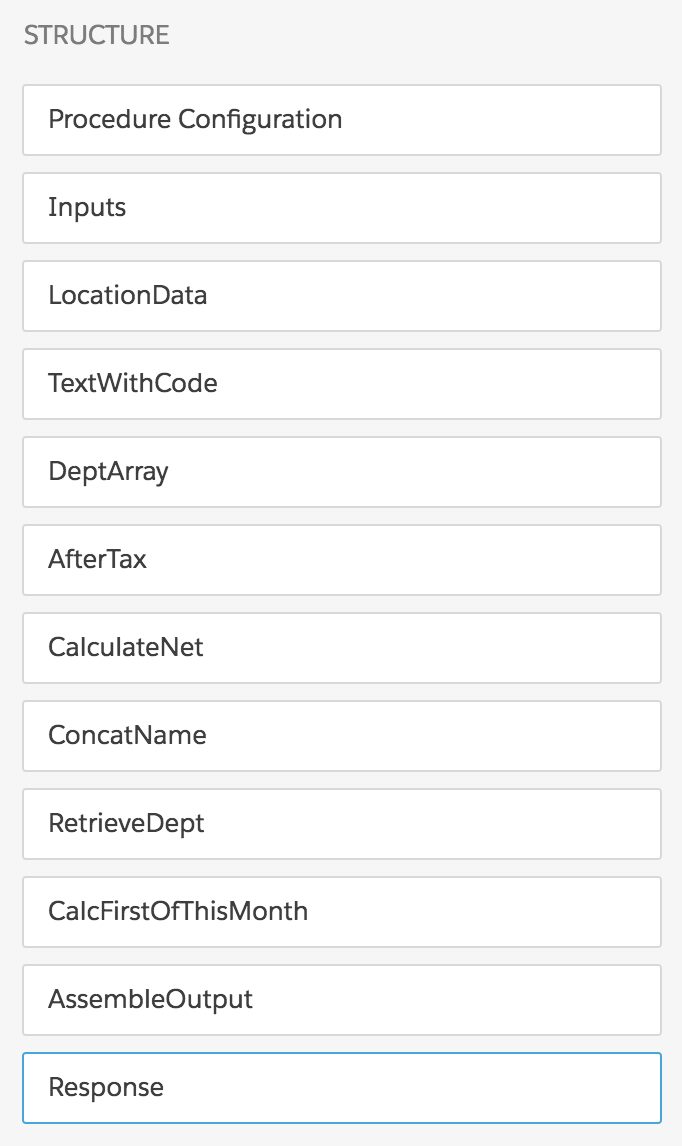
To create the Integration Procedure, go to the Vlocity Integration Procedures tab and click New. Provide an Integration Procedure Name, a Type, and a SubType, and click Save.
To create each component, drag a Set Values instance into the Structure panel and edit its first Element Name property. For the last component, drag in a Response Action instead.
The input data has the following structure:
{
    "Name": {
        "FirstName": "John",
        "LastName": "Smith"
    },
    "Finances": {
        "GrossIncome": "100000",
        "Expenses": "60000"
    }
}
Inputs: Rename Nodes in the Input Data
This component shortens and simplifies the input JSON nodes. Set its Element Value Map as follows:
|
Element Name |
Value |
|---|---|
|
FirstName |
%Name:FirstName% |
|
LastName |
%Name:LastName% |
|
GrossIncome |
%Finances:GrossIncome% |
|
Expenses |
%Finances:Expenses% |
LocationData: Add Literal Values
This component adds literal values, which are useful for testing or for specifying data that doesn't change.Set its Element Value Map as follows:
|
Element Name |
Value |
|---|---|
|
Location |
San Francisco |
|
Code |
2345 |
TextWithCode: Concatenate Literal Values and Merge Fields
This component shows how to concatenate a literal string with a merge field. Set its Element Value Map as follows:
|
Element Name |
Value |
|---|---|
|
LocationCode |
Code is %LocationData:Code% |
Note that the %LocationData:Code% merge field
retrieves data from the previous component, LocationData.
This component defines an array, or list of values. A later component will retrieve a
value from the array. To set up an array, click Edit as JSON and
edit the ElementValueMap node as follows:
"elementValueMap": {
   "Departments": [
      "Sales",
      "Development",
      "Support",
      "Training"
   ]
},
AfterTax and CalculateNet: Perform Simple Calculations Using Formulas
These components calculate after-tax income using multiplication and net income using subtraction. Note that each operator has spaces before and after it. Set the Element Value Map of AfterTax as follows:
|
Element Name |
Value |
|---|---|
|
AfterTaxIncome |
=%Inputs:GrossIncome% * 0.7 |
Set the Element Value Map of CalculateNet as follows:
|
Element Name |
Value |
|---|---|
|
NetIncome |
=%AfterTax:AfterTaxIncome% - %Inputs:Expenses% |
ConcatName: Concatenate Two Merge Fields
This component combines first and last names to form full names. Set its Element Value Map as follows:
|
Element Name |
Value |
|---|---|
|
FullName |
=%Inputs:FirstName% + " " + %Inputs:LastName% |
Note how a literal space is included.
RetrieveDept: Use a Function and Retrieving an Array Value
This component uses the IF function. It also uses listnode|listnumber notation to retrieve array values. Set its Element Value Map as
follows:
|
Element Name |
Value |
|---|---|
|
Department |
=IF(%Inputs:FirstName% = "John",%DeptArray:Departments|2%,%DeptArray:Departments|3%) |
This component assigns a Department value of Development to anyone named John and a Department value of Support to anyone not named John. Note that the second equal sign has spaces before and after it.
CalcFirstOfThisMonth: Perform a Complex Date Calculation
This component uses four nested date functions to return the first day of the current month. Set its Element Value Map as follows:
|
Element Name |
Value |
|---|---|
|
FirstOfThisMonth |
=ADDDAY(EOM(ADDMONTH(TODAY(),-1)),1) |
AssembleOutput: Create the Structure of the Output Data
This component creates a JSON structure for the transformed data. To set up the
structure, click Edit as JSON and edit the ElementValueMap node as follows:
"elementValueMap": {
    "Output": {
        "FullName": "%ConcatName:FullName%",
        "Department": "%RetrieveDept:Department%",
        "AfterTaxIncome": "%AfterTax:AfterTaxIncome%",
        "NetIncome": "%CalculateNet:NetIncome%",
        "Location": "%LocationData:Location%",
        "LocationCode": "%TextWithCode:LocationCode%",
        "FirstOfThisMonth": "%CalcFirstOfThisMonth:FirstOfThisMonth%"
    }
},
Response: Return the Output Data
This component returns the output data to the entity that called the Integration Procedure. Set one property as follows:
|
Send JSON Path |
Response JSON Node |
|---|---|
|
AssembleOutput |
Output |
- Set Values Properties for Integration Procedures (Managed Package)
For the managed package runtime, these properties are unique to or function in a unique manner in Set Values actions. The Set Values action sets values in the data JSON of an Integration Procedure literally, using merge fields, or using formulas. - Test the Integration Procedure that Sets Values (Managed Package)
For the managed package runtime, after you have created the Integration Procedure that demonstrates Set Values action uses, the final step is to test it.