
For the managed package runtime, generate dynamic values by evaluating data with Formulas and using functions to return specific values.
 This information is for Omnistudio for Managed Packages. For Omnistudio on standard runtime, see Omnistudio Help.
- Add a Set Values action to the Omniscript.
- In the Set Values Properties, click Add New Element Value.
- In the Element Value Map, in the Element Name field, enter the new JSON node name.
- To put a formula in the Value field, check Use Expression For Value to open the formula editor.
-
Add static values, or dynamic values using merge fields, and add an operator.
 Note
NoteThere must be a space on either side of an operator for the operation to run correctly.
Element Name
Example Value Formula Syntax
MergeValues
= %GrossIncome% - %NetIncome%
MergeAndLiteralValues
= %GrossIncome% - 5000
LiteralValues
= 2 - 2
-
To assign a null value in JSON or to check for null values in a data field, use
$Vlocity.NULL. Use$Vlocity.NULLin these scenarios:- Unset a field value: To remove a value in a field by setting it to null. Use
$Vlocity.NULLto make sure that the value is explicitly recognized as null by the system. For example: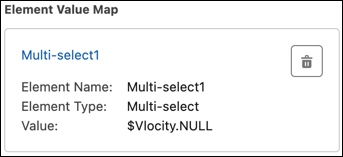
- Conditionally check for null: Use
$Vlocity.NULLin formulas to detect when a field is null. You can then trigger certain actions accordingly. For example:
- Unset a field value: To remove a value in a field by setting it to null. Use
- Preview the Omniscript to ensure the operation performs correctly.
- Use a Formula Operator to Set Data with Formulas and Functions (Managed Package)
For the managed package runtime, use a formula operator to generate dynamic values by evaluating data with Formulas and using functions to return specific values.