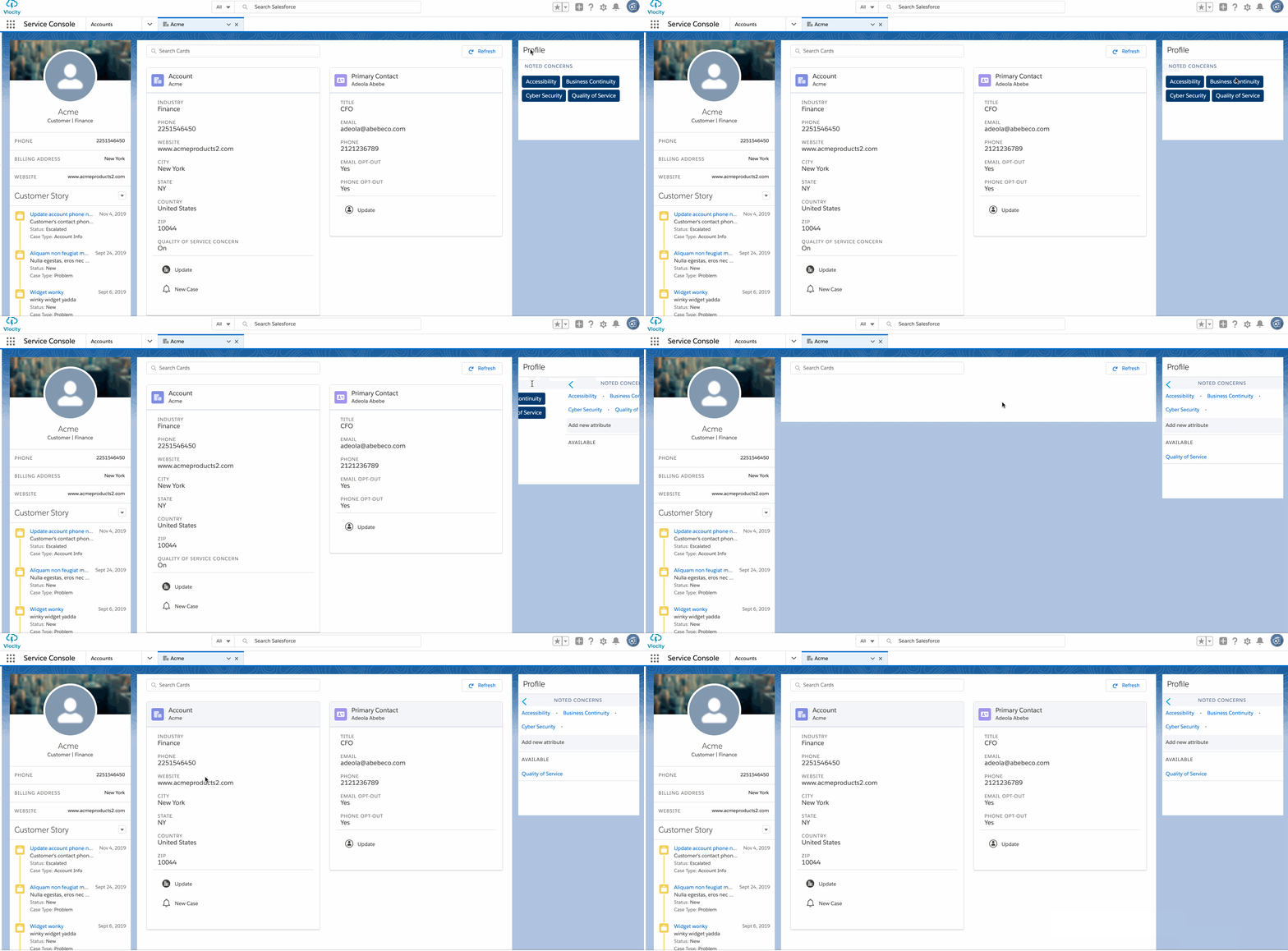
For the managed package runtime, to reload a Card Layout after updating profile attributes, configure a Vlocity Cards Component Events component. Enable a Vlocity Cards Component Events component on a Lightning Page through the Lightning App Builder and on a Community Page through the Community Builder.
 This information is for Omnistudio for Managed Packages. For Omnistudio on standard runtime, see Omnistudio Help.

A Vlocity Cards component and a Vlocity Lightning Profiler component must be on the same Lightning Page or Community Page as the Vlocity Cards Component Events component.
Vlocity Cards Component Events component does not work with LWC enabled Vlocity Card Layouts.
To configure a Vlocity Cards Component Events component on a custom Community page, see Add a Components Event Component to a Community (Managed Package).
To configure a Vlocity Cards Component Events component on a custom Lightning page, follow these steps:
- In your org, go to Setup > Lighting App Builder. Click the New button to create a new app. Or, choose an existing app to open by clicking Edit next to its name. For information on the Lightning App Builder, see Lightning App Builder.
-
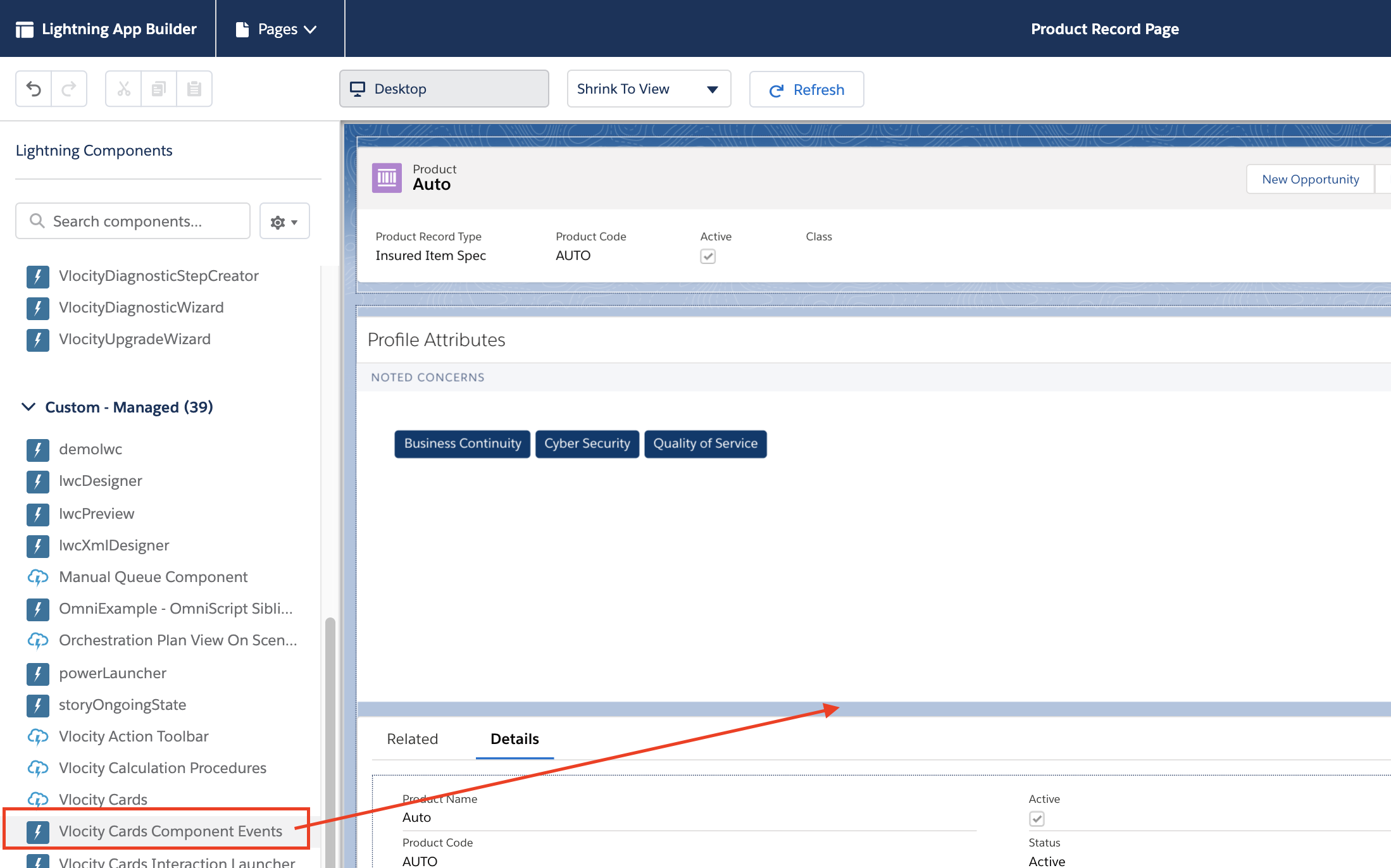
From the Lightning components pane, drag the Vlocity Cards Component
Events component from the list of Custom - Managed components onto the
canvas area.
-
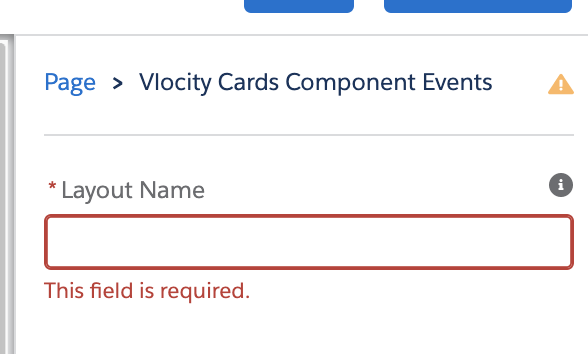
In the Layout Name input field in the properties pane, add
the name of the Card Layout that is on the same Lightning page.
-
The Vlocity Cards Component Events component does not display content. To check
that your component is configured properly, visit your Lightning page. Make a change
to the available profile attributes to see the Card Layout reload.