
For the managed package runtime, preview a card layout to see how your cards will look once published to a Lightning or Community page.
 This information is for Omnistudio for Managed Packages. For Omnistudio on standard runtime, see Omnistudio Help.
- In your org, click App Launcher, click Vlocity Cards, and click a version of a layout to open the Card Designer.
-
Click the Preview tab.
 Note
NoteOnly active cards are visible in Run Time. All inactive and active cards are visible in Design Time.
-
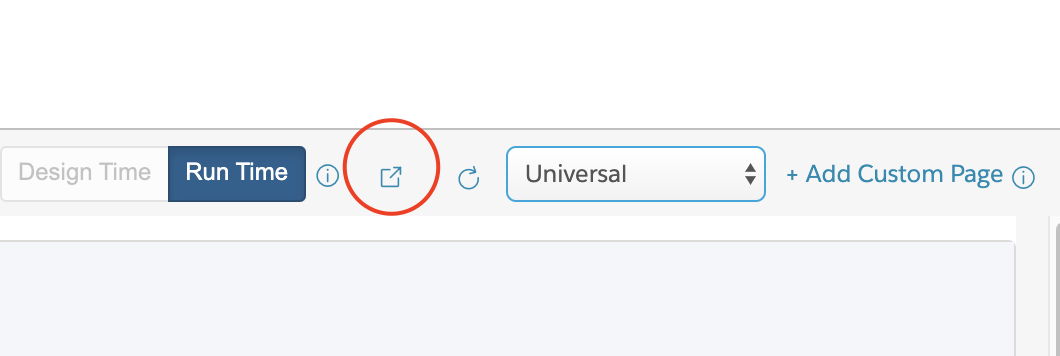
Click the 'open in new window' icon to view the layout on a Visualforce page.
-
Click the refresh icon to reload the layout in the Preview pane.

-
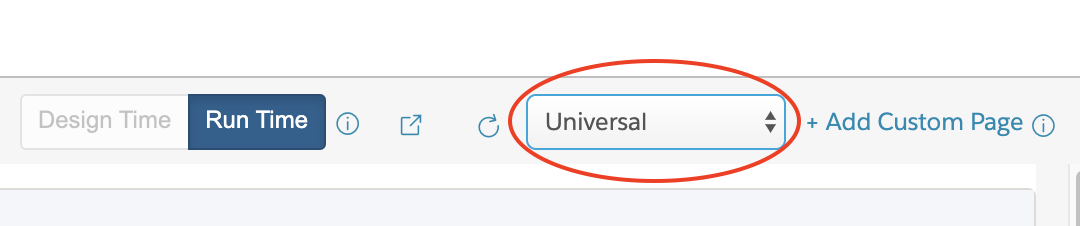
To preview how the layout looks on different pages and mobile devices, select a
page from the dropdown list of universal and custom pages.
Universal is selected by default.
-
To add a custom preview page for your layout:
-
Create a Visualfource page for your preview page. See Creating Visualforce Pages. Or choose an existing page from Setup > Custom Code > Visualforce Pages.
-
Click + Add Custom Page.
-
In the Custom Page modal, click + Add Custom Page for each new custom page you want to add.
-
Enter values for these properties:
-
Page Name: Enter the API name of the Visualforce page.
-
Page Label: Enter the label of the Visualforce page.
-
-
- If your card is LWC enabled, you must click Deploy to update changes before previewing your layout.
What’s next: Add your card to a Lightning or Community page. See Adding a Vlocity Card to a Lightning or Community Page (Managed Package). See Adding an LWC Card to a Lightning or Community Page (Managed Package).