For the managed package runtime, populate subsequent input elements with values from data JSON, formula operators, functions, concatenations, and static values. Prefill an element directly from an Omnistudio Data Mapper or Action response whenever possible. When a previous element assigns a value to a subsequent input element's Name, the subsequent input element is populated with the assigned value.
 This information is for Omnistudio for Managed Packages. For Omnistudio on standard runtime, see Omnistudio Help.
For example, suppose a Set Values action has an Element Value
Map that assigns an Element Name of FirstName with a Value of John. A subsequent Text element with a
Name of FirstName
populates with the value John.

When populating an element using Set Values, data types must match. For example, you cannot set a Text element with a value from a Number element.
To populate an element using Set Values:
- Add a Set Values action to the Omniscript.
- In the Set Values Properties, click Add New Element Value.
-
In the Element Value Map, in the Element
Name field, enter the name of an input element in a subsequent Step
element.
Note
When the Element Name maps to an existing element in the Omniscript, the element's Type appears between the Element Name field and the Value field.
For example, suppose the subsequent Step element has Text elements namedFirstNameandLastName, a Number element namedAge, and a Date element namedDate. -
In the Element Value Map, in the
Value field, enter a literal value, a formula, or the name
of another JSON node using merge syntax.
For example:
Element Name Value FirstName "John" LastName %LastNameHTTPResponse% Age %AgeParameter% Date =TODAY() -
Preview the Omniscript to ensure the fields populate correctly.
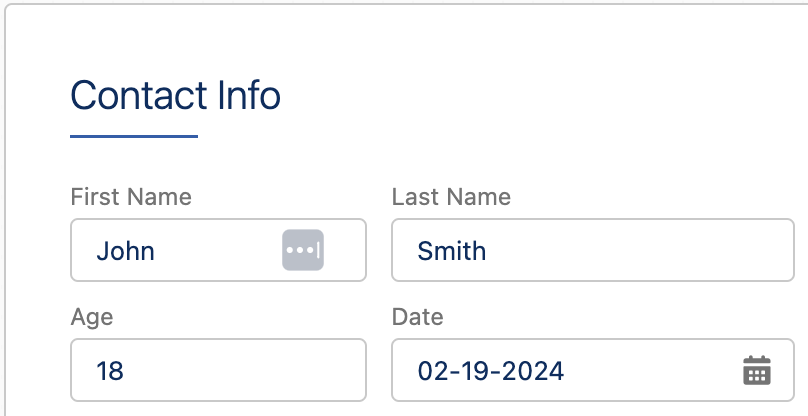
For example, here's how the subsequent Step element might look in Preview, with the FirstName, LastName, Age, and Date fields populated: