
For the managed package runtime, this page contains a table explaining the available Omniscript elements listed under the Inputs section. Lightning Player and Newport Player templates are available for all Input components.
 This information is for Omnistudio for Managed Packages. For Omnistudio on standard runtime, see Omnistudio Help.
To download the component HTML Templates, see Omniscript Component Definitions.
|
Element Name |
Element Description |
Template |
Example Image |
|---|---|---|---|
|
Checkbox |
Checkbox is a boolean input control. It returns true or false to the Data JSON. |
Lightning: omniLightning-vlcCheckbox.html Newport: omniNewport-vlcCheckbox.html |
Lightning Checkbox: 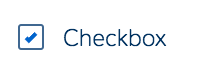 Newport Checkbox: 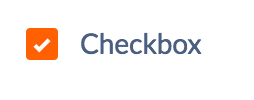 |
|
Currency |
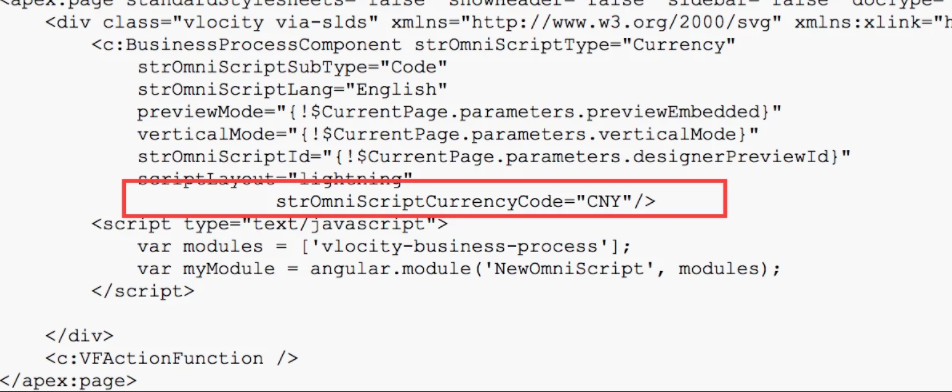
The Currency element records a currency amount on a single line. To configure the currency symbol displayed in the Omniscript, you have the following options:
 |
Lightning: omniLightning-vlcCurrency.html Newport: omniNewport-vlcCurrency.html |
Lightning Currency: 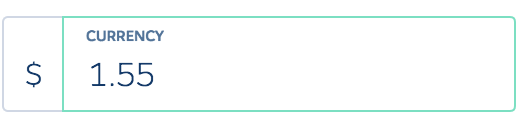 Newport Currency: 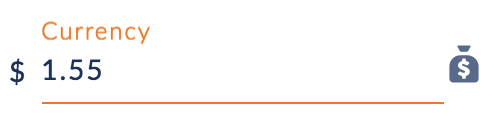 |
|
Custom LWC |
Exclusive to LWC Omniscripts, add a custom LWC to an Omniscript using the Custom LWC element. See Custom LWC Element (Managed Package). |
n/a |
n/a |
|
Date |
The Date element is used for input fields that should contain a date. The Date Type can be set to either String or Date for a Date element. Setting the Date Type to String results in the use of the Absolute Date. The model date format, can be set in the element's configuration. The default is yyyy-MM-dd. |
Lightning: omniLightning-vlcDate.html Newport: omniNewport-vlcDate.html |
Lightning Date: 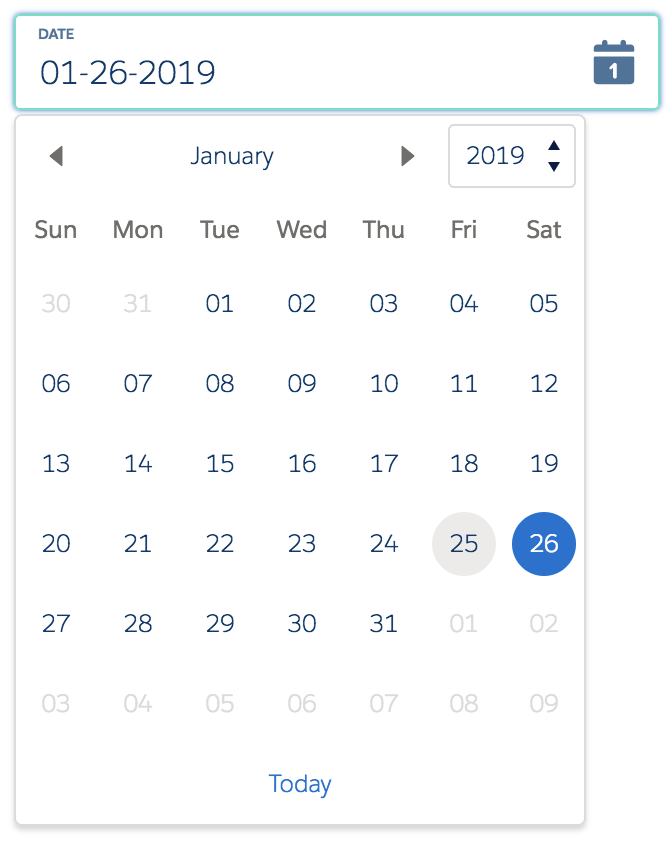 Newport Date: 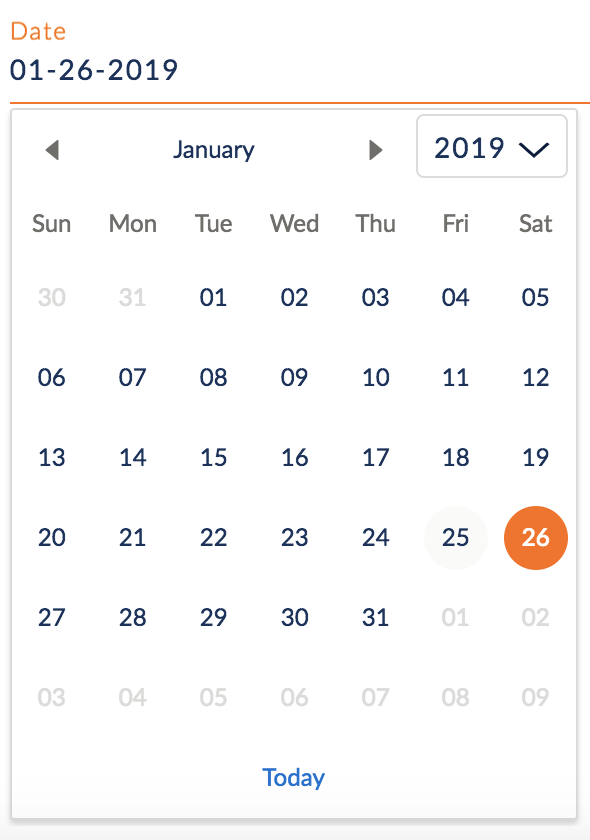 |
|
Date/Time |
The Date element is used for input fields that should contain a date and time. Displays two fields. The timezone property provides the option of setting the timezone to either the User object's time or the browser's local time. |
Lightning: omniLightning-vlcDatetime-local.html Newport: omniNewport-vlcDatetime-local.html |
Lightning Date/Time: 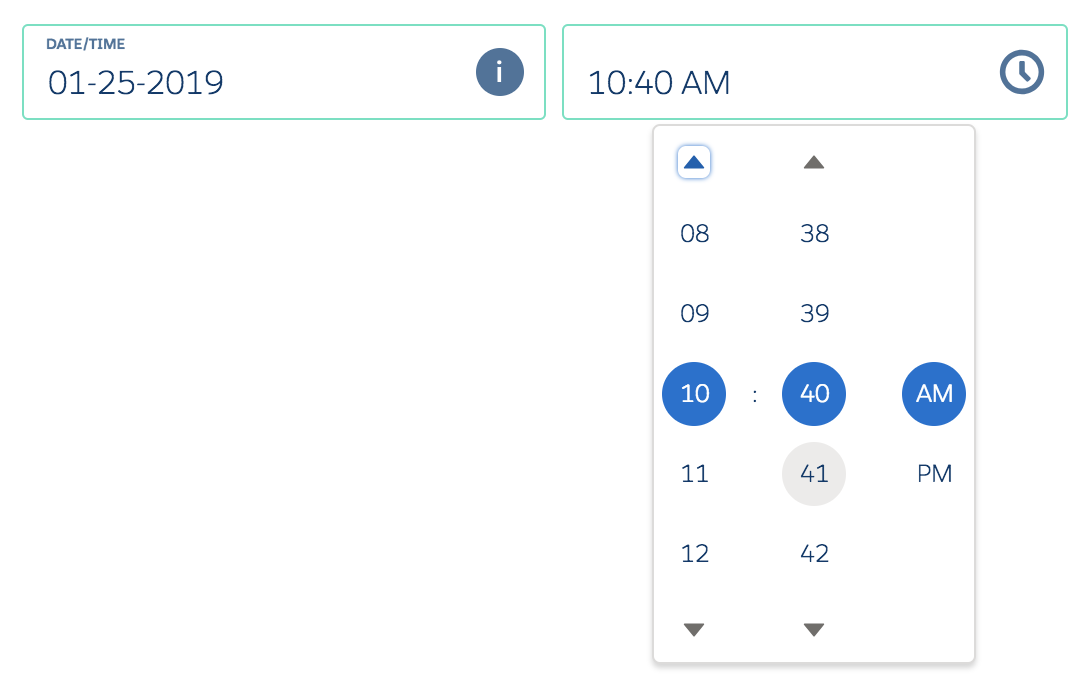 Newport Date/Time: 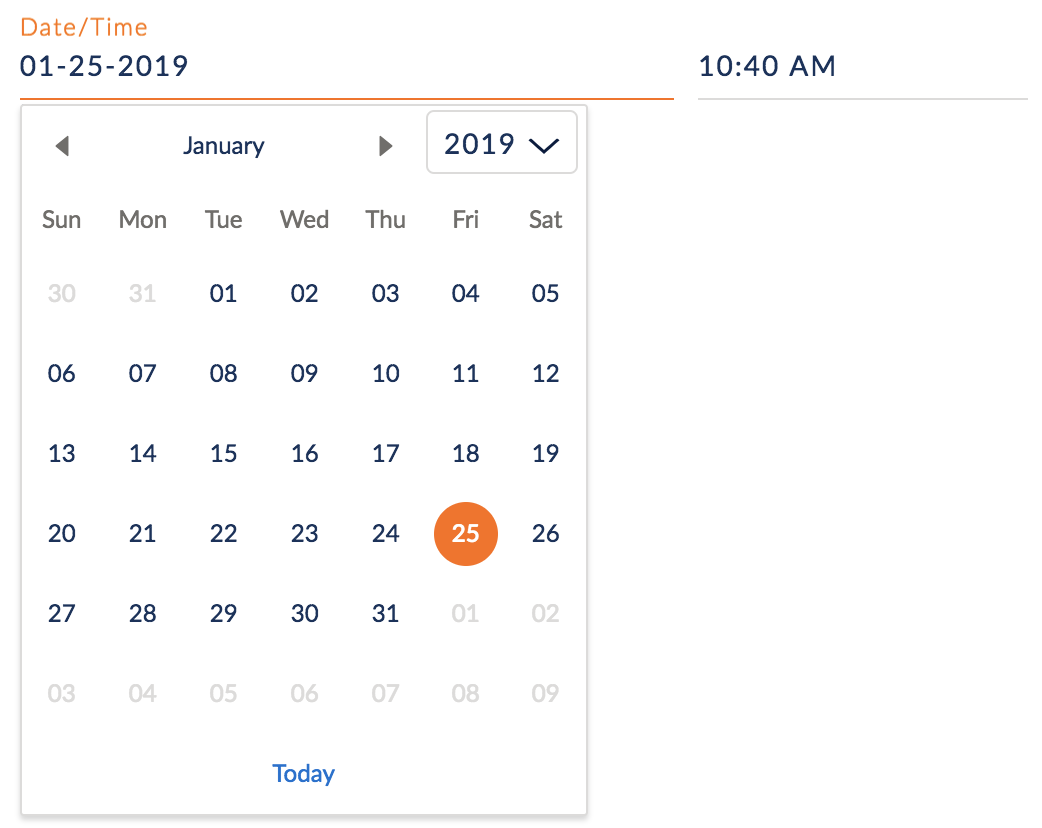 |
|
Disclosure |
Displays Disclosure text and has a checkbox for user to select whether or not they agree with the disclosure. |
Lightning: omniLightning-vlcDisclosure.html Newport: omniNewport-vlcDisclosure.html |
Lightning Disclosure: 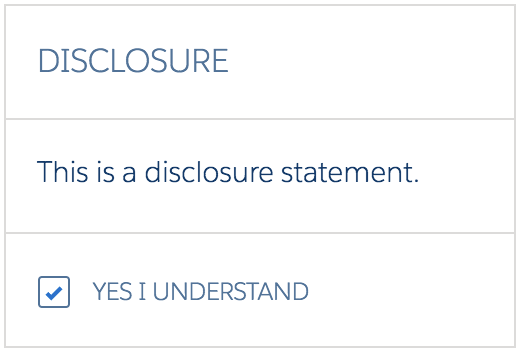 Newport Disclosure: 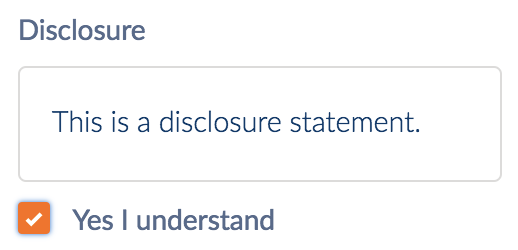 |
|
|
The Email element is used for input fields that should contain an e-mail address. |
Lightning: omniLightning-vlcEmail.html Newport: omniNewport-vlcEmail.html |
Lightning Email:  Newport Email:  |
|
File |
The File element allows the user to upload a file from their computer so that it is accessible by Omniscript. |
Lightning: omniLightning-vlcFile.html Newport: omniNewport-vlcFile.html |
Lightning File: 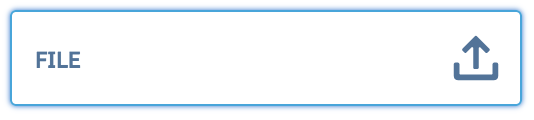 Newport File:  |
|
Filter |
The Filter element must be added to a Filter Block. Filters allow a user to filter items in an Omniscript, either as select or multi-select. |
Lightning: omniLightning-vlcFilterItemSelect.html omniLightning-vlcFilterItemMSelect.html Newport: omniNewport-vlcFilterItemSelect.html omniNewport-vlcFilterItemMSelect.html |
n/a |
|
Image |
The Image element defines an image in Omniscript. |
Lightning: omniLightning-vlcImage.html Newport: omniNewport-vlcImage.html |
Lightning Image: 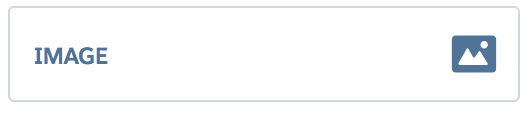 Newport Image: 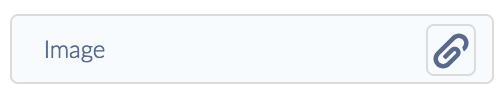 |
|
Lookup |
The Lookup element calls the Omnistudio Data Mapper Output service to query SFDC tables and populate the element with the results of the query. |
Lightning: omniLightning-vlcLookup.html Newport: omniNewport-vlcLookup.html |
Lightning Lookup: 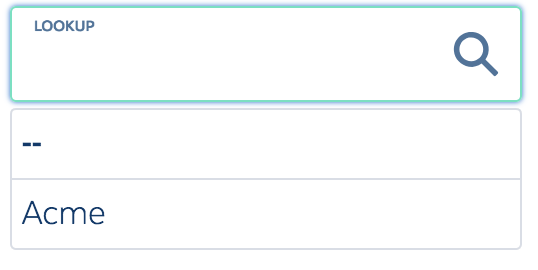 Newport Lookup: 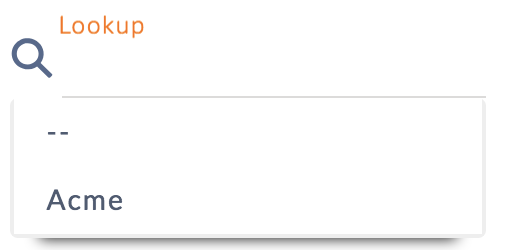 |
|
Multi-select |
When a value is selected, the language-independent "Value" in the Data JSON is populated. |
Lightning: omniLightning-vlcMulti-select.html Newport: omniNewport-vlcMulti-select.html |
Lightning Multi-select: 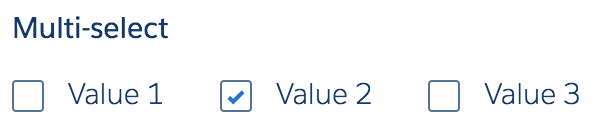 Newport Multi-select: 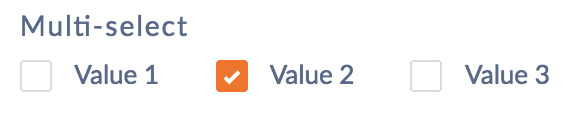 |
|
Number |
A numeric input field. |
Lightning: omniLightning-vlcNumber.html Newport: omniNewport-vlcNumber.html |
Lightning Number: 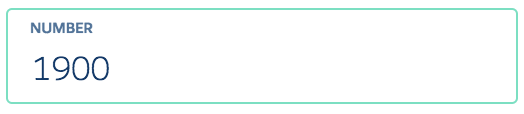 Newport Number: 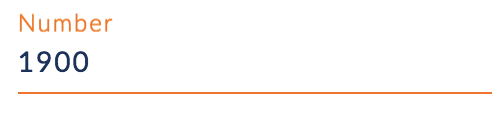 |
|
Password |
The Password element is a password field. |
Lightning: omniLightning-vlcPassword.html Newport: omniNewport-vlcPassword.html |
Lightning Password: 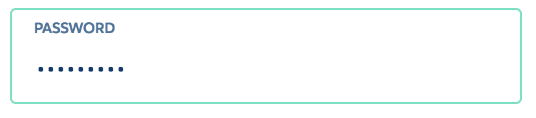 Newport Password: 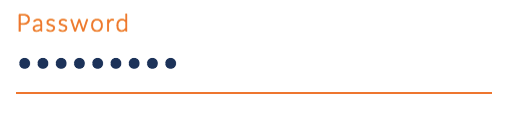 |
|
Radio |
Radio buttons let a user select one of a limited number of options. Options are displayed in a vertical list. |
Lightning: omniLightning-vlcRadio.html Newport: omniNewport-vlcRadio.html |
Lightning Radio Display Mode Options: Horizontal:  Image: 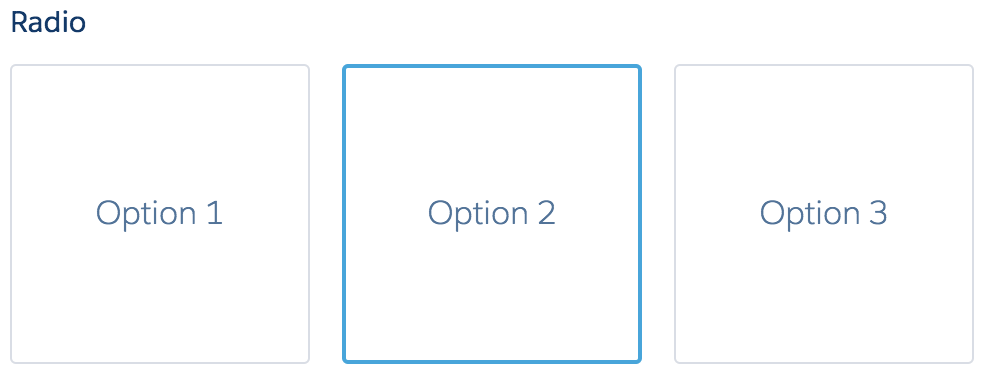 Vertical: 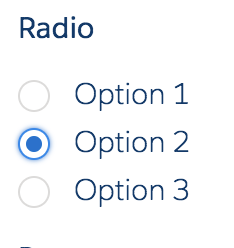 Newport Radio Display Mode Options: Horizontal: 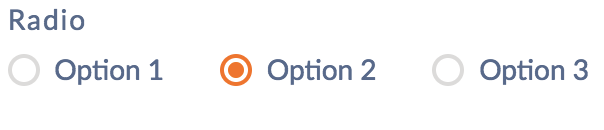 Image: 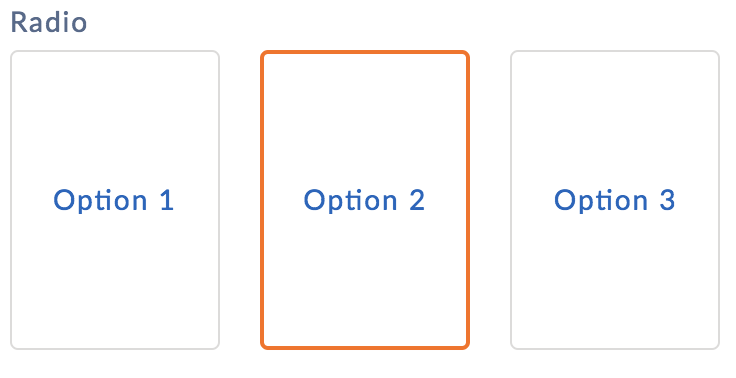 Segment:  Vertical: 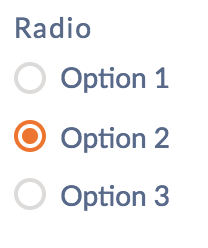 |
|
Range |
The Range element is used for input fields that should contain a value within a range. |
Lightning: omniLightning-vlcRange.html Newport: omniNewport-vlcRange.html |
Lightning Range:  Newport Range:  |
|
Select |
Displays a dropdown menu of values. When a value is selected, the language-independent "value" is populated in the Data JSON. |
Lightning: omniLightning-vlcSelect.html Newport: omniNewport-vlcSelect.html |
Lightning Select: 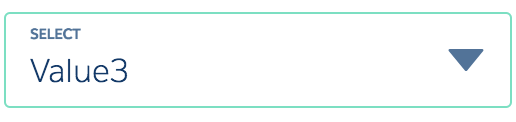 Lightning Select Dropdown: 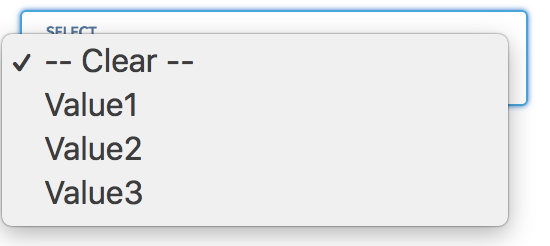 Newport Select: 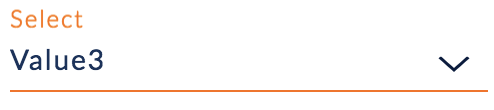 Newport Select Dropdown: 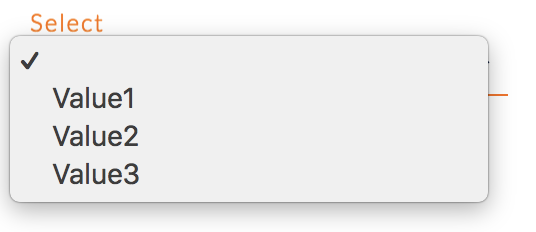 |
|
Signature |
The Signature element collects a signature during an Omniscript. This field can be made required. |
Lightning: omniLightning-vlcSignature.html Newport: omniNewport-vlcSignature.html |
Lightning Signature:  Newport Signature: 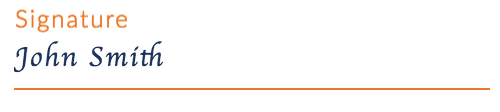 |
|
Telephone |
The Telephone element is used for input fields that should contain a telephone number. |
Lightning: omniLightning-vlcTel.html Newport: omniNewport-vlcTel.html |
Lightning Telephone: 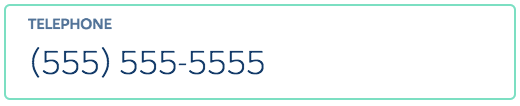 Newport Telephone: 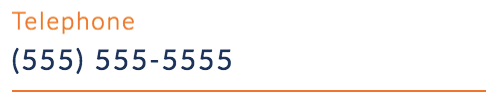 |
|
Text |
The Text element is a one-line text input field. |
Lightning: omniLightning-vlcText.html Newport: omniNewport-vlcText.html |
Lightning Text: 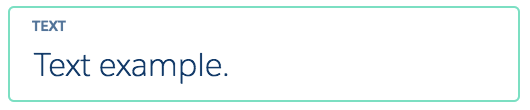 Newport Text: 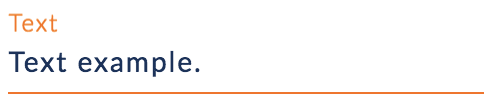 |
|
Text Area |
The Text Area element is a multiple-line text input field. |
Lightning: omniLightning-vlcTextarea.html Newport: omniNewport-vlcTextarea.html |
Lightning TextArea: 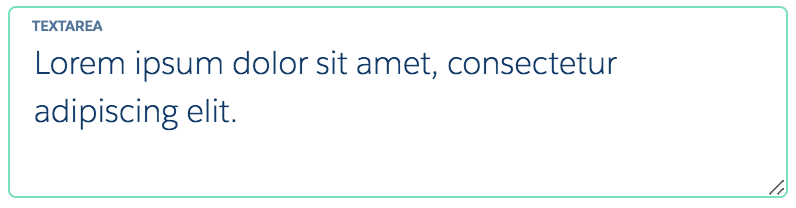 Newport TextArea: 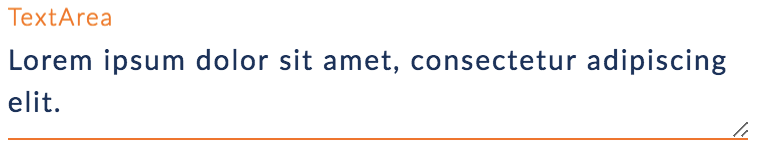 |
|
Time |
The Time element allows users to input a time into the field. |
Lightning: omniLightning-vlcTime.html Newport: omniNewport-vlcTime.html |
Lightning Time: 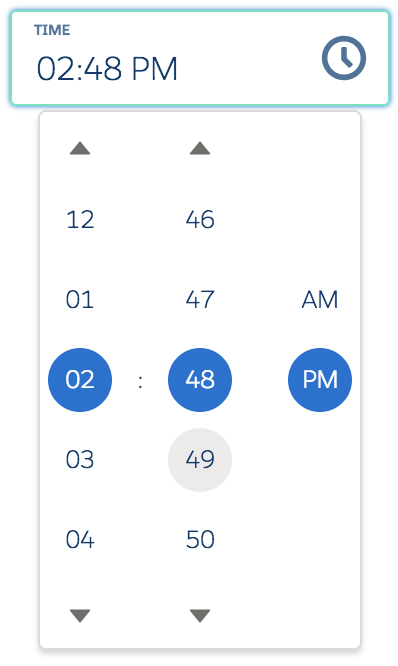 Newport Time: 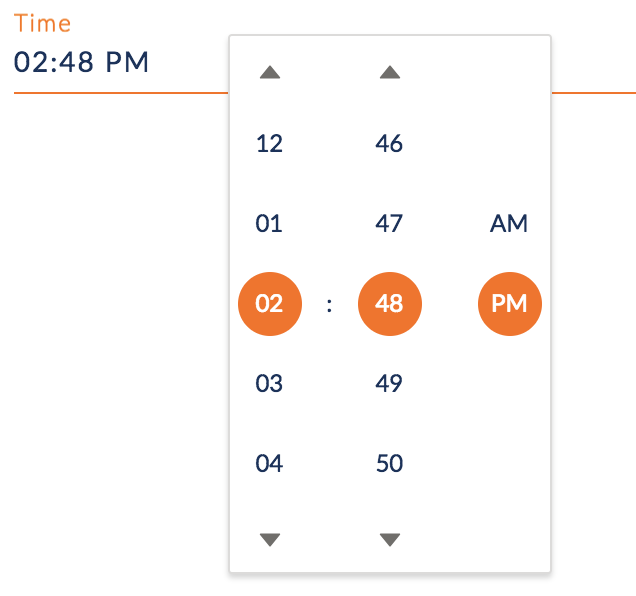 |
|
URL |
The URL element is used for input fields that should contain a URL address. |
Lightning: omniLightning-vlcURL.html Newport: omniNewport-vlcURL.html |
Lightning URL:  Newport URL:  |
- Custom Lightning Web Component Properties (Managed Package)
For the managed package runtime, custom Lightning Web Component element properties are configurable from the Properties panel when you select the element. With the Custom Lightning Web Component element, embed a custom Lightning web component into your Omniscript. - Omniscripts Checkbox Element (Managed Package)
For the managed package runtime, enable users to select a checkbox by adding the Checkbox element to your Omniscript. For example, map the user's yes/no answer to a true/false field in a record. - Omniscripts Currency Element (Managed Package)
For the managed package runtime, enable users to enter a currency amount by adding the Currency element to your Omniscript. Update default format options such as the number of decimal places to display, minimum and maximum currency value, and more. - Omniscripts Date/Time Element (Managed Package)
For the managed package runtime, enable users to select a date from a date picker and a time from a list by adding the Date/Time element to your Omniscript. Set the minimum and maximum dates, and the date and time formats. - Omniscripts Date Element (Managed Package)
For the managed package runtime, enable users to select a date from a date picker by adding a Date element to your Omniscript. Set the minimum and maximum dates and the date format. - Omniscripts Disclosure Element (Managed Package)
For the managed package runtime, enable users to agree to a disclosure statement by adding a Disclosure element to your Omniscript. Enter the copy in a rich text editor. - Omniscripts Email Element (Managed Package)
For the managed package runtime, enable users to enter an email address by adding the Email element to your Omniscript. Update the default allowable format with Validation Options. - Omniscripts Multi-Select Element (Managed Package)
For the managed package runtime, enable users to select from multiple items by adding the Multi-select element to your Omniscript. Display options vertically, horizontally, or as an image. - Omniscripts Number Element (Managed Package)
For the managed package runtime, enable users to enter a number by adding the Number element to your Omniscript. Limit what the user can enter by setting a mask. - Omniscripts Password Element (Managed Package)
For the managed package runtime, enable users to enter a password by adding the Password element to your Omniscript. Set the minimum and maximum lengths of the password. - Omniscripts Radio Element (Managed Package)
For the managed package runtime, enable users to select one from multiple items by adding the Radio element to your Omniscript. Display options vertically, horizontally, as an image, or styled based on the Newport Design System. - Omniscripts Range Element (Managed Package)
For the managed package runtime, enables users to select a number from a specified range by adding the Range element to your Omniscript. Specify the increment values and use both dynamic and static values to define the minimum and maximum values for the range. - Omniscripts Select Element (Managed Package)
For the managed package runtime, enable users to select from a dropdown by adding a Select element to your Omniscript. Users can enter text to filter the options. Omnistudio pulls the options from an Apex class and method or from a Salesforce object. - Omniscripts Telephone Element (Managed Package)
For the managed package runtime, enable users to enter a phone number by adding a Telephone element to your Omniscript. Limit the length and format of the number the user can enter. - Omniscripts Text Area Element (Managed Package)
For the managed package runtime, enable users to enter multiple lines of text by adding a Text Area element to your Omniscript. Limit the number of characters the user can enter. - Omniscripts Text Element (Managed Package)
For the managed package runtime, enable users to enter a line of text by adding the Text element to your Omniscript. Limit the length of the text using minimum and maximum values and set allowable information using the mask property. - Omniscripts Time Element (Managed Package)
For the managed package runtime, enable users to select from a list of times by adding the Time element to your Omniscript. Format the display and set the time intervals. - Omniscripts URL Element (Managed Package)
For the managed package runtime, enable users to enter a website address by adding the URL element to your Omniscript. For example, a user can enter https://salesforce.com, or https://www.salesforce.com, and so on.