
Third-party analytics vendors require an External Tracking Configuration in addition to a Tracking Group. The steps in this task are for Google Analytics.
- From Setup, in the Quick Find box, enter omni.
- Expand OmniAnalytics and click External Tracking Configurations.
-
Click New.
The New External Tracking Configuration window opens.
- For the name, enter GoogleAnalyticsTest.
-
In Tracking Vendor, click in the text box and select Google.
Under Replacement Values, the
idkey and the Script URL property are automatically added. -
In the value field for the
idkey, paste the Google Tag Manager ID that you received when you created your Google Tag Manager account. It has the formatGTM-XXXXXXX.If you didn't copy this ID when you created your account, log in to Google Tag Manager, open your container if you have more than one, and copy the
GTM-XXXXXXXtext.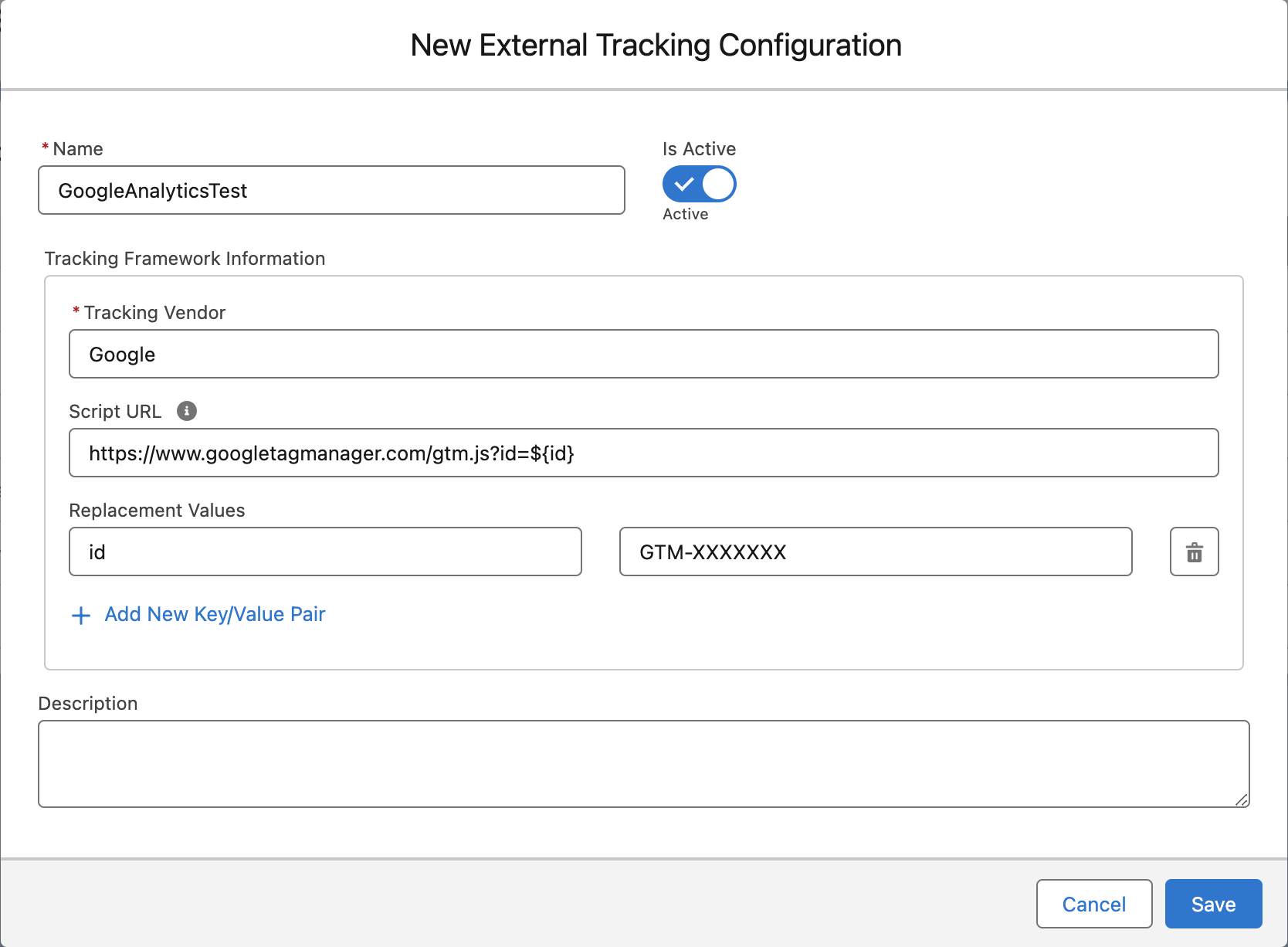
- Save your changes.

After you create the External Tracking Configuration, Create Omniscript Event Types.