
Assess the Migration Readiness in Your Development Sandbox (Vlocity Industries Managed Packages and Custom Data Model)
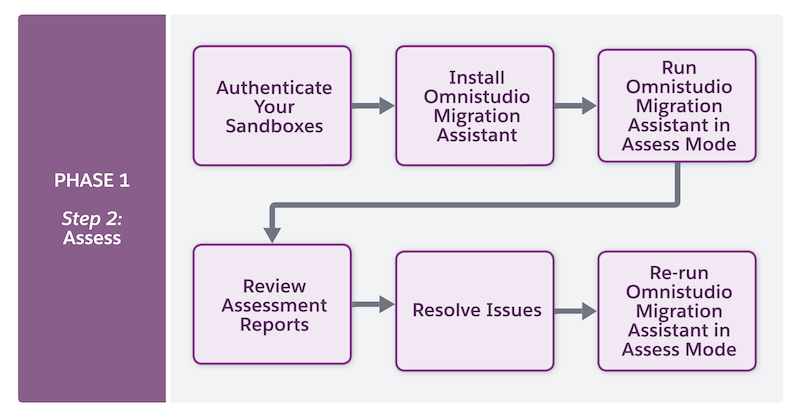
In the development sandbox, run the Omnistudio Migration Assistant in Assess mode to assess how the migration process impacts each Omnistudio component.
Before You Begin
To run the Omnistudio Migration Assistant, you must have the Omnistudio admin and Omnistudio user permission sets assigned. See Omnistudio Permission Sets.

-
Authenticate to the migration sandbox org:
sf org login web --instance-url=<your_sandbox_URL> -
When prompted, enter your username and password. The authorization successful message
appears.
 Note All prompts in the Omnistudio Migration Assistant have a timeout of five minutes. If no input is provided within this time, the command exits automatically.
 - Install the Omnistudio Migration Assistant.
-
Run the Omnistudio Migration Assistant in Assess mode.
sf omnistudio:migration:assess [-u <string>] [-a] [-v <string>] [--only=(dm|ip|os|fc|autonumber|cl)] [--relatedobjects=(apex|lwc|expsites|flexipage) [--loglevel=(trace|debug|info|warn|error|fatal|trace)]- To assess all versions of the components, use
-aor–allversions:sf omnistudio:migration:assess -u <YOUR_ORG_USERNAME@DOMAIN.COM> -aWhere,
YOUR_ORG_USERNAME@DOMAIN.COMis your username in the sandbox.Example:
sf omnistudio:migration:assess -u asmith@sample.com -a - To assess specific components, use the
-oor--only=dmparameter:--only=dm: Data Mappers--only=ip: Integration Procedures--only=os: Omniscripts--only=fc: Flexcards--only=autonumber: Omni Global Auto Numbers--only=cl: Custom Labels--only=sfl: Omniscript Saved Sessions (Save For Later)
Example:
sf omnistudio:migration:assess -u asmith@sample.com
                  –only=dm
Use
--onlyto scope the assessment to specific component types (for example,--only=dm,ip). This scoping applies to assess mode only. When you migrate, always migrate all component types together. See Migrate Your Components in Your Development Sandbox (Vlocity Industries Managed Packages and Custom Data Model) - To assess specific or all related objects, use the
-ror--relatedobjectsparameter:--relatedobjects=apex: Apex classes--relatedobjects=lwc: Lightning web components--relatedobjects=expsites: Experience Sites--relatedobjects=flexipage: FlexiPages--relatedobjects="apex,lwc,expsites,flexipage": all related objects
Example:
sf omnistudio:migration:assess -u asmith@sample.com --relatedobjects=apex - To assess username or alias for the target org and to override the default target org:
-u <target_username>or--targetusername=<target_username>: Username of the target org or alias you’ve set up in Salesforce CLI for that org.
Example:
sf omnistudio:migration:assess -u asmith@sample.com - To assess username or alias for the Dev Hub org and to override the default Dev Hub org:
-v <target_devhub_username>or--targetdevhubusername=<target_devhub_username>: Username of the target Dev Hub org or alias you’ve set up in Salesforce CLI for that org.
Example:
sf omnistudio:migration:assess -v asmith@sample.com - To control the amount of details shown in the command output:
--loglevel=(trace|debug|info|warn|error|fatal) : Sets the logging level for this command invocation. Default is warn.traceordebug: Show very detailed logs, useful for troubleshooting.info: Shows general informational messages.warn(default): Shows warnings and errors only.errororfatal:Show only errors or critical failures.
Example:
sf omnistudio:migration:assess -u asmith@sample.com
                  –loglevel=debug
- To assess all versions of the components, use
- If multiple Omnistudio packages are found, select one of the packages by entering its number.
-
When prompted, enter y or n to specify
whether you already have a Salesforce project with related objects.
- If you entered n:
- The tool connects to your org and retrieves the Apex classes.
- Enter y to proceed.
- Create an empty project folder where the tool can retrieve and store Apex classes.
- When prompted, enter the path to the project folder. For example: /Users/<your_name>/Downloads/OMA
- If you entered y:
- When prompted, enter the path to the project folder that contains the retrieved Apex classes. For example: /Users/<your_name>/Downloads/OMA
- If you entered n:
-
Enter y to confirm that you consent to enable the
ExperienceBundle metadata API and migrate Experience Cloud sites.
The assessment process is initiated.
After the assessment is complete, a confirmation message appears indicating that the reports are ready for review. For example:
Migration assessment for org 00DDR0000008bj32AA is complete and reports are ready for review in the folder <local_folder_path>/assessment_reportsWhere,
<local_folder_path>is the location on your machine where the assessment reports are stored. The assessment reports also appear in a new browser window.The assessment reports are generated for these components:
- Omniscripts
- Flexcards
- Data Mappers
- Integration Procedures
- Apex Classes
- Omni Global Auto Numbers
- FlexiPages
- Experience Cloud Site Pages
- Lightning Web Components
- Custom Labels
- Omniscript Saved Sessions
- Click the component for which you want to view the assessment report, and review it to identify potential migration issues and determine whether any updates are required before migration. See Review the Assessment Reports.
- To ensure a smooth migration, complete all the pending action items that are listed as Needs Manual Intervention in the assessment reports.
-
To validate readiness, re-run the Omnistudio Migration Assistant in Assess mode.
Each time you run the Omnistudio Migration Assistant, it reruns assessments on all components and generates new reports.
- Make sure that all records listed in the Assessment Status column in the Assessment Report are marked as either Ready for Migration or Warnings before proceeding with the migration.
- Review the Assessment Reports (Vlocity Industries Managed Packages and Custom Data Model)
When you run the Omnistudio Migration Assistant in Assess mode, it generates assessment reports for Omniscripts, Flexcards, Data Mappers, Integration Procedures, Apex Classes, Omni Global Auto Numbers, FlexiPages, Experience Cloud Site Pages, Lightning Web Components, and Custom Labels. These assessment reports highlight several key areas that require attention before migrating Omnistudio components.