---
schema_version: "1"
id: 8930959ab34e7b1b3e4e94f5ca07bd705b88bd9b90fb4e81c736e54447e2e540
title: Update Omniscript Custom Lightning Web Components and Omniscript Elements Overridden with Customized Components
collection: admin
version: current
locale: en-us
portal_url: https://docs.salesforce.com/admin/current/en-us/xcloud/264-0-0/os_migrate_omniscript_elements_with_overridden_components.md
canonical_url: https://help.salesforce.com/s/articleView?id=xcloud.os_migrate_omniscript_elements_with_overridden_components.htm&release=264.0.0&type=5
source_site: help.salesforce.com
content_type: documentation
content_hash: 3ccd2d4ee969b4897b9b3664c2c17d1b2cb4a7ecee4566d6cc7b9b148b13ac89
description: Migrate all custom Lightning web components that extend the omniscriptBaseMixin component or use a standalone component and all customized Omniscript elements that have overridden components from the managed package runtime to the standard runtime. This is a manual step.
products:
- Omnistudio
release: "264"
---
# Update Omniscript Custom Lightning Web Components and Omniscript Elements Overridden with Customized Components
Migrate all custom Lightning web components that extend the omniscriptBaseMixin component or use a standalone component and all customized Omniscript elements that have overridden components from the managed package runtime to the standard runtime. This is a manual step.
Before you begin, set up your environment and deploy your custom components in the org before migrating Omniscript components. See [Set Up Your Environment for Customizing Omniscript Components](https://help.salesforce.com/s/articleView?id=xcloud.os_standard_set_up_your_environment_for_customizing_omniscript_elements.htm&language=en_US).
Update the namespace in the HTML, JavaScript, and meta.xml files of all overridden Omniscript managed package components from the managed package’s namespace to the c namespace in the standard runtime.
Change these managed package namespaces to `c`:
- `omnistudio`
- `vlocity_ins`
- `vlocity_cmt`
- `vlocity_ps`
1. Go to the `lwc` folder that has all your customized Omniscript elements.
2. For each customized Omniscript element, in the HTML file, replace the managed package namespace with the `c` namespace.
For example, this code shows the contents of the customomniscriptText.html file with the `omnistudio` namespace:
```
```
This code shows the contents of the customomniscriptText.html file after changing the `omnistudio` namespace with the `c` namespace:
` `
3. In the JavaScript files, replace the managed package namespace with the `c` namespace.
Most of these changes are related to module import.
For example, this code shows the contents of the customomniscriptText.js file with the `omnistudio` namespace:
`import OmniscriptText from 'omnistudio/omniscriptText'; import tmpl from './customomniscriptText.html'; export default class CustomOmniscriptText extends OmniscriptText { render() { return tmpl; } }`
This code shows the contents of the customomniscriptText.js file after changing the `omnistudio` namespace with the `c` namespace:
`import OmniscriptText from 'c/omniscriptText'; import tmpl from './customomniscriptText.html'; export default class CustomOmniscriptText extends OmniscriptText { render() { return tmpl; } }`
4. Remove this line from the meta.xml file of your custom component: `devopsimpkg11`
For example, this code shows the contents of the customomniscriptText.js-meta.xml file before the change:
` 60.0 true devopsimpkg11 Custom LWC test `
This code shows the contents of the customomniscriptText.js-meta.xml file after change:
` 60.0 true Custom LWC test `
5. Deploy each custom component to the org by using Visual Studio Code or Salesforce CLI:
`sf force:source:deploy -p force-app/main/default/lwc/{component_name}`
Where component\_name is the name of the custom component that you want to deploy to the org.
6. Update all Omniscript Action framework calls to run in the standard runtime.
See [Make Remote Calls Within Omniscripts from Lightning Web Components](https://help.salesforce.com/s/articleView?id=xcloud.os_make_remote_calls_from_lightning_web_components_using_the_omniscript_action_framework_18348.htm&language=en_US).
7. Verify that the migration is successful.
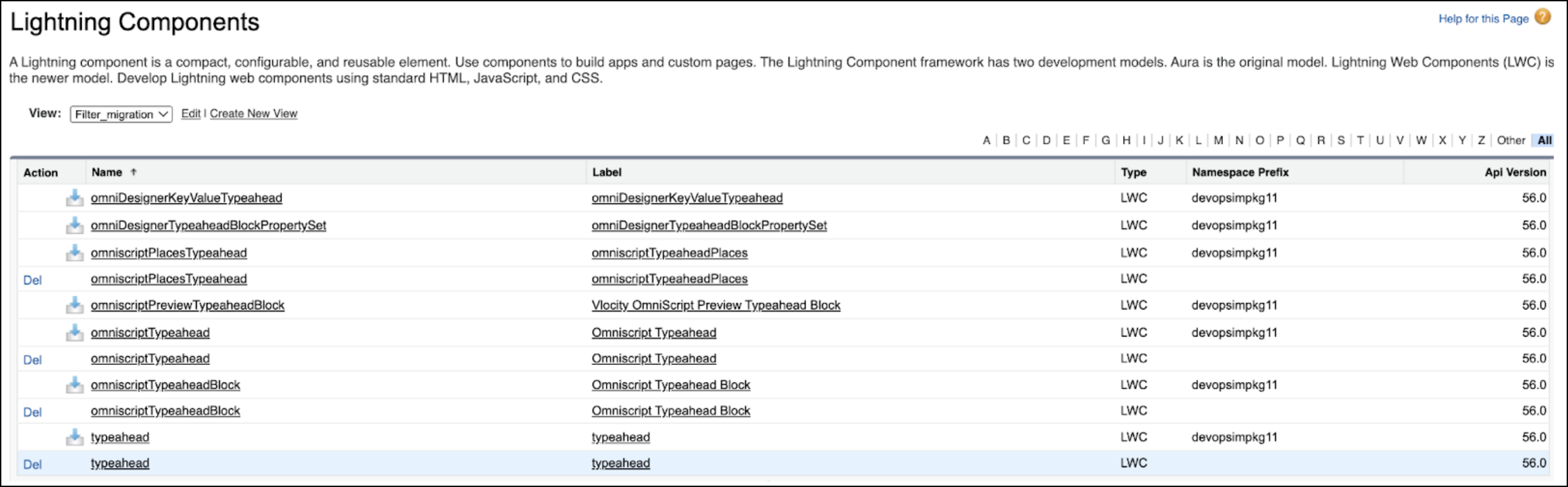
1. From Setup, in the Quick Find box, enter Lightning Components, and then select **Lightning Components**.
2. Make sure that the Namespace Prefix field is blank for the custom components that you migrated.