
For the managed package runtime, manually grant access to your org domains to enable LWC features such as Preview. When spinning a new org or new installation, the Tooling API calls necessary for LWC may fail if the Remote Site Setting page in your org does not include the URLs required. The required URLs are your org's lightning.force.com URL and the vf.force.com URL of the Visualforce page that contains the Flexcard Designer.
 This information is for Omnistudio for Managed Packages. For Omnistudio on standard runtime, see Omnistudio Help.

Note In Winter '24 and later releases, configuring Remote Site Settings for
Flexcards isn't necessary, and the warning message about Remote Site Settings no longer
appears on the Flexcards tab.
See Remote Site Settings.
- In your org, open any Flexcard to view the Flexcard Designer, and click the Preview link in the submenu.
-
Right-click in the white space that contains your Flexcard content to view the
menu options in a popup. Select View Frame Source to open the
iframe in a new browser tab, and copy your
visualforce.comdomain from the address bar. For example, https://MyDomainName--c.vf.force.com.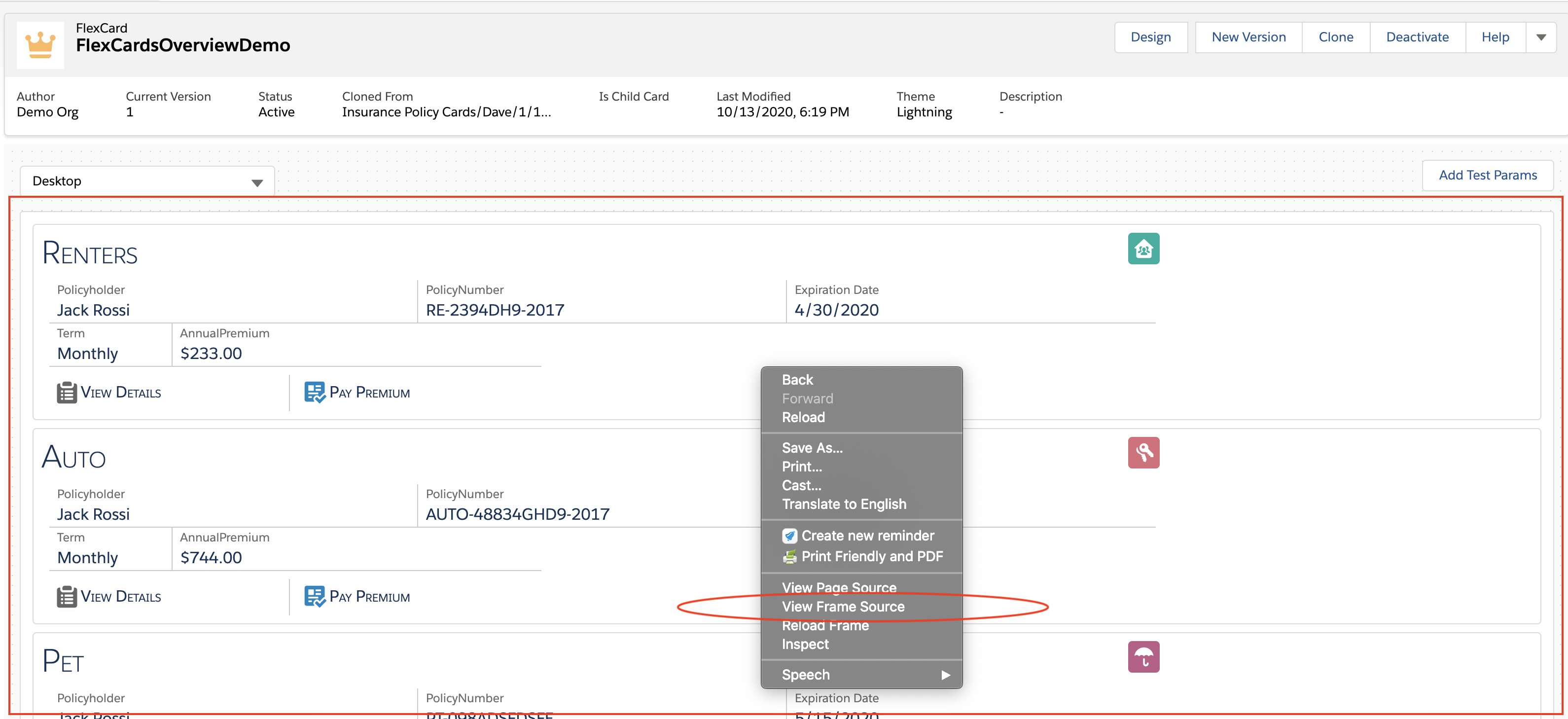

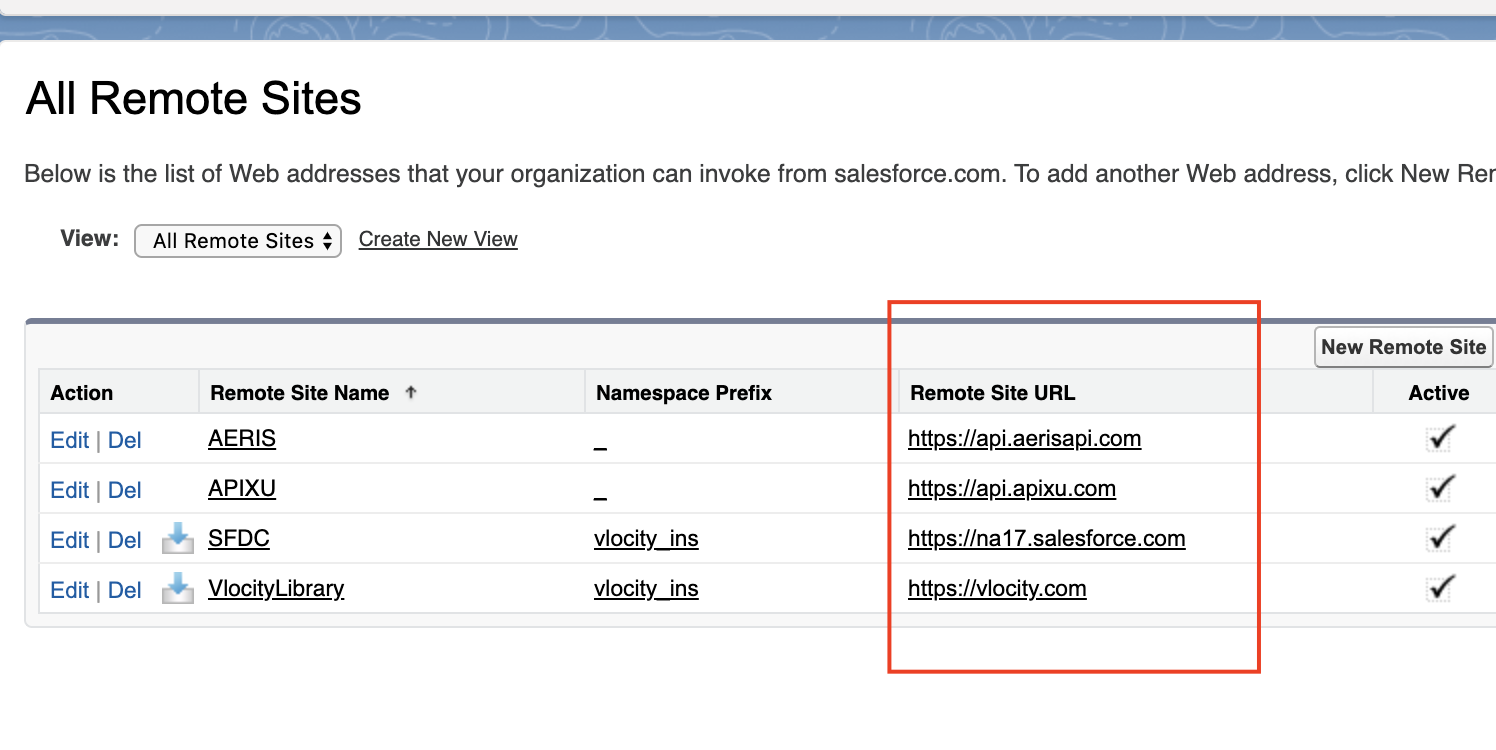
- In your org, go to Setup > Security > Remote Site Settings.
-
Confirm that your org domains are not listed in the Remote Site
URL column.
- Click New Remote Site.
- Enter a Remote Site Name without spaces for the vf.force.com domain. For example, enter LWC_VF.
- Enter your copied vf.force.com URL in Remote Site URL. For example, enter https://MyDomainName--c.vf.force.com.
- Confirm that the Active checkbox is enabled.
- Click Save.
- Repeat steps 3 and 5.
- Enter a Remote Site Name without spaces for the lightning.force.com domain. For example, enter LWC_LF.
- Enter the lightning.force.com URL visible in the address browser bar on all pages in your org. For example, enter https://MyDomainName.lightning.force.com.
- Repeat steps 8 and 9.