---
schema_version: "1"
id: 1face29dd56c4455300c3e93d34bb01a9243f5bb7e7a2dab8cd0aad9ff961ee0
title: Launch Lightning Web Component URLs with vlocityLWCWrapper (Managed Package)
collection: admin
version: current
locale: en-us
portal_url: https://docs.salesforce.com/admin/current/en-us/xcloud/264-0-0/os_launch_lightning_web_component_urls_with_vlocitylwcwrapper.md
canonical_url: https://help.salesforce.com/s/articleView?id=xcloud.os_launch_lightning_web_component_urls_with_vlocitylwcwrapper.htm&release=264.0.0&type=5
source_site: help.salesforce.com
content_type: documentation
content_hash: 6a8a523d0724f8906e664bb7b3d8daee6b4940bbd1c355e0931909da5db22111
description: For the managed package runtime, add the vlocityLWCWrapper to make Lightning web components in a Lightning page URL addressable. Lightning web components are not URL addressable by default. The vlocityLWCWrapper wraps the Lightning web component in a URL addressable aura component.
products:
- Omnistudio
release: "264"
---
# Launch Lightning Web Component URLs with vlocityLWCWrapper (Managed Package)
For the managed package runtime, add the vlocityLWCWrapper to make Lightning web components in a Lightning page URL addressable. Lightning web components are not URL addressable by default. The vlocityLWCWrapper wraps the Lightning web component in a URL addressable aura component.
 This information is for Omnistudio for Managed Packages. For Omnistudio on standard runtime, see [Omnistudio Help](https://help.salesforce.com/s/articleView?id=xcloud.os_omnistudio_standard.htm&language=en_US).
Required Versions
Available beginning with Vlocity Insurance and Health Summer '19 and
Vlocity CME Fall '19.
1. To configure the URL to launch the LWC, perform the following tasks:
1. Add the wrapper by copying the relative path in the example and replacing the **NS** variable with the namespace of the Vlocity package.
```
lightning/cmp/NS__vlocityLWCWrapper?
```
2. Target the component by adding c\_\_target= to the URL.
```
lightning/cmp/NS__vlocityLWCWrapper?c__target=
```
3. Set the URL to target the component by adding c: to indicate a component and add the component name without dashes using camelCase. For example, to add a component with the name **** use the syntax **c:demoButton**.
```
lightning/cmp/NS__vlocityLWCWrapper?c__target=c:demoButton
```
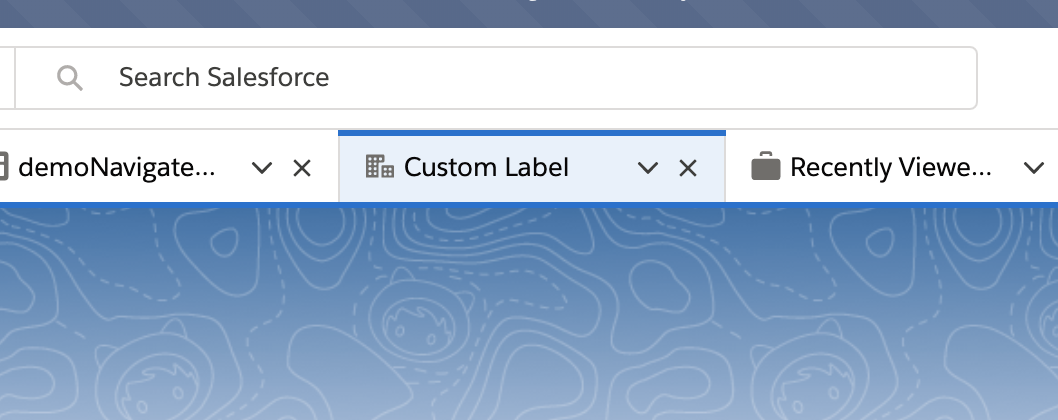
4. (Optional) When using the wrapper in a console app, add a Console Tab Icon and a Console Tab Label by setting the **c\_\_tabIcon** and **c\_\_tabLabel** parameters. The c\_\_tabIcon accepts an [SLDS Icon](https://www.lightningdesignsystem.com/icons/) , and c\_\_tabLabel accepts plain text. For example, **&c\_\_tabLabel=Custom Label&c\_\_tabIcon=standard:account** renders the console tab shown in this example image.
5. (Optional) Assign additional attributes by passing parameters that match the attribute names. Parameters must use the **c\_\_** prefix.
Example Button Component Code:
```
```
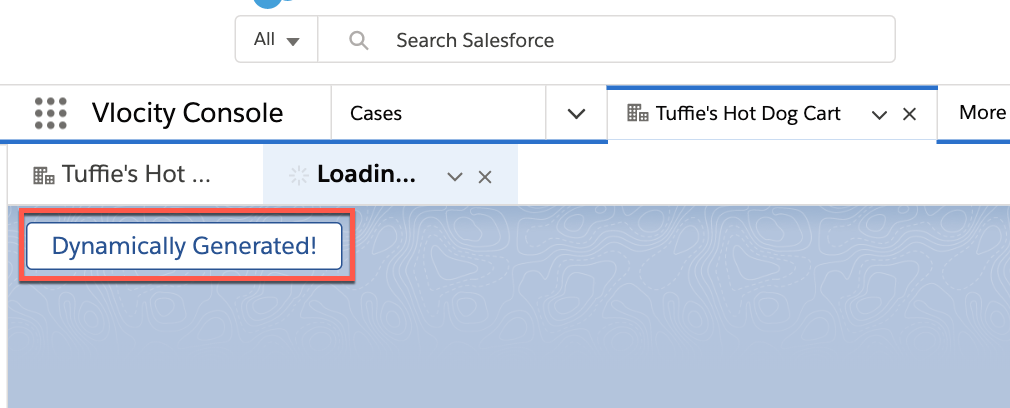
Example Button Component as a URL addressable component:
```
lightning/cmp/NS__vlocityLWCWrapper?c__target=c:button&c__label=Dynamically Generated&c__variant=outline-brand
```
Example Image:
2. To launch an LWC from a Layout action, perform the following tasks:
1. From **Setup**, enter Object Manager into the **Quick Find** search.
2. Select an Object, and click **Buttons, Links, and Actions**.
3. Click **New Button or Link**.
4. Set **Display Type** to **Detail Page Button**.
5. Set **Content Source** to **URL**.
6. In the URL value, add a vlocityLWCWrapper URL.
```
lightning/cmp/NS__vlocityLWCWrapper?c__target=c:demoButton
```