
For the managed package runtime, customize an LWC Omniscript’s Edit Block by extending the Edit Block LWC.
 This information is for Omnistudio for Managed Packages. For Omnistudio on standard runtime, see Omnistudio Help.
Before you begin, ensure you understand the requirements for extending an Omniscript element's Lightning web component. See Extend an Omniscript Element's Lightning Web Component (Managed Package).
The Edit Block LWC overrides the entire Edit Block LWC unless the Edit Mode is Cards or Long Cards. Cards and Long Cards include additional extendable LWCs.
-
In VisualStudio, create a custom LWC or download a custom Edit Block LWC example
by clicking here. The code in the custom LWC example
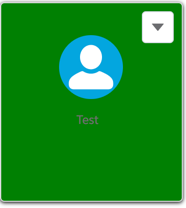
changes the background of the Edit Block card to green.
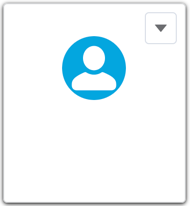
Original Edit Block Card
Custom Edit Block Card Example
-
In the LWC's JavaScript file, extend the Edit Block LWC. Using this code example,
replace the NS with the namespace of the package.
Example:
import omniscriptEditBlock from "VLOCITYNAMESPACE/omniscriptEditBlock"; import template from "./editblockCardCustomize.html" export default class editblockCardCustomize extends omniscriptEditBlock{ // your properties and methods here render() { if (this.jsonDef) { this._hasChildren = this.jsonDef.children.length > 0; this._isFirstIndex = this.jsonDef.index === 0; if (this._isCards && this._isFirstIndex) { // hides the first short card with no children if (!this._hasChildren) { this.classList.add(this._theme + '-hide'); } else { this.classList.remove(this._theme + '-hide'); } } } return template; } } - Add code to the custom LWC.
- Deploy the custom LWC to Salesforce. See Deploy Lightning Web Components (Managed Package).
- Go to the Omniscript that contains the Edit Block LWC.
- In the Edit Block’s LWC Component Override field, enter the name of the custom LWC.
- Activate the Omniscript and preview your changes.