
For the managed package runtime, copy the Omniscript component tag and embed it in a Lightning Web Component.
Embedding an Omniscript in a Lightning Web Component is supported for the managed package runtime but not for the standard runtime.
 This information is for Omnistudio for Managed Packages. For Omnistudio on standard runtime, see Omnistudio Help.
-
In an Omniscript Designer, copy the LWC Omniscript tag using one of these options:
-
In the Omniscript Designer, click the dropdown menu, click How To Launch, and copy one of the component tags.
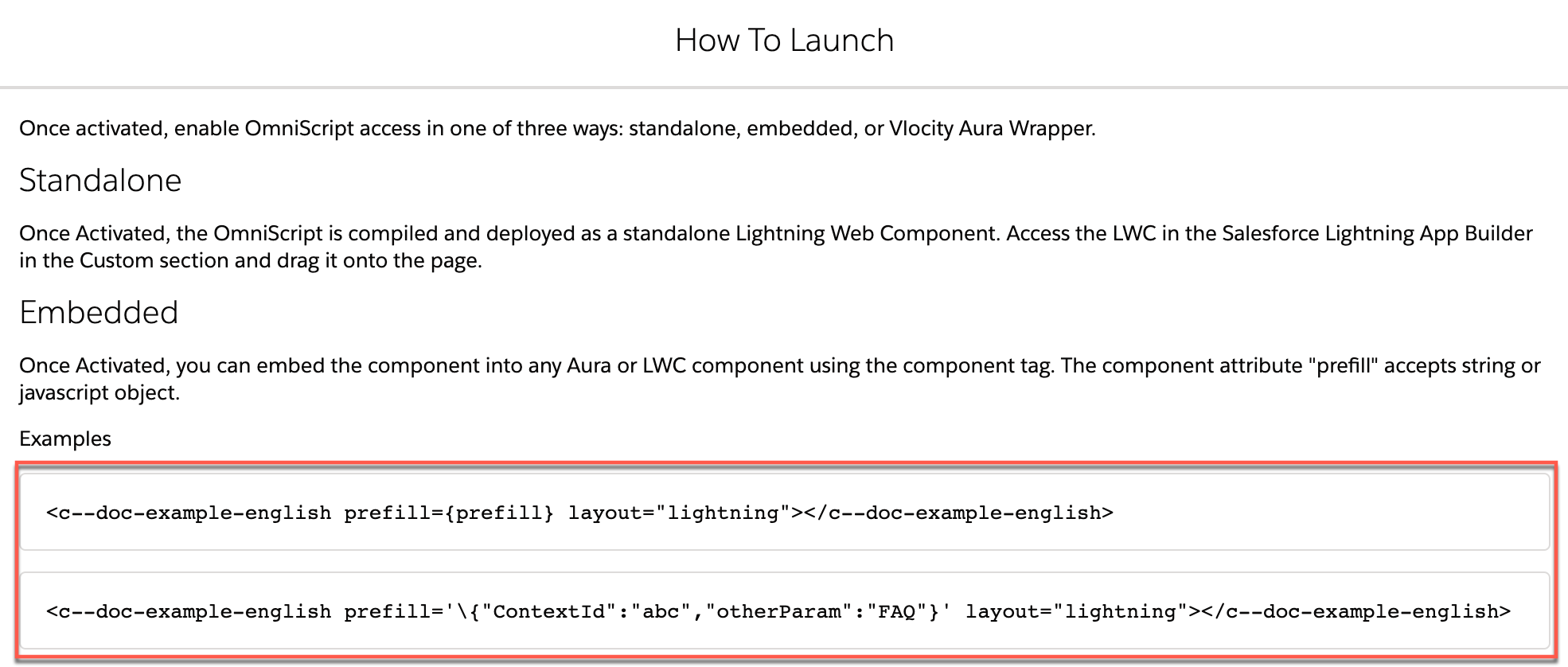
-
In the Classic Designer, copy the LWC Omniscript component tag from the Script Configuration properties.
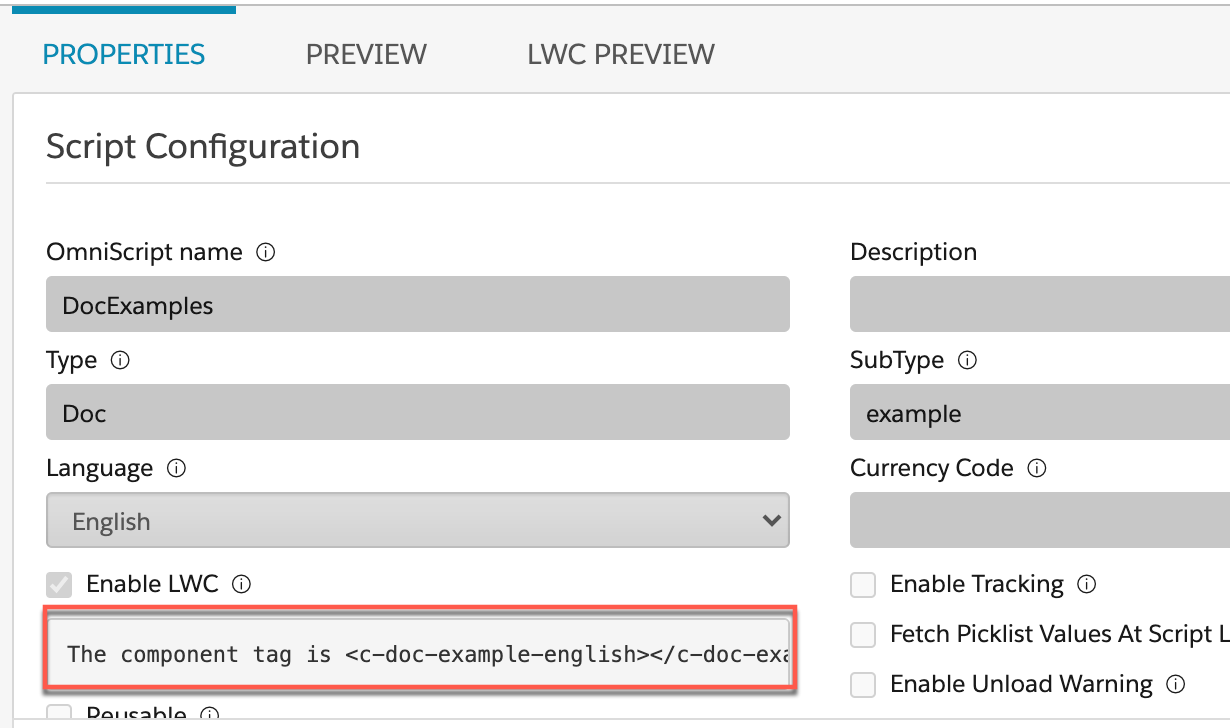
-
In the Classic Designer, copy the LWC Omniscript component code from one of the examples found in the How to Launch activated script section of the Omniscript.
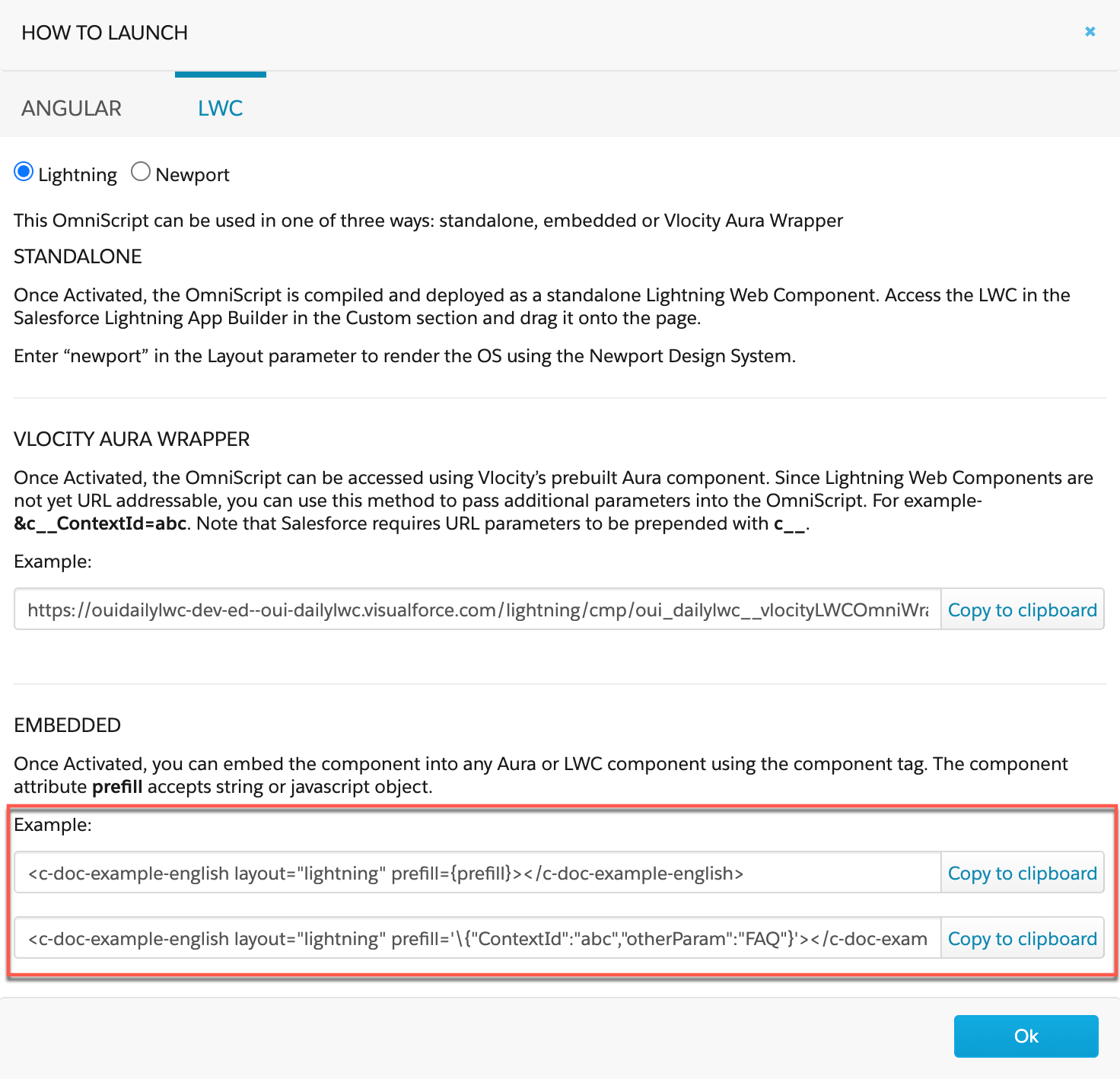
-
-
In your Lightning Web Component's HTML file, enter the component tag to embed the
Omniscript component.
For example, this code shows the tag for an Omniscript with a Type of doc, a SubType of example, and a Language of English.
<template> <c-doc-example-english layout="lightning"></c-doc-example-english> </template> Note
NoteWhen passing data from an LWC into an embedded LWC Omniscript's prefill property, the string values "true" and "false" will convert to boolean values. To avoid this issue, stringify your values by adding additional quotation marks escaped by backslashes. For example, to convert this prefill object
prefill = { "Multi-select1":"true"}the new syntax must beprefill = { "Multi-select1":""true""}.