
For the managed package runtime, to define the metadata values for an LWC enabled card component:
 This information is for Omnistudio for Managed Packages. For Omnistudio on standard runtime, see Omnistudio Help.
- Open the Vlocity Cards tab, and click a version of an LWC enabled layout to open the Card Designer.
-
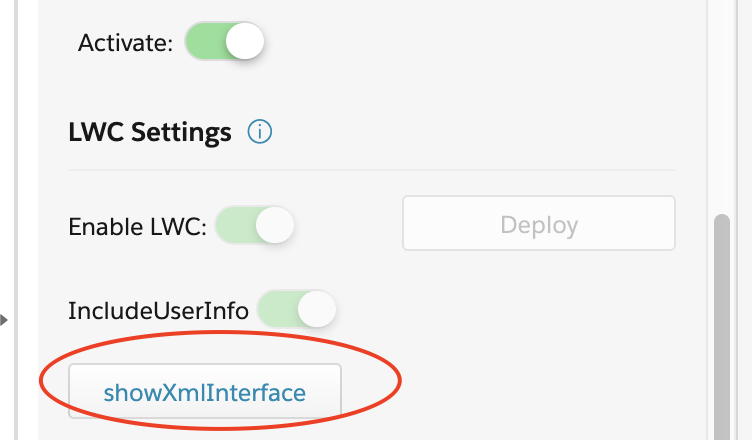
In the Layout pane, click Show XML Interface.
 Important
You must activate the layout to enable the Show XML Interface feature.
-
Enter or update values for these properties:
-
Master Label: Update the visible name of your card component as you want it to appear in the Lightning App Builder and Community Builder. The default is the Layout Name defined in the Layout pane.
-
Description: Enter a description for your card component.
-
API Version: Defines the API version of your card component. The default is the API version used when creating the card component. When creating a new card, the default value is the current API version.
-
(Read-Only) Runtime Namespace: Defines the Vlocity package namespace.
-
Is Exposed: When enabled, your card component is public. By default, this feature is enabled.
-
Target Name: Select where your card component is accessible. By default, HomePage, RecordPage, and AppPage are selected to enable use on a custom home page, a record page, and an app home page.
To enable the use of your card component on a Community Page, select CommunityPage. To enable the use of your card component on a Community Page with configurable properties, select CommunityDefault. See Configuration File Tags.
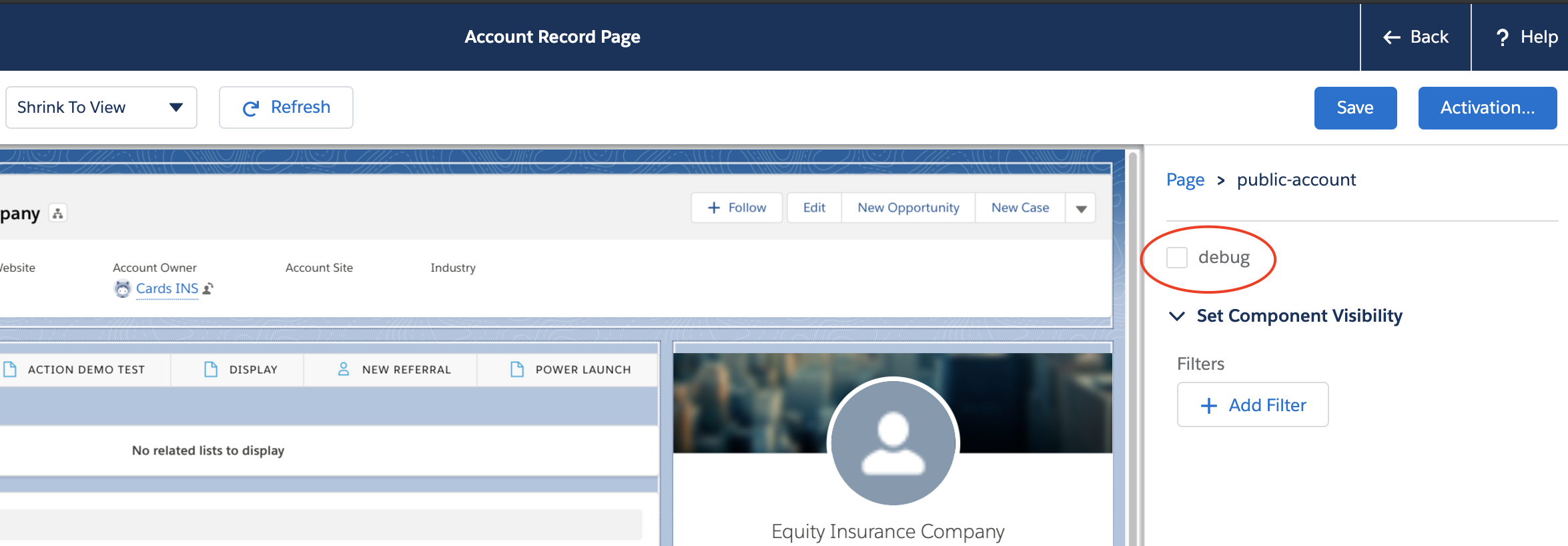
To add a property to a Target Name that can be set in the Lightning App Builder or Community Builder, see Adding Properties to a Target Name (Managed Package).
-