---
schema_version: "1"
id: 7e885f6443a027ef53cd678fb1a5aaeb571a84d9c760c33e23aec9174d618a8b
title: Define Custom Label Translations in Multi-Language Omniscripts (Managed Package)
collection: admin
version: current
locale: en-us
portal_url: https://docs.salesforce.com/admin/current/en-us/xcloud/264-0-0/os_define_custom_label_translations_in_multi_language_omniscripts.md
canonical_url: https://help.salesforce.com/s/articleView?id=xcloud.os_define_custom_label_translations_in_multi_language_omniscripts.htm&release=264.0.0&type=5
source_site: help.salesforce.com
content_type: documentation
content_hash: 1ded6a20af4d36c6dff7c252d131b2a248ced5ccf24b560ccf614133feae629f
description: For the managed package runtime, define translations for custom labels in multi-language Omniscripts using the Omniscript's Edit Translations window. Build a simple example Omniscript with translated Text and Text Block elements.
products:
- Omnistudio
release: "264"
---
# Define Custom Label Translations in Multi-Language Omniscripts (Managed Package)
For the managed package runtime, define translations for custom labels in multi-language Omniscripts using the Omniscript's Edit Translations window. Build a simple example Omniscript with translated Text and Text Block elements.
 This information is for Omnistudio for Managed Packages. For Omnistudio on standard runtime, see [Omnistudio Help](https://help.salesforce.com/s/articleView?id=xcloud.os_omnistudio_standard.htm&language=en_US).
Before you begin:
1. Enable multi-language Omniscripts. See [Enable Multi-Language Omniscript Support (Managed Package)](https://help.salesforce.com/s/articleView?id=xcloud.os_enable_multi_language_omniscript_support.htm&release=264.0.0&type=5 "For the managed package runtime, enable multi-language Omniscript support by modifying the Vlocity Omniscript object in Salesforce's Setup.").
2. Learn about custom labels in Salesforce. See [Create and Edit Custom Labels](https://help.salesforce.com/articleView?id=cl_edit.htm&language=en_US).

Note
Omnistudio provides default custom labels that allow translations in addition to Salesforce custom labels. Omnistudio doesn't support Salesforce standard labels.
The Set Values and Set Errors actions don’t support custom labels.
How you translate Text and Text Block elements using custom labels in the following example illustrates how you can translate almost any Omniscript element.
1. Create a multi-language Omniscript.
1. On the Omniscripts tab, click **New**.
2. 2\. Specify a **Name**, **Type**, and **SubType**.
3. Remove the `English` value from the **Language** field and select **Multi-Language** from the dropdown.
4. 4\. Click **Save**. The new Omniscript opens in the designer and contains one step.
2. Create the example Omniscript's basic structure.
1. From the **Build** panel, expand **GROUPS** and drag a second **Step** into the Omniscript.
2. 6\. In the Step Properties for the second Step, remove the `Step2` value from the **Field Label** field.
3. Expand both Steps.
4. 8\. From the **Build** panel, expand **INPUTS** and drag a **Text** element into the first Step.
5. 8\. From the **Build** panel, expand **DISPLAY** and drag a **Text Block** element into the second Step.
3. Click **Edit Translations**. The Edit Your Omniscript Translations window opens.
4. Click the Settings gear icon in the window header and select **English (US)** from the dropdown.

Note Always create the English translation first so the custom label is created properly.
5. In the Text1 element's Field Label row, enter a **Custom Label Name** value of Name and a **Custom Label Value in English (US)** value of Name.
6. In the TextBlock1 element's Text Key row, enter a **Custom Label Name** value of Greeting and a **Custom Label Value in English (US)** value of Hello, %Step1:Text1%.
A custom label value for a Text Block can contain HTML markup. To ensure that a merge field value displays, put the merge field between `` HTML tags as in this example. To begin on a new line, use `
`.
7. Click **Save as English (US)**. Two custom labels are created: Name and Greeting.
8. Create another translation. Repeat the previous five steps, except:
1. Select **Spanish** from the Settings gear dropdown.
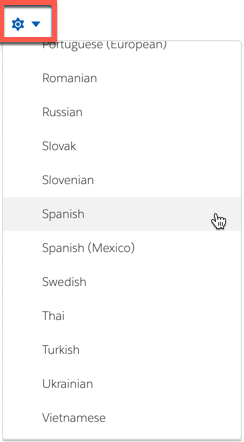
2. In the Text1 element's Field Label row, enter Nombre for the **Custom Label Value in Spanish**.
3. In the TextBlock1 element's Text Key row, enter Hola, %Step1:Text1% for the **Custom Label Value in Spanish**.
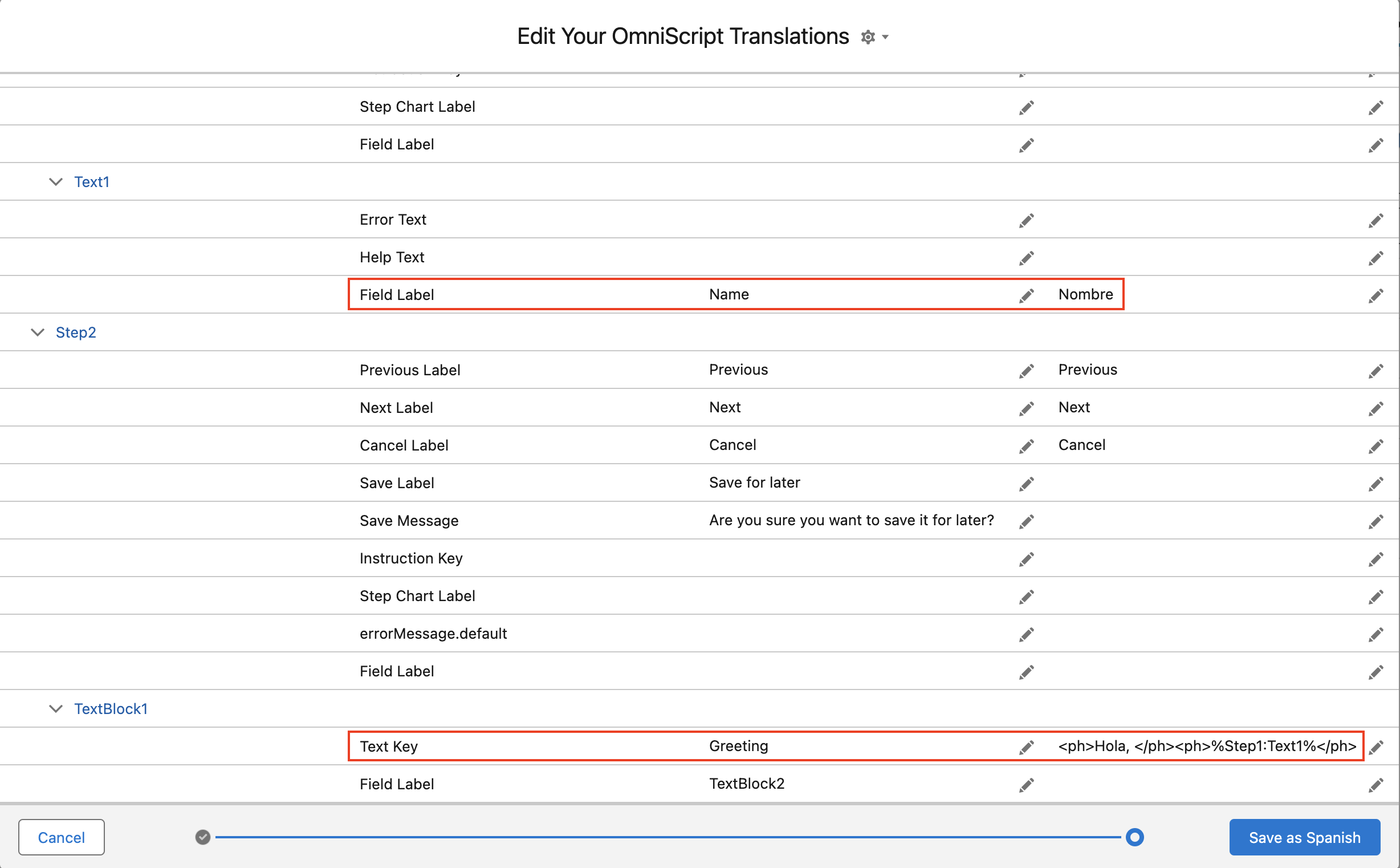
4. Click **Save as Spanish**. Spanish translations are added to the Name and Greeting custom labels.
9. Add other languages as desired. For example, if you add French, enter Nom for the Text1 element's Field Label and Bonjour, %Step1:Text1% for the Text Block element's Text Key.
10. Click Preview and test each language.
Sometimes it takes a few minutes for the custom labels to be created. If the labels don't appear in Preview at first, try again in a few minutes.
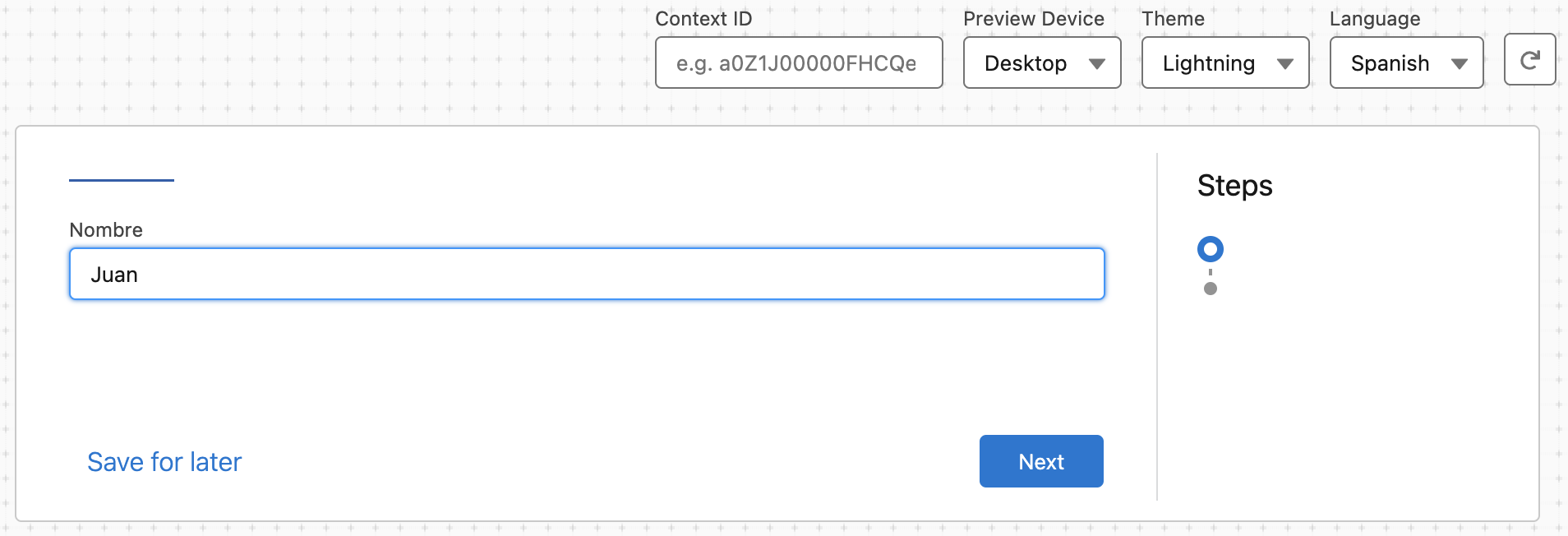
The first page looks like this:
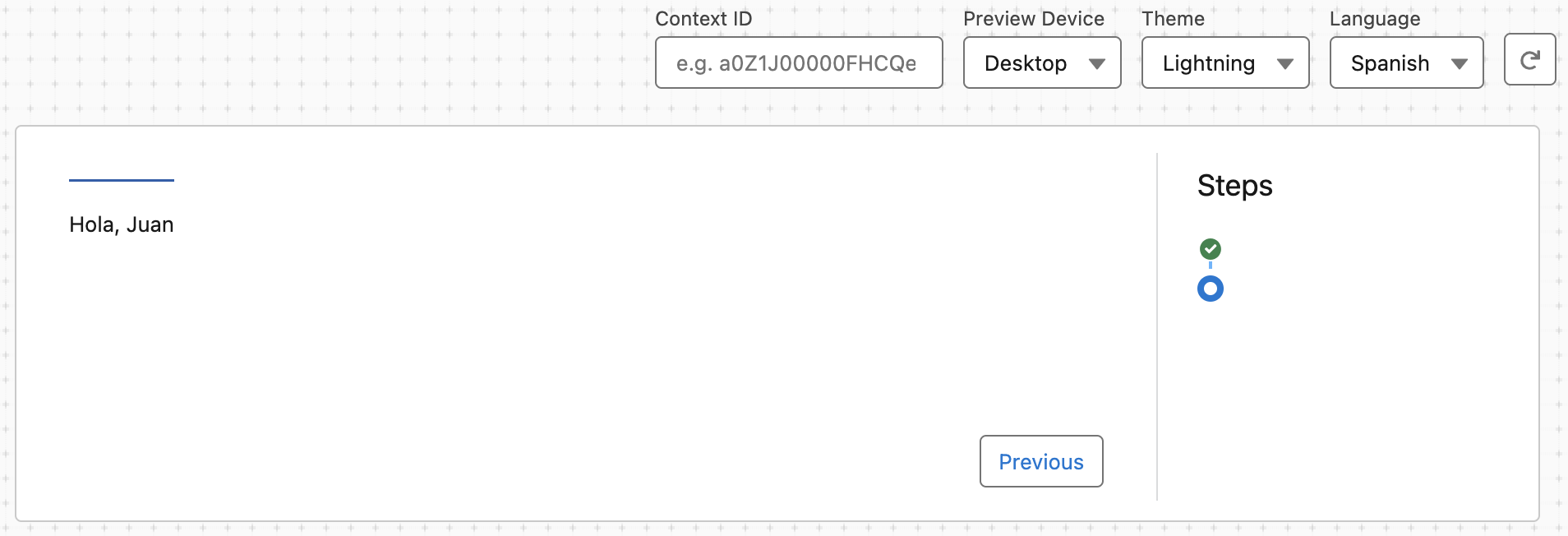
The second page looks like this:

Note
Custom labels must have values. If a custom label value doesn't exist, the following error message displays when you preview the Omniscript:
Error: Field $Label. does not exist. Check spelling
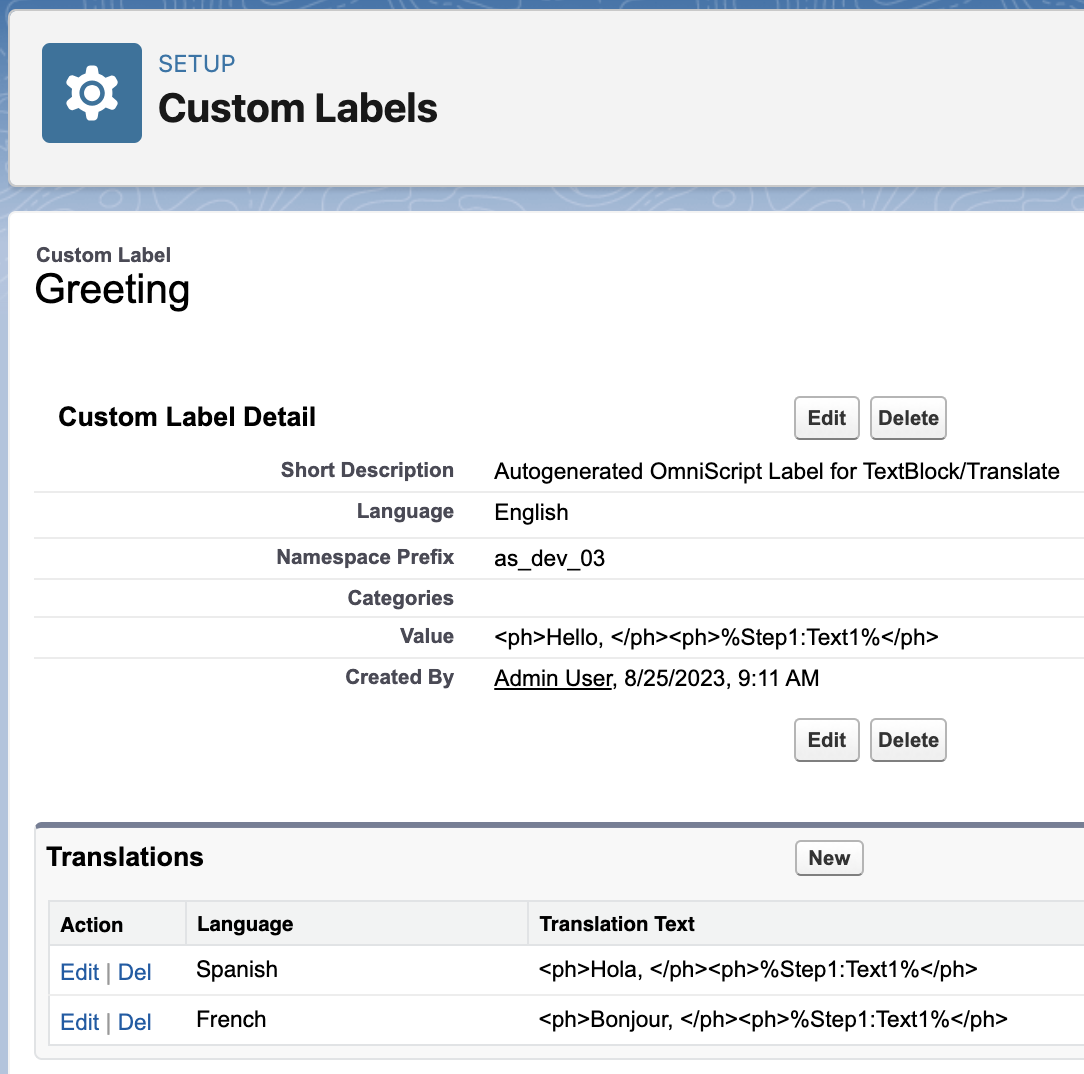
If the Save operation is not completed error appears, or if labels don't appear in Preview after a few minutes, go to **Custom Labels** in Setup. Add Spanish and other translations to the Name and Greeting labels there. See [Create and Edit Custom Labels](https://help.salesforce.com/articleView?id=cl_edit.htm&language=en_US).
For example, here's what the Greeting label looks like with Spanish and French translations:

Note
Use naming conventions when creating custom labels in an org with multiple developers to avoid duplications and improve querying. Example syntax: jSmithCustomTextLabel.
What’s next: View required Omniscript custom label translations and apply translations for each label. See [Omniscript Custom Label Reference (Managed Package)](https://help.salesforce.com/s/articleView?id=xcloud.os_omniscript_custom_label_reference.htm&release=264.0.0&type=5 "For the managed package runtime, this page contains tables listing the Omniscript element properties for which you must define custom labels and translations for multi-language Omniscripts, such as Omnistudio Data Mapper actions. To use a default translation, clear the property.").