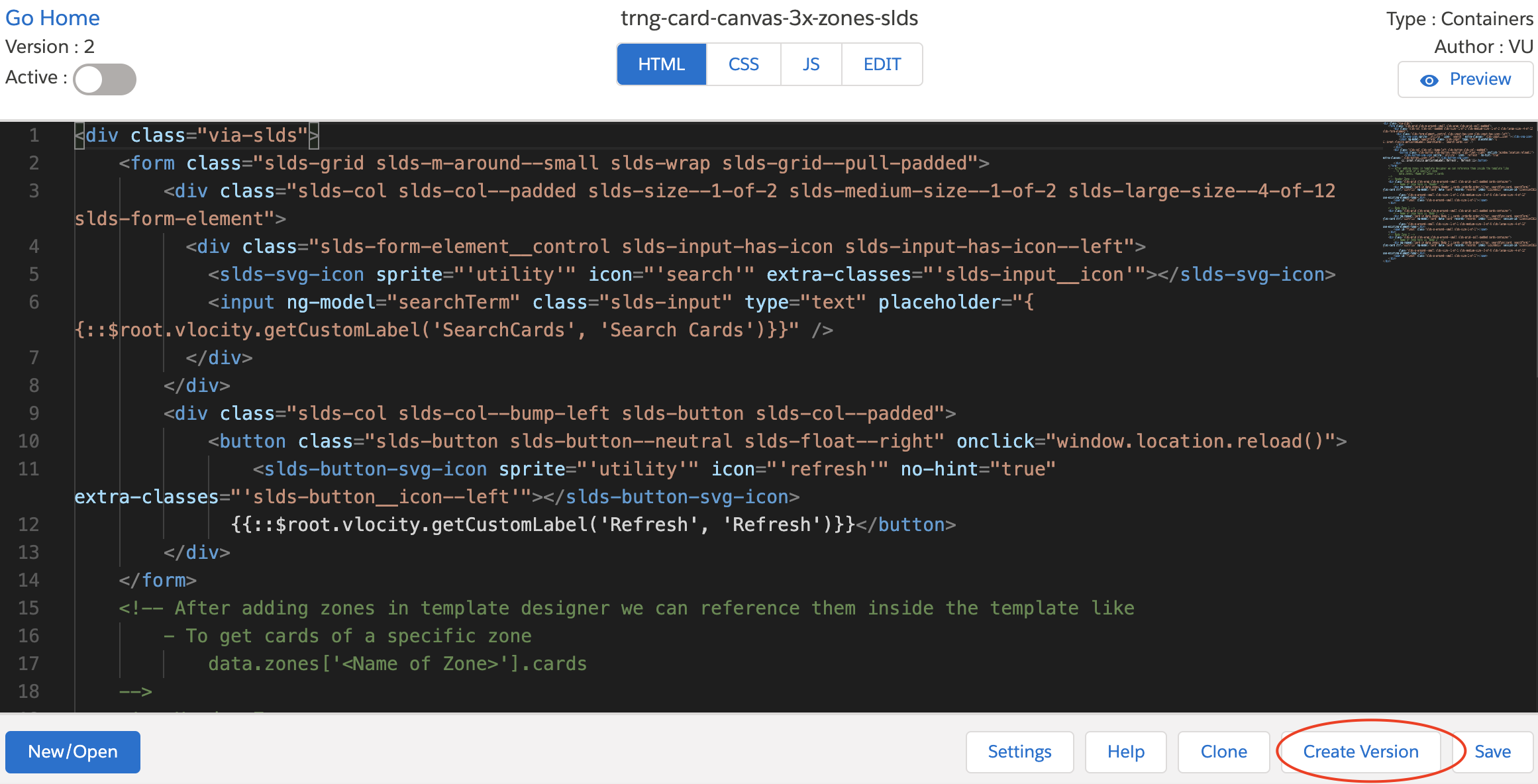
For the managed package runtime, to make minor edits and switch between active versions, create a version of a template.
 This information is for Omnistudio for Managed Packages. For Omnistudio on standard runtime, see Omnistudio Help.
Creating a version of a template creates an exact copy of the template with a version equal to the latest version number plus one. For example, if the name of your card layout template is trng-card-canvas-3x-zones-slds the first version is trng-card-canvas-3x-zones-slds (Version 1), the next is trng-card-canvas-3x-zones-slds (Version 2), and so forth.

To assign a template to a component, one version of the template must be active, and only one version of a template can be active at a time. For example, in the Cards Designer, to assign a card layout template named trng-card-canvas-3x-zones-slds to a card layout, activate one version so that it displays in the Template dropdown.
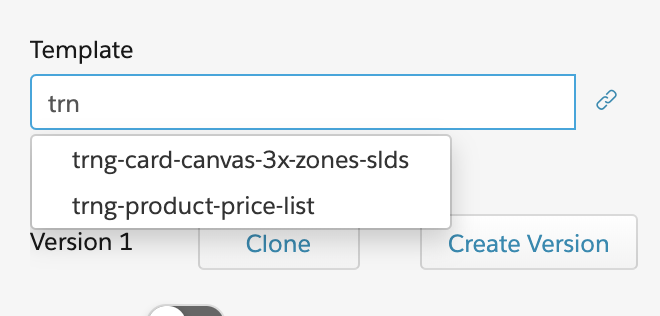

To learn best practices and how versioning works throughout the Vlocity Cards Framework, see Cards Framework Versioning (Managed Package).
To create a version of a template:
-
Go to the Vlocity Templates tab, click to expand a template, and click a version
to open.
Note
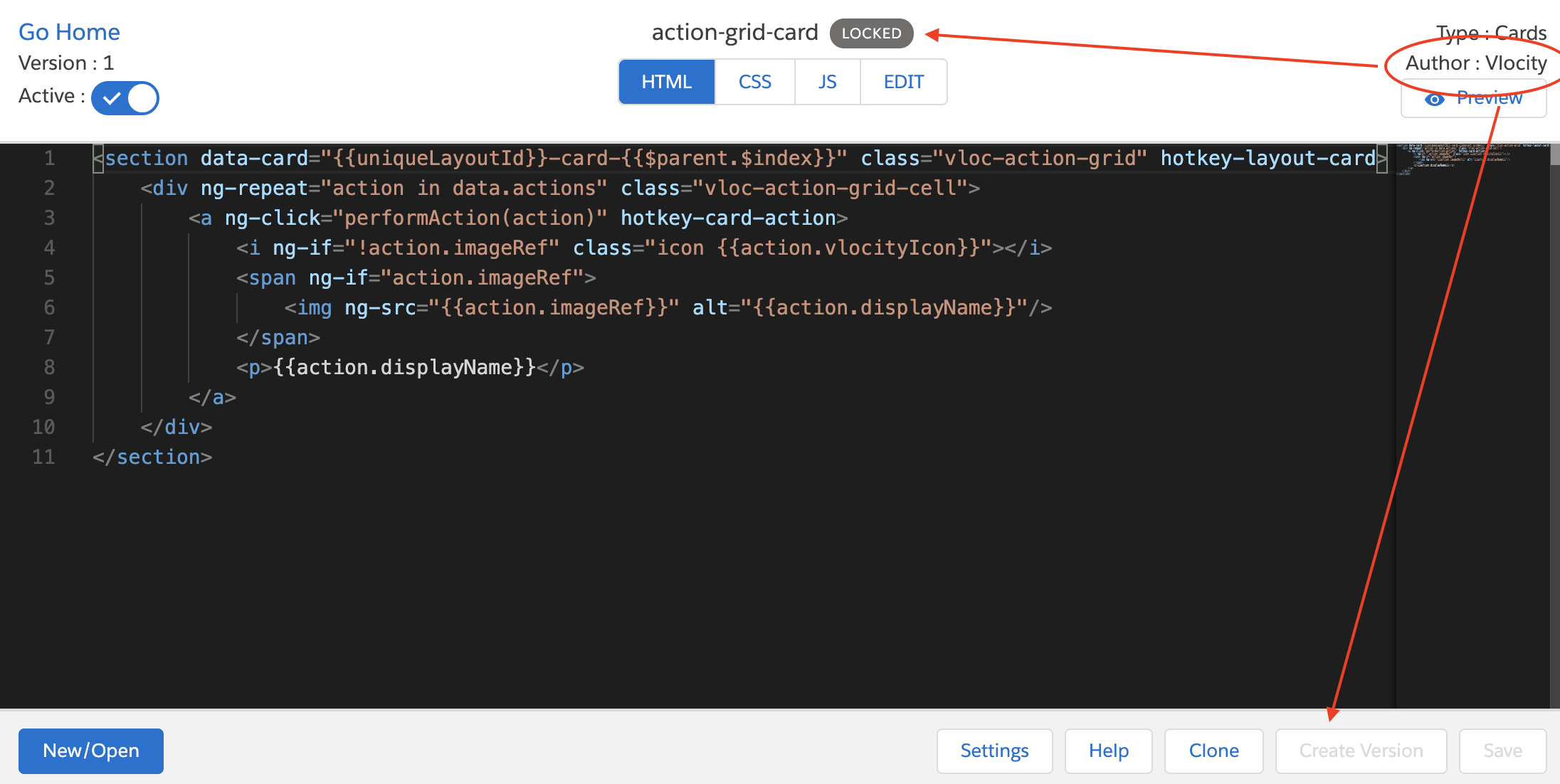
If the template is a Vlocity base template, it cannot be versioned. You must clone the template instead, or clone then create a version. See Cloning a Template (Managed Package).
-
Click Create a Version.