
For the managed package runtime, create a flyout to display additional information about the record displayed on the card when you click the card. For example, a flyout can display information from long text strings that do not fit in the standard card field, or data from child records, such as open cases for an account, or additional actions.
 This information is for Omnistudio for Managed Packages. For Omnistudio on standard runtime, see Omnistudio Help.
To create a flyout:
- In your org, click the App Launcher, click Vlocity Cards, and click New to create a new card layout.
- On the New Layout screen, in the Type field, select Flyout.
-
Select the flyout Data Source:
-
To use the parent context variable of the card layout where you'll add your flyout, select Parent as the data source. To display specific data in the flyout:
-
Click View Data on the Layout or Card pane in the card layout where you'll add your flyout and copy the JSON data by clicking Copy to clipboard.
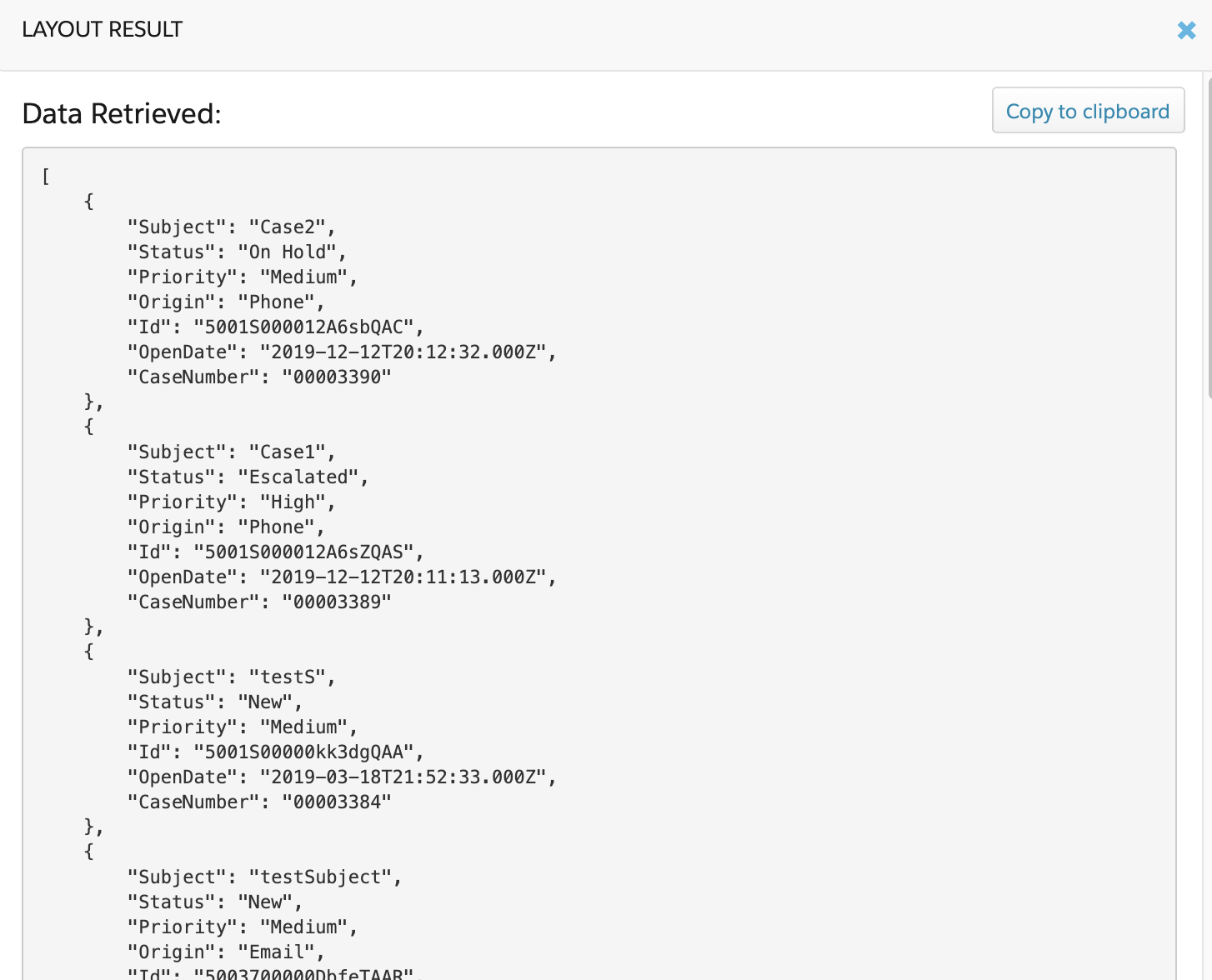
-
Choose Sample as the Data Source on your flyout layout and paste the copied JSON inside the input field.
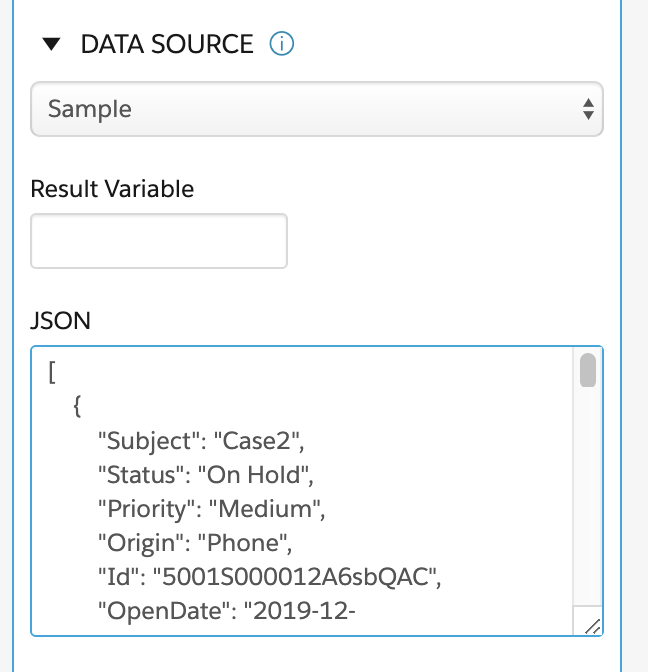
-
Click View Data to generate the Fields picklist.
-
From the Fields picklist in the card state, add data fields.
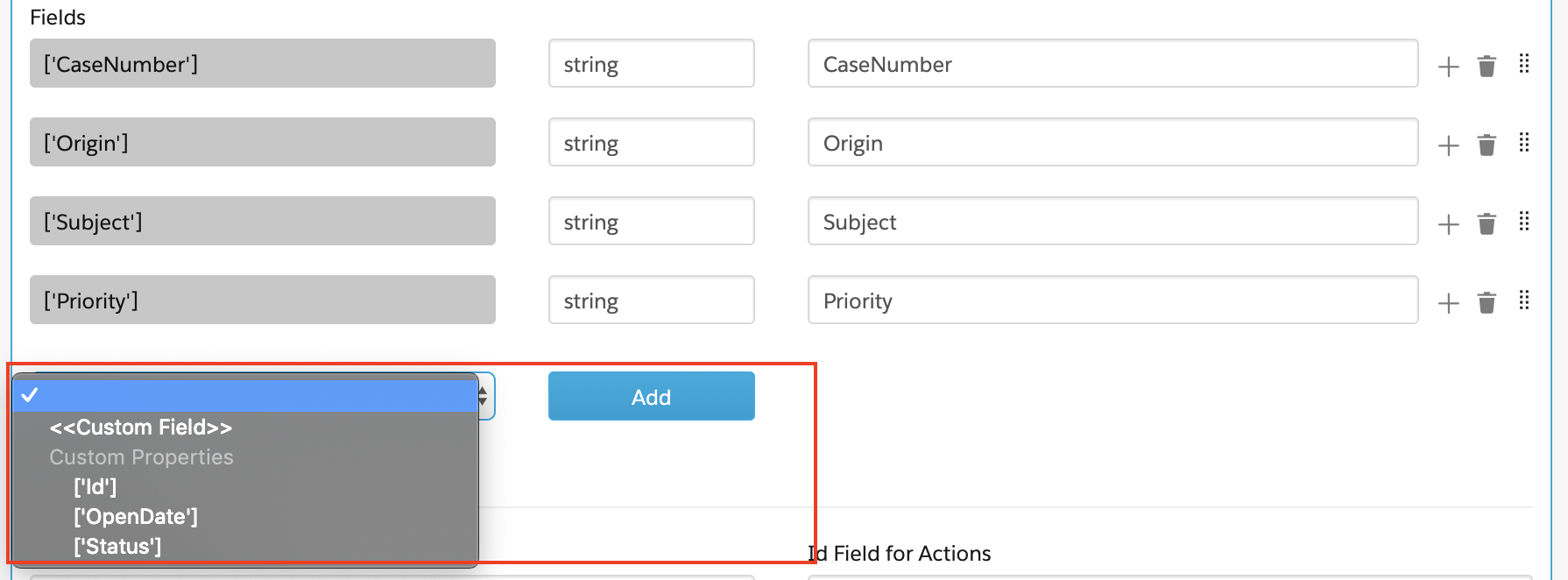
-
-
If your flyout does not use data from the parent context variable of the card layout from where you'll add your flyout, add a data source to the layout, and optionally, to a card. See Configuring Data Sources for Cards Components (Managed Package).
-
- Click Activate on the Layout pane and on each card.
- Adding a Flyout to a Card State (Managed Package)
For the managed package runtime, add a flyout to a card state to display additional information about the record displayed on the card when you click the card. For example, the base Vlocity flyout templateflyout-grid-sldsdisplays overflow actions from the parent card.