---
schema_version: "1"
id: 93fffb2762ae9f70fb2dcda93f980a05ee624d9b9fbafee21946eb91c1f24991
title: Create the GoodStudentDiscountEligibility Calculation Matrix (Managed Package)
collection: admin
version: current
locale: en-us
portal_url: https://docs.salesforce.com/admin/current/en-us/xcloud/264-0-0/os_create_the_goodstudentdiscounteligibility_calculation_matrix.md
canonical_url: https://help.salesforce.com/s/articleView?id=xcloud.os_create_the_goodstudentdiscounteligibility_calculation_matrix.htm&release=264.0.0&type=5
source_site: help.salesforce.com
content_type: documentation
content_hash: 638d4c6dd462a5e04de87f42609a871a8be8e35bdb398c6188d7d70da3a77848
description: For the managed package runtime, before you can create the Integration Procedure example with a Matrix Action, you must create the GoodStudentDiscountEligibility calculation matrix that it calls. This matrix returns a Qualified value of true for an Age between 16 and 24 and a GPA of 3.0 or greater.

products:
  - Omnistudio
release: "264"
---
# Create the GoodStudentDiscountEligibility Calculation Matrix (Managed Package)

For the managed package runtime, before you can create the Integration Procedure example with a Matrix Action, you must create the GoodStudentDiscountEligibility calculation matrix that it calls. This matrix returns a Qualified value of true for an Age between 16 and 24 and a GPA of 3.0 or greater.

![Managed Package app icon](https://sf-zdocs-cdn-prod.zoominsoftware.com/tdta-xcloud-omnistudio_for_managed_packages-264-0-0-production-enus/aa2554ec-624a-4ee6-8da4-6435670e6e62/resources-global/_corporate/images/managedpackageicon.png) This information is for Omnistudio for Managed Packages. For Omnistudio on standard runtime, see [Omnistudio Help](https://help.salesforce.com/s/articleView?id=xcloud.os_omnistudio_standard.htm&language=en_US).

1. From the Vlocity Calculation Matrices tab, click **New**.
2. In the New Vlocity Calculation Matrices window, choose **Standard**.
    
    Some Vlocity versions don't present this choice.
3. In the **Calculation Matrix Name** box, type GoodStudentDiscountEligibility.
4. Click **Save**. The record page for the new matrix opens.
5. On the record page, click the **Related** tab.
6. Click the **GoodStudentDiscountEligibility V1** link. This is version 1 of the matrix.
7. In the Table section, click **Add Header** three times. Enter the following information for each header:
    
    <table class="slds-table slds-table_bordered slds-max-medium-table_stacked slds-m-bottom_small ">
            <colgroup>
              <col>
              <col>
              <col>
              <col>
            </colgroup>
            <thead class="slds-text-title_caps ">
              <tr class="">
                <th scope="col" class="slds-cell-wrap" style="vertical-align:top;" id="d182235e127">
                  <p style="margin-bottom:0;">Header Name</p>
                </th>
                <th scope="col" class="slds-cell-wrap" style="vertical-align:top;" id="d182235e133">
                  <p style="margin-bottom:0;">Header Type</p>
                </th>
                <th scope="col" class="slds-cell-wrap" style="vertical-align:top;" id="d182235e139">
                  <p style="margin-bottom:0;">Data Type</p>
                </th>
                <th scope="col" class="slds-cell-wrap" style="vertical-align:top;" id="d182235e145">
                  <p style="margin-bottom:0;">Matrix Display Order</p>
                </th>
              </tr>
            </thead>
            <tbody>
              <tr class="">
                <td data-label="Header Name" class="slds-cell-wrap" style="vertical-align:top;" headers="d182235e127 ">
                  <p style="margin-bottom:0;">Age</p>
                </td>

                <td data-label="Header Type" class="slds-cell-wrap" style="vertical-align:top;" headers="d182235e133 ">
                  <p style="margin-bottom:0;">Input</p>
                </td>

                <td data-label="Data Type" class="slds-cell-wrap" style="vertical-align:top;" headers="d182235e139 ">
                  <p style="margin-bottom:0;">Number Range</p>
                </td>

                <td data-label="Matrix Display Order" class="slds-cell-wrap" style="vertical-align:top;" headers="d182235e145 ">
                  <p style="margin-bottom:0;">1</p>
                </td>

              </tr>
              <tr class="">
                <td data-label="Header Name" class="slds-cell-wrap" style="vertical-align:top;" headers="d182235e127 ">
                  <p style="margin-bottom:0;">GPA</p>
                </td>

                <td data-label="Header Type" class="slds-cell-wrap" style="vertical-align:top;" headers="d182235e133 ">
                  <p style="margin-bottom:0;">Input</p>
                </td>

                <td data-label="Data Type" class="slds-cell-wrap" style="vertical-align:top;" headers="d182235e139 ">
                  <p style="margin-bottom:0;">Number Range</p>
                </td>

                <td data-label="Matrix Display Order" class="slds-cell-wrap" style="vertical-align:top;" headers="d182235e145 ">
                  <p style="margin-bottom:0;">2</p>
                </td>

              </tr>
              <tr class="">
                <td data-label="Header Name" class="slds-cell-wrap" style="vertical-align:top;" headers="d182235e127 ">
                  <p style="margin-bottom:0;">Qualified</p>
                </td>

                <td data-label="Header Type" class="slds-cell-wrap" style="vertical-align:top;" headers="d182235e133 ">
                  <p style="margin-bottom:0;">Output</p>
                </td>

                <td data-label="Data Type" class="slds-cell-wrap" style="vertical-align:top;" headers="d182235e139 ">
                  <p style="margin-bottom:0;">Boolean</p>
                </td>

                <td data-label="Matrix Display Order" class="slds-cell-wrap" style="vertical-align:top;" headers="d182235e145 ">
                  <p style="margin-bottom:0;">3</p>
                </td>

              </tr>
            </tbody>
          </table>
8. Click **Save Data**, then click **Edit Data**.
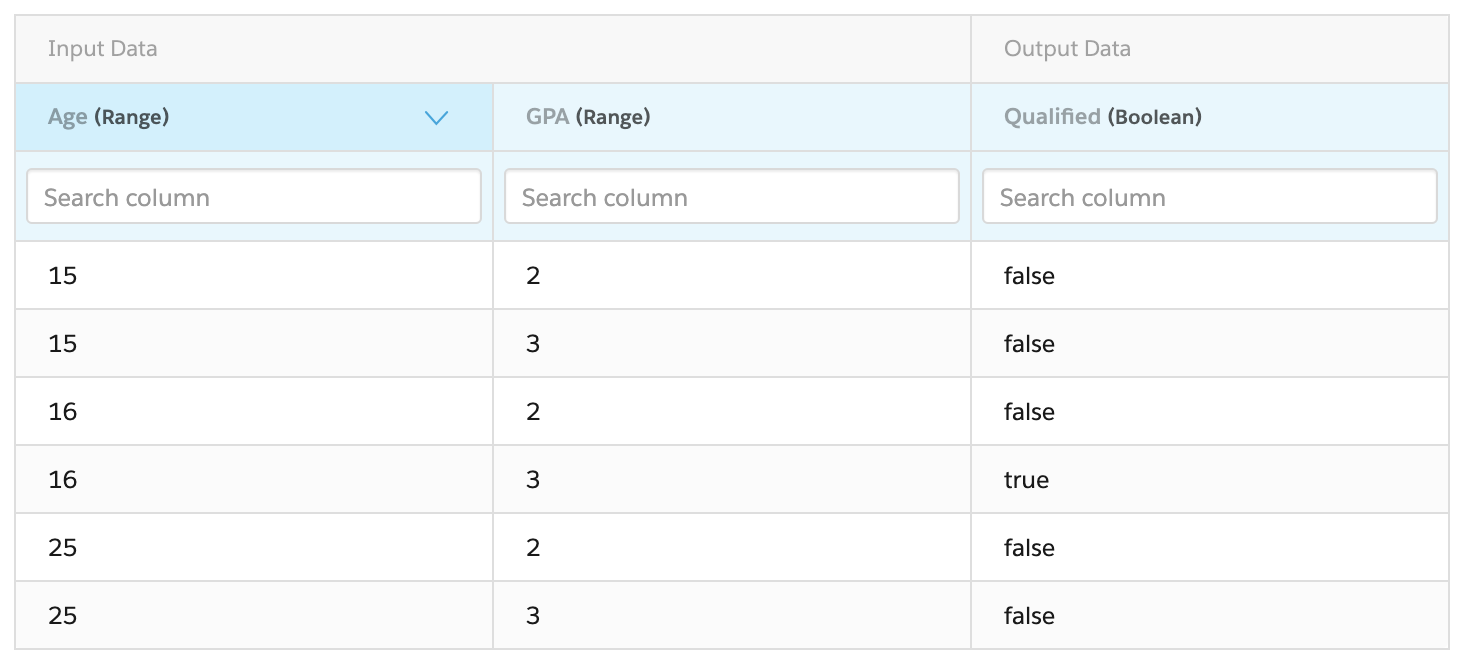
9. In the resulting table, enter the following values:
    
    <table class="slds-table slds-table_bordered slds-max-medium-table_stacked slds-m-bottom_small ">
            <colgroup>
              <col>
              <col>
              <col>
            </colgroup>
            <thead class="slds-text-title_caps ">
              <tr class="">
                <th scope="col" class="slds-cell-wrap" style="vertical-align:top;" id="d182235e271">
                  <p style="margin-bottom:0;">Age</p>
                </th>
                <th scope="col" class="slds-cell-wrap" style="vertical-align:top;" id="d182235e277">
                  <p style="margin-bottom:0;">GPA</p>
                </th>
                <th scope="col" class="slds-cell-wrap" style="vertical-align:top;" id="d182235e283">
                  <p style="margin-bottom:0;">Qualified</p>
                </th>
              </tr>
            </thead>
            <tbody>
              <tr class="">
                <td data-label="Age" class="slds-cell-wrap" style="vertical-align:top;" headers="d182235e271 ">
                  <p style="margin-bottom:0;">15</p>
                </td>

                <td data-label="GPA" class="slds-cell-wrap" style="vertical-align:top;" headers="d182235e277 ">
                  <p style="margin-bottom:0;">2</p>
                </td>

                <td data-label="Qualified" class="slds-cell-wrap" style="vertical-align:top;" headers="d182235e283 ">
                  <p style="margin-bottom:0;">false</p>
                </td>

              </tr>
              <tr class="">
                <td data-label="Age" class="slds-cell-wrap" style="vertical-align:top;" headers="d182235e271 ">
                  <p style="margin-bottom:0;">15</p>
                </td>

                <td data-label="GPA" class="slds-cell-wrap" style="vertical-align:top;" headers="d182235e277 ">
                  <p style="margin-bottom:0;">3</p>
                </td>

                <td data-label="Qualified" class="slds-cell-wrap" style="vertical-align:top;" headers="d182235e283 ">
                  <p style="margin-bottom:0;">false</p>
                </td>

              </tr>
              <tr class="">
                <td data-label="Age" class="slds-cell-wrap" style="vertical-align:top;" headers="d182235e271 ">
                  <p style="margin-bottom:0;">16</p>
                </td>

                <td data-label="GPA" class="slds-cell-wrap" style="vertical-align:top;" headers="d182235e277 ">
                  <p style="margin-bottom:0;">2</p>
                </td>

                <td data-label="Qualified" class="slds-cell-wrap" style="vertical-align:top;" headers="d182235e283 ">
                  <p style="margin-bottom:0;">false</p>
                </td>

              </tr>
              <tr class="">
                <td data-label="Age" class="slds-cell-wrap" style="vertical-align:top;" headers="d182235e271 ">
                  <p style="margin-bottom:0;">16</p>
                </td>

                <td data-label="GPA" class="slds-cell-wrap" style="vertical-align:top;" headers="d182235e277 ">
                  <p style="margin-bottom:0;">3</p>
                </td>

                <td data-label="Qualified" class="slds-cell-wrap" style="vertical-align:top;" headers="d182235e283 ">
                  <p style="margin-bottom:0;">true</p>
                </td>

              </tr>
              <tr class="">
                <td data-label="Age" class="slds-cell-wrap" style="vertical-align:top;" headers="d182235e271 ">
                  <p style="margin-bottom:0;">25</p>
                </td>

                <td data-label="GPA" class="slds-cell-wrap" style="vertical-align:top;" headers="d182235e277 ">
                  <p style="margin-bottom:0;">2</p>
                </td>

                <td data-label="Qualified" class="slds-cell-wrap" style="vertical-align:top;" headers="d182235e283 ">
                  <p style="margin-bottom:0;">false</p>
                </td>

              </tr>
              <tr class="">
                <td data-label="Age" class="slds-cell-wrap" style="vertical-align:top;" headers="d182235e271 ">
                  <p style="margin-bottom:0;">25</p>
                </td>

                <td data-label="GPA" class="slds-cell-wrap" style="vertical-align:top;" headers="d182235e277 ">
                  <p style="margin-bottom:0;">3</p>
                </td>

                <td data-label="Qualified" class="slds-cell-wrap" style="vertical-align:top;" headers="d182235e283 ">
                  <p style="margin-bottom:0;">false</p>
                </td>

              </tr>
            </tbody>
          </table>
    
    For details about how number ranges work, see [Numeric Ranges in Calculation Matrices (Managed Package)](https://help.salesforce.com/s/articleView?id=xcloud.os_numeric_ranges_in_calculation_matrices.htm&release=264.0.0&type=5 "For the managed package runtime, when you configure numeric ranges for a matrix, values below the lowest level that you configure are treated as the lowest value, and values above the highest value that you configure are treated as the highest value configured for the matrix.").
10. Click **Save Data** again.
11. Click the pencil icon to the right of the **Enabled** checkbox and check the box.
12. If the **Priority** setting has no value, enter a value of 1.
13. Click **Save**. The finished matrix version looks like this:
    
    ![The matrix content is described in step 9.](https://sf-zdocs-cdn-prod.zoominsoftware.com/tdta-xcloud-omnistudio_for_managed_packages-264-0-0-production-enus/aa2554ec-624a-4ee6-8da4-6435670e6e62/omnistudio_for_managed_packages/images/goodstudentmatrix.png)

What’s next: [Create the Integration Procedure That Invokes the Calculation Matrix (Managed Package)](https://help.salesforce.com/s/articleView?id=xcloud.os_create_the_integration_procedure_that_invokes_the_calculation_matrix.htm&release=264.0.0&type=5 "For the managed package runtime, an Integration Procedure calls the GoodStudentDiscountEligibility calculation matrix and returns its result.").