
An Integration Procedure creates and deletes a Contact with the specified LastName and returns an error message if the LastName is blank.
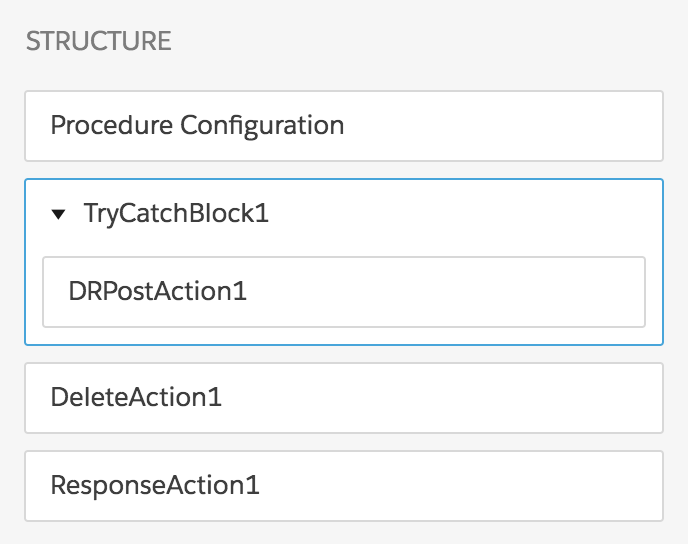
The Integration Procedure has these components:
-
A Try-Catch Block, named TryCatchBlock1
-
An Omnistudio Data Mapper Post Action, named DRPostAction1
-
A Delete Action, named DeleteAction1
-
A Response Action, named ResponseAction1
The Structure panel looks like this:
To build this Integration Procedure:
- From the Omnistudio Integration Procedures tab, click New.
- Provide an Integration Procedure Name, a Type, and a SubType, and click Save.
-
Drag a Try-Catch Block into the Structure panel and give it the following settings:
-
Under Failure Response, click Add Key/Value Pair. Set the Key to
failureResponseand the Value toYou must provide a last name. -
Make sure the Fail on Block Error checkbox is checked.
-
-
Create the Data Mapper Load that the Data Mapper Post Action component calls:
-
Give it a Data Mapper Interface Name of
CreateContactand an Interface Type of Load. -
On the Objects tab, click Add Object and select Contact.
-
On the Fields tab, click the + icon and enter
LastNameas both the Input JSON Path and the Domain Object Field.
If you aren't sure how to create a Data Mapper Load, see the examples in Omnistudio Data Mapper Load Examples.
-
-
Drag a Data Mapper Post Action component into the Try-Catch Block and give it the following settings:
- Set the Element Name to
DRPostAction1. -
Set the Data Mapper Interface to
CreateContact. -
Make sure the Fail on Step Error checkbox is checked.
- Set the Element Name to
-
Drag a Delete Action component after the Try-Catch Block. Under Delete SObject,
set the Type to Contact and the
Path To Id to
%DRPostAction1:Contact_1:Id%. - Drag a Response Action into the Structure panel as the last component and check the Return Full Data JSON checkbox.
-
Go to the Preview tab and test the Integration Procedure:
-
Under Input Parameters, click Add New Key/Value Pair.
-
Set the Key to
LastNameand the Value to any name you like. -
Click Execute.
The output should look something like this:
{ "response": {}, "ResponseAction1Status": true, "DeleteAction1": [ { "errors": [], "success": true, "id": "0034N00001rNgqqQAC" } ], "DeleteAction1Status": true, "TryCatchBlock1": null, "TryCatchBlock1Status": true, "DRPostAction1": { "ActualTime": 626, "CpuTime": 345, "Contact_1": [ { "UpsertSuccess": true, "Id": "0034N00001rNgqqQAC", "LastName": "Aristotle" } ], "error": "OK", "responseType": "SObject" }, "DRPostAction1Status": true, "options": { "queueableChainable": false, "ignoreCache": true, "resetCache": false, "chainable": false }, "LastName": "Aristotle" } -
-
Make the Value blank and click Execute again. The output should look something like this:
{
  "result": {
    "failureResponse": "You must provide a last name."
  },
  "success": false
}