
For the managed package runtime, an Integration Procedure creates and deletes a Contact with the specified LastName and returns an error message if the LastName is blank.
 This information is for Omnistudio for Managed Packages. For Omnistudio on standard runtime, see Omnistudio Help.
To download a data pack of this example for Omnistudio for Managed Packages, click here.
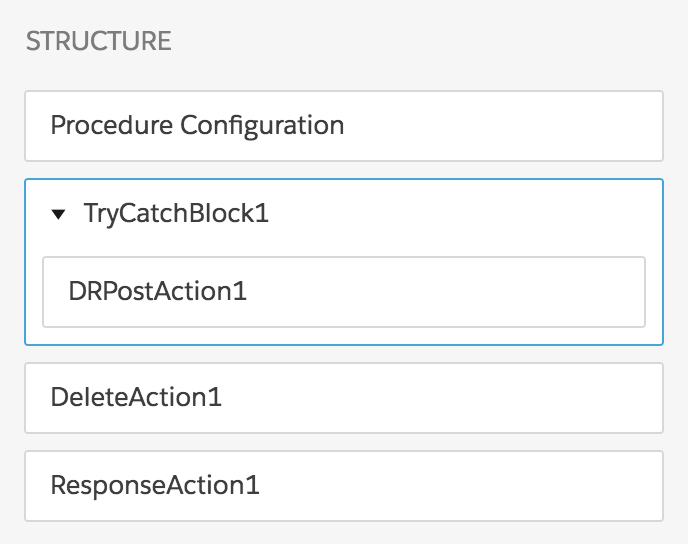
The Integration Procedure has these components:
-
A Try-Catch Block, named TryCatchBlock1
-
An Omnistudio Data Mapper Post Action, named DRPostAction1
-
A Delete Action, named DeleteAction1
-
A Response Action, named ResponseAction1
The Structure panel looks like this:
To build this Integration Procedure:
- From the Vlocity Integration Procedures tab, click New.
- Provide an Integration Procedure Name, a Type, and a SubType, and click Save.
-
Drag a Try-Catch Block into the Structure panel and give it the following settings:
-
Under Failure Response, click Add Key/Value Pair. Set the Key to
failureResponseand the Value toYou must provide a last name. -
Make sure the Fail on Block Error checkbox is checked.
-
-
Create the Data Mapper Load that the Data Mapper Post Action component calls:
-
Give it a Data Mapper Interface Name of
CreateContactand an Interface Type of Load. -
On the Objects tab, click Add Object and select Contact.
-
On the Fields tab, click the + icon and enter
LastNameas both the Input JSON Path and the Domain Object Field.
If you aren't sure how to create a Data Mapper Load, see the examples in Omnistudio Data Mapper Load Examples (Managed Package).
-
-
Drag a Data Mapper Post Action component into the Try-Catch Block and give it the following settings:
- Set the Element Name to
DRPostAction1. -
Set the Data Mapper Interface to
CreateContact. -
Make sure the Fail on Step Error checkbox is checked.
- Set the Element Name to
-
Drag a Delete Action component after the Try-Catch Block. Under Delete SObject,
set the Type to Contact and the
Path To Id to
%DRPostAction1:Contact_1:Id%. - Drag a Response Action into the Structure panel as the last component and check the Return Full Data JSON checkbox.
-
Go to the Preview tab and test the Integration Procedure:
-
Under Input Parameters, click Add New Key/Value Pair.
-
Set the Key to
LastNameand the Value to any name you like. -
Click Execute.
The output should look something like this:
{ "response": {}, "ResponseAction1Status": true, "DeleteAction1": [ { "errors": [], "success": true, "id": "0034N00001rNgqqQAC" } ], "DeleteAction1Status": true, "TryCatchBlock1": null, "TryCatchBlock1Status": true, "DRPostAction1": { "ActualTime": 626, "CpuTime": 345, "Contact_1": [ { "UpsertSuccess": true, "Id": "0034N00001rNgqqQAC", "LastName": "Aristotle" } ], "error": "OK", "responseType": "SObject" }, "DRPostAction1Status": true, "options": { "queueableChainable": false, "ignoreCache": true, "resetCache": false, "chainable": false }, "LastName": "Aristotle" } -
-
Make the Value blank and click Execute again. The output should look something like this:
{
  "result": {
    "failureResponse": "You must provide a last name."
  },
  "success": false
}