
For the managed package runtime, an Integration Procedure accepts a list of first or last names and retrieves Contacts having those names. Top-level caching to the VlocityAPIResponse partition improves Contact retrieval performance.
 This information is for Omnistudio for Managed Packages. For Omnistudio on standard runtime, see Omnistudio Help.
This Integration Procedure also includes a Loop Block; see Process Arrays Using Loop Blocks (Managed Package).
To download a data pack of this example for Omnistudio for Managed Packages, click here.
This Integration Procedure has these components:
-
A Loop Block, named LoopBlock1
-
An Omnistudio Data Mapper Extract Action within the Loop Block, named ExtractContact
-
A Response Action, named ResponseAction
The Structure panel looks like this:
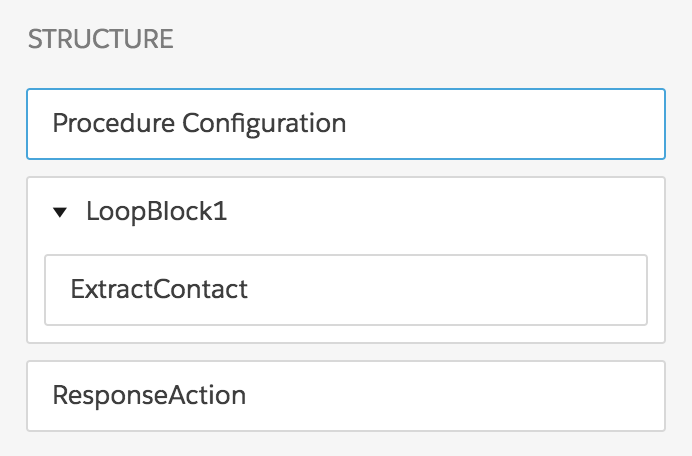
To build this Integration Procedure:
- From the Omnistudio Integration Procedures tab, click New.
- Provide an Integration Procedure Name, a Type, and a SubType, and click Save.
- In the Procedure Configuration, set the Salesforce Platform Cache Type to Org Cache.
-
Drag a Loop Block component into the Structure panel. Give the Loop Block the following settings:
Property
Value
Loop List
names
Additional Loop Output
ExtractContactset to%ExtractContact% -
Create the Data Mapper Extract that the Data Mapper Extract Action calls, name it ExtractContactName, and give it the following settings:
Tab
Settings
Extract
A Contact extract step set to
Contact Name LIKE nameOutput
A mapping from
Contact:IdtoContact:IdA mapping from
Contact:NametoContact:NameIf you aren't sure how to create a Data Mapper Extract, see the examples in Omnistudio Data Mapper Extract Examples (Managed Package).
-
Drag a Data Mapper Extract Action inside the Loop Block and give it the following settings:
Property
Value
Element Name
ExtractContact
Data Mapper Interface
ExtractContactName
Data Source
names:name
Filter Value
name
-
Create the Response Action below the Loop Block and give it the following settings:
Property
Value
Send JSON Path
LoopBlock1:ExtractContact
Response JSON Node
Contact
- In the Procedure Configuration, click Activate Version.
- On the Preview Tab, click Edit as JSON and provide input with the following structure:
- Click Execute and note the resulting Browser, Server, and Apex CPU values.
-
Open the Options pane and change the
ignoreCachevalue tofalse.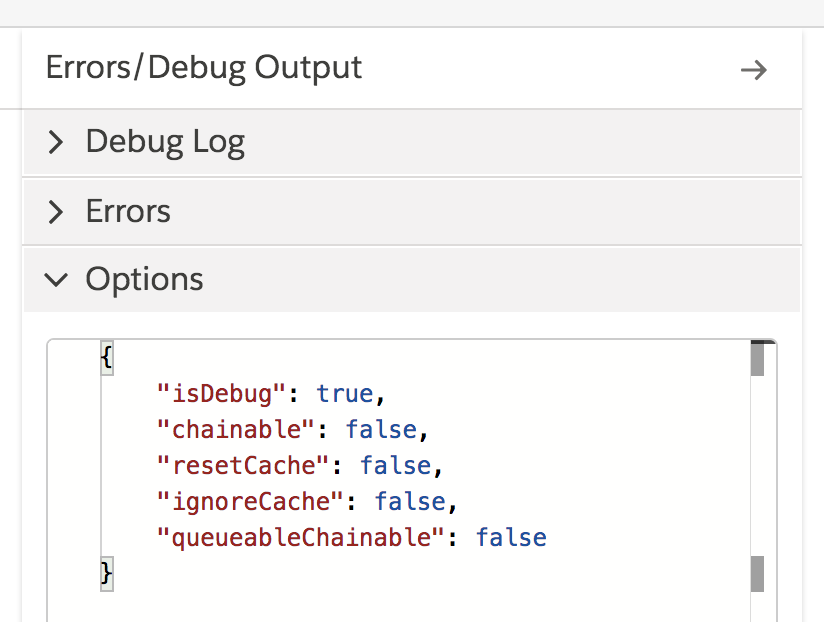
- Click Execute again. This step populates the cache, so the resulting Browser, Server, and Apex CPU values are likely to be similar to the previous values.
-
Click Execute a third time. This step uses the cached values, so the resulting Browser, Server, and Apex CPU values are likely to be noticeably less than the previous values. In addition,
Cached Response: trueappears after the performance metrics.