
For the managed package runtime, an Integration Procedure accepts last names and returns the full names of all Contacts having the specified last names.
 This information is for Omnistudio for Managed Packages. For Omnistudio on standard runtime, see Omnistudio Help.
To download a data pack of this example for Omnistudio for Managed Packages, click here.
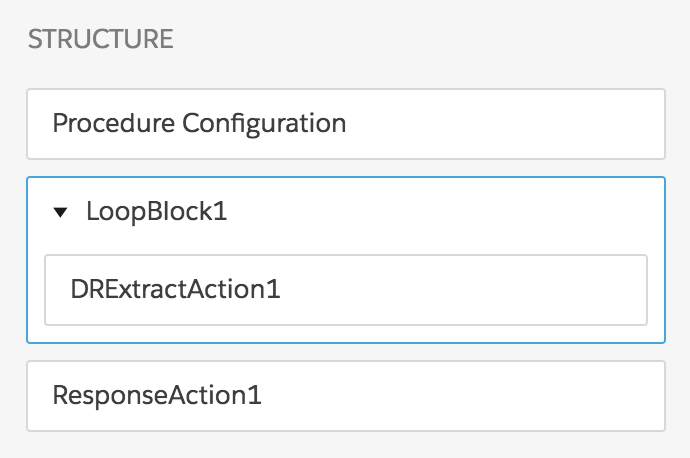
The Integration Procedure has these components:
-
An optional Set Values component, named SetValues1
-
A Loop Block component, named LoopBlock1
-
An Omnistudio Data Mapper Extract Action component within the Loop Block, named DRExtractAction1
-
A Data Mapper Extract that uses the LIKE operator to find names similar to those in the input, named ExtractFirstNames
-
A Response Action, named ResponseAction1
The Structure panel looks like this:
To build this Integration Procedure:
- From the Vlocity Integration Procedures tab, click New.
- Provide a unique Integration Procedure Name, a Type that can be a category, and a unique SubType, then click Save. You only have to save this one time.
-
Drag a Loop Block into the Structure panel and give it the following settings:
Property
Description
Loop List
Set this value to
names.Additional Loop Output
Set the Key to
DRExtractAction1and the Value to%DRExtractAction1%to return all iterations of data generated by the Data Mapper Extract Action component. -
Create the Data Mapper Extract that the Data Mapper Extract Action calls and give it
the following settings:
Tab
Settings
Element Name
DRExtractAction1
Data Mapper Interface Name
ExtractFirstName
Extract
A Contact extract step set to
Contact
                                    LastName LIKE Name
Output
A mapping from
Contact:FirstNametoName:FirstA mapping from
Contact:LastNametoName:LastIf you aren't sure how to create a Data Mapper Extract, see the examples in Omnistudio Data Mapper Extract Examples (Managed Package).
-
Drag a Data Mapper Extract Action component within the Loop Block and give it the
following settings:
Property
Description
Data Mapper Interface
Set this value to
ExtractFirstName.Input Parameters:
Data Source
Set this value to
names:Name.Input Parameters:
Filter Value
Set this value to
Name. - Drag a Response Action below the Loop Block and check Return Full Data JSON.
- Go to the Preview tab and click Edit as JSON.
-
Copy this JSON data and paste it into the Input Parameters panel, substituting
last names of your choice:
{ "names": [ { "Name": "Miller" }, { "Name": "Torres" } ] } -
Click Execute. If you built the Integration Procedure
correctly, the output looks something like this:
{
  "response": {},
  "ResponseAction1Status": true,
  "LoopBlock1": [
    {
      "DRExtractAction1": {
        "Name": [
          {
            "Last": "Miller",
            "First": “Tom”
          },
          {
            "Last": "Miller",
            "First": “Sally”
          }
        ]
      },
      "DRExtractAction1Status": true,
      "LoopBlockIterationStatus": true,
      "LoopBlockIterationIndex": 1
    },
    {
      "DRExtractAction1": {
        "Name": [
          {
            "Last": "Torres",
            "First": “Maria”
          },
          {
            "Last": "Torres",
            "First": “Ricardo”
          }
        ]
      },
      "DRExtractAction1Status": true,
      "LoopBlockIterationStatus": true,
      "LoopBlockIterationIndex": 2
    }
  ],
  "LoopBlock1Status": true,
  "options": {
    "chainable": false
  },
  "names": [
    {
      "Name": "Miller"
    },
    {
      "Name": "Torres"
    }
  ]
}
To correct a component, click it in the Structure panel and edit its properties.