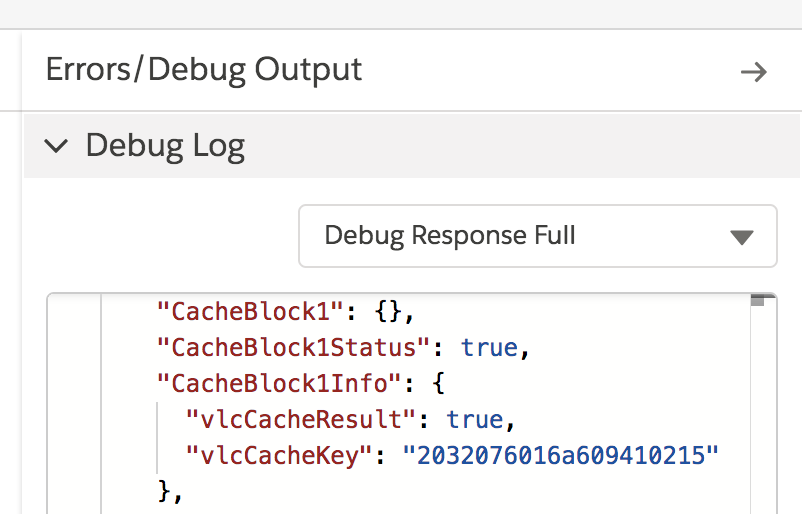
For the managed package runtime, an Integration Procedure accepts a list of first or last names and retrieves Contacts having those names. A Cache Block improves Contact retrieval performance.
 This information is for Omnistudio for Managed Packages. For Omnistudio on standard runtime, see Omnistudio Help.
This Integration Procedure also includes a Loop Block; see Process Arrays Using Loop Blocks (Managed Package).
To download a data pack of this example for Omnistudio for Managed Packages, click here.
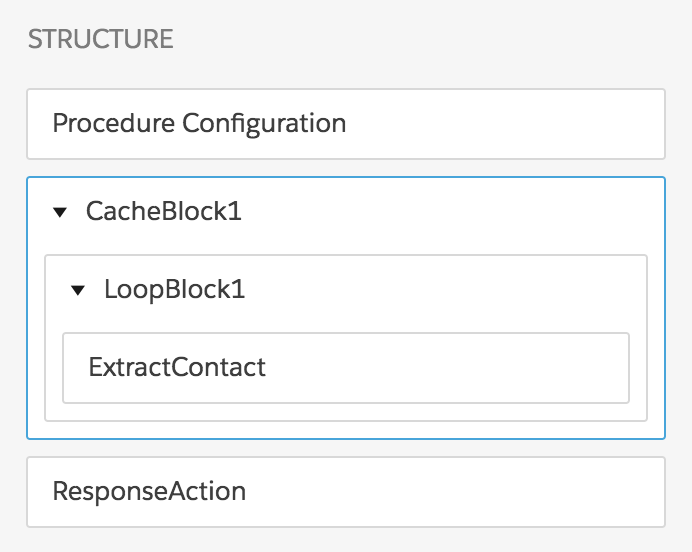
This Integration Procedure has these components:
-
A Cache Block, named CacheBlock1
-
A Loop Block within the Cache Block, named LoopBlock1
-
An Omnistudio Data Mapper Extract Action within the Loop Block, named ExtractContact
-
A Response Action, named ResponseAction
The Structure panel looks like this:
To build this Integration Procedure:
- From the Integration Procedures tab, click New.
- Provide an Integration Procedure Name, a Type, and a SubType, and click Save.
-
Drag a Cache Block into the Structure panel and give it the following settings:
Property
Value
Salesforce Platform Cache Type
Org Cache
Time To Live In Minutes
5
Cache Keys
contactIdset to%ExtractContact:Contact:Id%contactNameset to%ExtractContact:Contact:Name%Cache Block Output
LoopBlock1set to%LoopBlock1% -
Drag a Loop Block inside the CacheBlock and give it the following settings:
Property
Value
Loop List
names
Additional Loop Output
ExtractContactset to%ExtractContact% -
Create the Data Mapper Extract that the Data Mapper Extract Action calls, name it
ExtractContactName, and give it the following settings:
Tab
Settings
Extract
A Contact extract step set to
Contact
                                    Name LIKE name
Output
A mapping from
Contact:IdtoContact:IdA mapping from
Contact:NametoContact:NameIf you aren't sure how to create a Data Mapper Extract, see the examples in Omnistudio Data Mapper Extract Examples (Managed Package).
-
Drag a Data Mapper Extract Action inside the Loop Block and give it the following
settings:
Property
Value
Element Name
ExtractContact
Data Mapper Interface
ExtractContactName
Data Source
names:name
Filter Value
name
-
Drag a Response Action below the Loop Block and give it the following settings:
Property
Value
Send JSON Path
CacheBlock1
-
To test this Integration Procedure, on the Preview Tab, click Edit as
JSON and provide input with the following structure:
{
    "names": [
        {
            "name": "Miller"
        },
        {
            "name": "Torres"
        }
    ]
}
To demonstrate performance most effectively, specify common and/or many names.
- Click Execute and note the resulting Browser, Server, and Apex CPU values.
-
Open the Options pane and change the
ignoreCachevalue tofalse.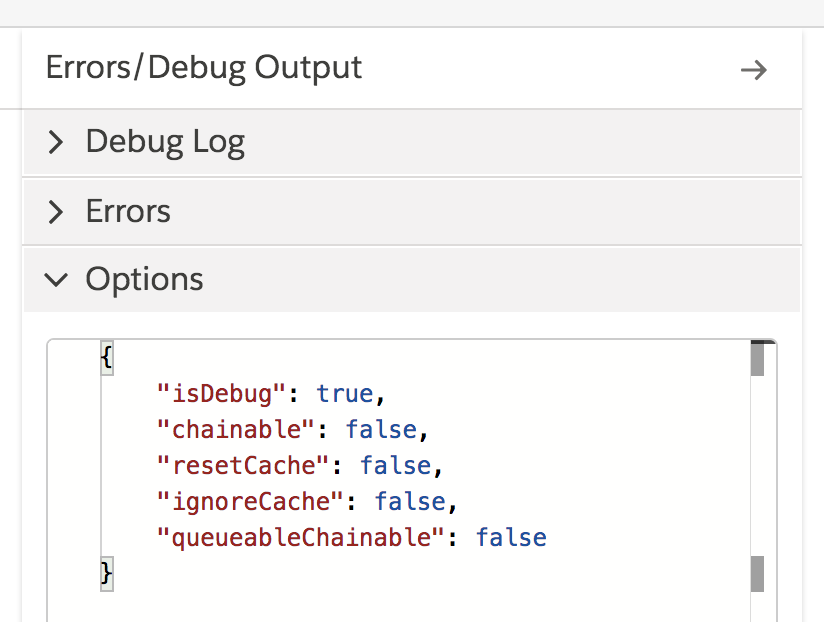
- Click Execute again. This step populates the cache, so the resulting Browser, Server, and Apex CPU values should be similar to the previous values.
- Click Execute a third time. This step uses the cached values, so the resulting Browser, Server, and Apex CPU values should be noticeably less than the previous values.
-
To see the
vlcCacheKeyandvlcCacheResultnodes, open the Debug Log and scroll to theCacheBlock1Infonode.